Your OpenClaw agent stopped responding and you need it back. Before you start guessing, run this quick triage to narrow the problem in under 60 seconds.
Quick triage: open a terminal on your server and run these three commands in order.
openclaw status --all
openclaw gateway status
openclaw logs --follow --json | tail -50
If openclaw status says the process is not running, skip to Cause 8: Process Crashed. If the gateway shows disconnected or unauthorized, start at Cause 1: API Key Expired or Rate Limited. If the logs show repeated errors from a specific tool, jump to Cause 9: Skill Error Loop. If everything looks green but your agent still does not respond, work through the list from the top.
These are the ten most common causes, ranked roughly by frequency based on community reports. About 70% of “not responding” cases fall into the first four.
1. API Key Expired or Rate Limited
Symptoms: Agent was working fine, then stopped. No error in the chat UI. Logs show HTTP 429 or HTTP 401 errors from the model provider.
Diagnosis:
openclaw logs --follow --json | jq 'select(.error_type == "auth" or .error_type == "rate_limit")'Check your provider dashboard directly. For OpenAI, go to platform.openai.com/usage and verify your credit balance and rate limit status. For Anthropic, check console.anthropic.com. A depleted prepaid balance looks identical to an expired key from OpenClaw’s perspective.
Fix:
- If the key expired or was revoked, generate a new one and update your
.envfile. Then restart:openclaw restart. - If you hit a rate limit, wait for the reset window (usually 60 seconds for per-minute limits) or configure a fallback model so OpenClaw switches providers automatically when one is throttled.
- If your prepaid credits ran out, add funds. This catches people more often than actual key expiration. Set a billing alert at 80% usage so you get a warning before it happens. See our guide on OpenClaw API costs for budgeting tips.
2. Model Provider Outage
Symptoms: Agent stops responding at the same time other people report issues. Your API key is valid and has credits. Logs show timeout errors or HTTP 500/HTTP 503 from the provider.
Diagnosis:
Check the provider status page before debugging your own setup:
- OpenAI: status.openai.com
- Anthropic: status.anthropic.com
- Google AI: status.cloud.google.com
Also check Downdetector and X/Twitter for real-time user reports. If the status page says “operational” but you still see timeouts, the issue may be regional or model-specific. Run a direct API call to isolate:
curl https://api.openai.com/v1/chat/completions \
  -H "Authorization: Bearer $OPENAI_API_KEY" \
  -H "Content-Type: application/json" \
  -d '{"model":"gpt-4o","messages":[{"role":"user","content":"ping"}]}'
Fix:
- If the provider is down, wait. Configure multi-model routing so OpenClaw can fall back to a secondary provider. For example, route to Claude when OpenAI is down and vice versa.
- If the issue is intermittent, increase
LLM_REQUEST_TIMEOUTin your.envto 120 seconds or higher. Shorter timeouts cause OpenClaw to give up on slow but valid responses.
3. VPS Out of Memory or Disk Space
Symptoms: Agent stops responding suddenly. SSH to the server feels sluggish. Other services on the same VPS may also be affected. The OpenClaw process may have been killed by the OS without warning.
This is the cause people underestimate the most, especially on budget VPS instances. OpenClaw plus a model router plus log files can easily consume 1.5 GB of RAM. On a 2 GB VPS with other services running, one long conversation triggers the OOM killer and OpenClaw dies silently.
Diagnosis:
free -h
df -h
dmesg | grep -i "oom\|killed" | tail -10
journalctl -u openclaw --since "1 hour ago" | grep -i "kill\|signal\|exit"
If dmesg shows “Out of memory: Killed process,” that is your answer. If df -h shows a partition at 100%, log files or memory snapshots probably filled the disk.
Fix:
- RAM: Upgrade to a VPS with at least 4 GB of RAM if you run OpenClaw alongside other services. On a dedicated 2 GB instance, it works but leaves no headroom. Add swap space as a safety net:
sudo fallocate -l 2G /swapfile && sudo chmod 600 /swapfile && sudo mkswap /swapfile && sudo swapon /swapfile. - Disk: Clear old log files:
find /tmp/openclaw/ -name "*.log" -mtime +7 -delete. Set up log rotation so this does not recur. - Prevention: Set up a cron job that checks memory and disk usage every 5 minutes and sends you an alert before things get critical. See our VPS deployment guide for a monitoring template.
Our Hostinger setup guide walks through right-sizing a VPS specifically for OpenClaw if you are choosing a hosting provider.
4. Telegram Bot Token Revoked or Misconfigured
Symptoms: OpenClaw shows as running, gateway says connected, but Telegram messages get no response. Other channels (Discord, Slack, the web UI) may still work fine.
Diagnosis:
openclaw channels status --probeIf Telegram shows disconnected or auth_failed, the bot token is the problem. Verify the token directly:
curl "https://api.telegram.org/bot<YOUR_BOT_TOKEN>/getMe"If this returns an error, the token is invalid. Common causes: you regenerated the token in BotFather and forgot to update OpenClaw, or Telegram revoked the token due to abuse reports.
Fix:
- Open BotFather in Telegram and run
/tokento get the current valid token. - Update the token in your OpenClaw config:
openclaw config set telegram.bot_token "<new_token>". - Restart the gateway:
openclaw gateway restart. - Verify with
openclaw channels status --probe. Telegram should showconnected.
If you are also having issues with group chats specifically (DMs work but group messages are ignored), check that the bot has group privacy mode disabled in BotFather. Run /mybots, select your bot, then Bot Settings > Group Privacy > Turn off. Our Telegram bot troubleshooting guide covers group-specific issues in detail.
5. Network or Firewall Issue
Symptoms: Agent responds intermittently or only from certain locations. Gateway logs show connection timeouts to API endpoints. VPS provider may have changed firewall rules.
Diagnosis:
Test outbound connectivity from your server:
curl -s -o /dev/null -w "%{http_code}" https://api.openai.com/v1/models
curl -s -o /dev/null -w "%{http_code}" https://api.anthropic.com/v1/messages
If these return 000 (connection failed) rather than 401 (unauthorized, meaning connection works), you have a network problem. Check if your VPS provider blocks outbound HTTPS:
iptables -L -n | grep -i drop
ufw status
Fix:
- Open outbound HTTPS (port 443) for API provider domains.
- If your VPS is behind a corporate proxy, configure OpenClaw to use it: set
HTTPS_PROXYin your.env. - For intermittent issues, check if your provider rate-limits outbound connections. Some budget VPS hosts throttle after a certain number of connections per minute.
6. Heartbeat Misconfigured
Symptoms: The agent responds when you message it directly but does not run scheduled tasks (cron jobs, automated check-ins, periodic reports). The heartbeat timer may show last_run: never or a timestamp hours/days old.
Diagnosis:
openclaw cron status
openclaw system heartbeat last
If the heartbeat has not fired recently, check whether the scheduler is enabled:
openclaw config get scheduler.enabledA heartbeat pointing at the wrong channel ID or a channel that no longer exists also causes silent failure. The heartbeat fires, but the message has nowhere to go.
Fix:
- Enable the scheduler if disabled:
openclaw config set scheduler.enabled true. - Verify the heartbeat target channel:
openclaw config get heartbeat.channel. Make sure this channel ID still exists and OpenClaw has permission to post in it. - If using quiet hours, check that your timezone is set correctly. A misconfigured timezone can mean quiet hours never end. See our heartbeat scheduling guide for full configuration.
- Restart the daemon after changes:
openclaw restart.
A common scenario is a heartbeat configured to post to a Telegram group that the bot has been removed from. OpenClaw logs the delivery failure but keeps running without any user-visible alert. Check the target channel first.
7. OAuth Token Expired
Symptoms: The agent responds to basic messages but fails when trying to use connected services (Google Calendar, HubSpot, GitHub, email). Error logs show oauth_token_expired or HTTP 401 from third-party APIs. The agent may respond with a message like “I could not access your calendar” instead of performing the action.
Diagnosis:
openclaw logs --follow --json | jq 'select(.error_type == "oauth")'
openclaw integrations status
OAuth tokens from most providers expire after 1 hour (Google) to 90 days (some CRMs). If the refresh token is also expired or was revoked, OpenClaw cannot renew automatically.
Fix:
- Re-authenticate the affected integration:
openclaw integrations reauth <service_name>. This opens a browser flow to get fresh tokens. - For services that expire frequently (Google, Microsoft), verify that the refresh token is stored. Run
openclaw config get integrations.<service>.refresh_tokenand confirm it is not empty. - If you changed your password on the third-party service, all OAuth tokens for that service are usually invalidated. Re-authenticate after any password change.
Our OAuth setup guide explains token lifecycle and how to set up automatic refresh for each provider. If you keep hitting this with a specific service, the OAuth token expired guide has service-specific renewal steps.
8. The OpenClaw Process Crashed
Symptoms: OpenClaw was running and is now not. openclaw status returns “not running” or no response. Your terminal session or SSH connection may have been disconnected.
Diagnosis:
openclaw status
journalctl -u openclaw --since "1 hour ago"
cat /tmp/openclaw/openclaw-*.log | tail -30
Common crash causes: unhandled exception in a skill, Node.js version mismatch (OpenClaw requires Node 22+), or the process was running in a terminal session that closed.
Fix:
-
Restart immediately:
openclaw startoropenclaw gateway start. -
Prevent future crashes: Do not run OpenClaw in a bare terminal session. Use a process manager:
# Using systemd (recommended for Linux VPS) openclaw gateway install --force # Using pm2 pm2 start openclaw -- start pm2 save pm2 startup -
Check Node.js version:
node --version. If it is below 22, upgrade. OpenClaw will crash with cryptic errors on older versions. -
Run
openclaw doctor --deep --yesafter restarting. This auto-resolves about 80% of configuration issues that may have caused the crash in the first place.
If you are running on a VPS and the process keeps dying, read our backup and restore guide for setting up proper supervision.
9. Skill Error Loop
Symptoms: The agent appears to be thinking or processing for a long time, then either times out or responds with an error about a specific tool. Log shows the same tool being called repeatedly with the same error. Token usage spikes.
This one is subtle. When a skill (like browser, file system, or a custom tool) throws an error, OpenClaw’s agent loop retries it. If the error is persistent (missing Chrome binary, permission denied on a directory, broken API endpoint in a custom tool), the agent enters a retry cycle that burns through your context window and rate limits.
Diagnosis:
openclaw logs --follow --json | jq 'select(.tool_name != null) | {tool: .tool_name, error: .error}'Look for the same tool name appearing with the same error multiple times in a row.
Fix:
- Identify the broken tool: The log output shows which skill is failing. Common culprits:
browser(Chrome not installed or path wrong),file_system(permission denied), custom skills with external API dependencies. - Disable the tool temporarily:
openclaw config set tools.disabled '["broken_tool_name"]'and restart. - Fix the underlying issue: Install the missing dependency, fix permissions, or update the custom tool’s API endpoint.
- For browser tool: Verify Chrome is installed and accessible:
which google-chrome || which chromium-browser. If neither exists, install it or disable the browser plugin. See our browser mode configuration guide.
For custom tool development, our custom tools guide covers error handling best practices that prevent retry loops.
10. Resource Exhaustion from Long Conversations
Symptoms: Agent works fine for the first few messages, then responses slow down and eventually stop. Restarting OpenClaw fixes it temporarily. The problem recurs after extended use.
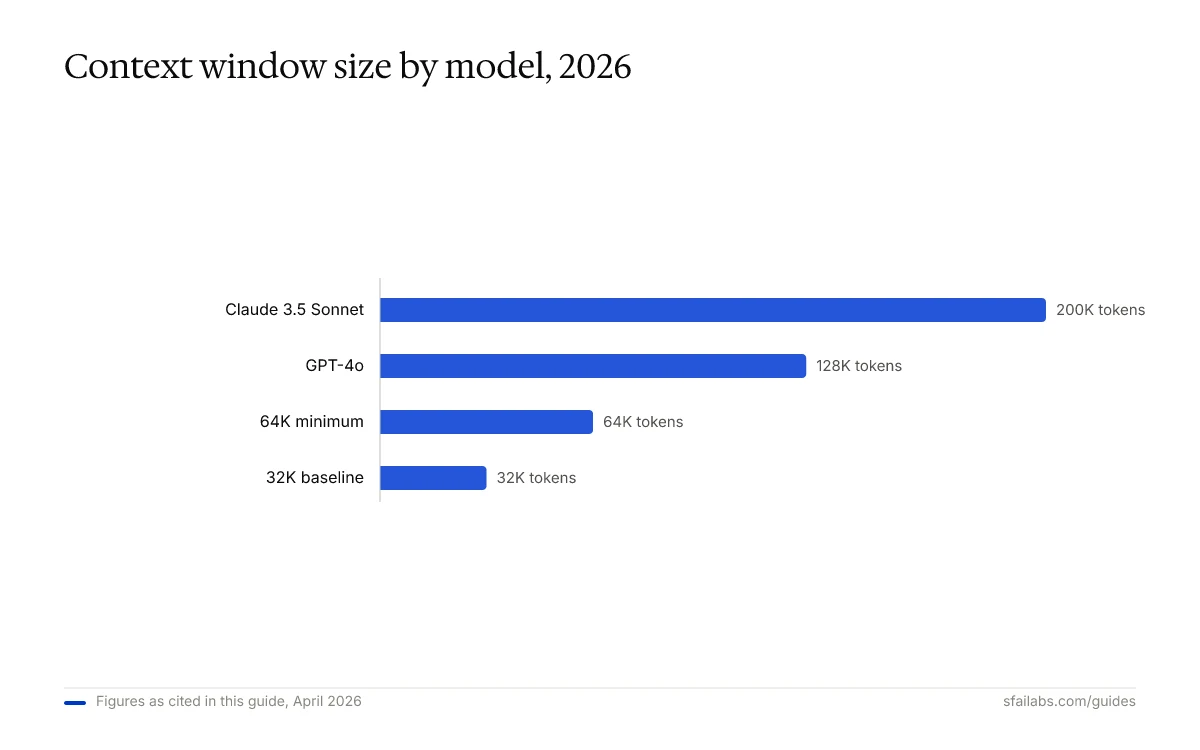
This is the context window filling up. OpenClaw’s system prompt, memory files, and conversation history all compete for the same token budget. A model with a 32K context window can exhaust its capacity after 20-30 exchanges, especially if memory files are large or the agent is using tools that return verbose output.
Diagnosis:
openclaw logs --follow --json | jq 'select(.error_type == "context_length" or .error_type == "timeout")'
wc -c ~/.openclaw/workspace/MEMORY.md
If MEMORY.md exceeds 15,000 characters, it is consuming a significant chunk of the context window on every message. Check our memory configuration guide for how to keep it lean.
Fix:
- Increase the context window: Use a model with at least 64K tokens. Set this explicitly in your config rather than relying on auto-detection:
openclaw config set models.primary.context_window 65536. - Trim memory files: Keep MEMORY.md under 15,000 characters. Move project-specific details to separate files that the agent can search rather than loading at startup.
- Enable compaction flush: This saves important context before compaction discards old messages. Run:
openclaw config set compaction.memory_flush.enabled true. - Switch to a model with a larger context window if you regularly have long sessions. Claude 3.5 Sonnet (200K) and GPT-4o (128K) handle long conversations without choking.
Frequently Asked Questions
Why does my OpenClaw agent stop responding after a few hours?
The most common cause is resource exhaustion, either the context window filling up or the VPS running out of memory. Check free -h on your server and review OpenClaw logs for context length errors. If the agent ran for hours before stopping, it is likely a gradual resource issue rather than a configuration problem. Enable compaction flush and consider a model with a larger context window.
How do I check if my API key is still valid?
Run a direct API call from your server. For OpenAI: curl https://api.openai.com/v1/models -H "Authorization: Bearer $OPENAI_API_KEY". A 200 response means the key works. A 401 means it is invalid or revoked. A 429 means you are rate limited. Check your provider dashboard for credit balance, as a zero balance behaves like an expired key.
My agent works in the chat UI but not on Telegram. What is wrong?
This is almost always a channel-specific issue, not an OpenClaw core problem. Run openclaw channels status --probe to check Telegram’s connection. Common fixes: update the bot token if you regenerated it in BotFather, disable group privacy mode for group chats, and verify the bot has not been removed from the target group.
Does OpenClaw restart automatically after a crash?
Not by default. If you are running OpenClaw in a terminal session, it dies when the session closes. Install it as a system service with openclaw gateway install --force on Linux, or use pm2 for automatic restart. Both methods ensure OpenClaw comes back up after crashes, reboots, and SSH disconnections.
How much RAM does OpenClaw need to run reliably?
OpenClaw itself uses about 500 MB to 1.5 GB depending on active plugins and conversation length. On a dedicated VPS, 2 GB works but leaves minimal headroom. We recommend 4 GB if you run other services alongside it, or 2 GB with 2 GB of swap configured as a safety net.
Key Takeaways
- Start every debugging session with
openclaw status --all,openclaw gateway status, andopenclaw logs --follow. These three commands surface 90% of issues. - Run
openclaw doctor --deep --yesbefore manual debugging. It auto-resolves most configuration problems. - API key and rate limit issues account for the largest share of “not responding” reports. Check your provider dashboard and credit balance first.
- VPS resource exhaustion (RAM and disk) is the most underdiagnosed cause. Set up monitoring before you need it.
- Never run OpenClaw in a bare terminal session on a VPS. Use systemd or pm2 for process supervision and automatic restart.
- Configure a fallback model so a single provider outage does not take your agent offline.
SFAI Labs


