OpenClaw ships with a built-in Chromium browser that can scrape pages, fill forms, monitor sites, and interact with login-protected apps on your behalf. The configuration that matters most is one toggle: headless vs headed mode. Get it wrong and your automations either burn unnecessary resources or fail silently when a site detects a headless fingerprint.
This guide covers how to configure browser mode for your specific use case, set up viewport and user-agent for stealth, handle authentication across sessions, and avoid the common mistakes that break browser automations in production.
If you have not installed OpenClaw yet, start with our setup guide first. Step 6 of that guide introduces the three browser modes at a high level. This article goes deeper.
Three Browser Modes and When to Use Each
OpenClaw offers three distinct ways to control a browser. Each targets a different scenario, and picking the wrong one wastes time.
Managed Browser (Default for Automation)
The managed browser launches an isolated Chromium instance with its own user data directory and a dedicated CDP (Chrome DevTools Protocol) port in the 18800-18899 range. It is completely separated from your personal browsing data.
Use this for:
- Web scraping where you need a clean, predictable environment
- Form submissions on sites you do not already have sessions on
- Batch operations across multiple profiles running simultaneously
- Any automation on a VPS or Docker container
The managed browser is the right default for most automation work. It keeps your personal browser untouched and supports running multiple profiles in parallel on sequential ports.
Chrome Extension Relay
The extension relay attaches to your existing Chrome session through a small extension on port 18792. OpenClaw gains access to every tab and login session you already have open.
Use this when:
- The target site uses complex SSO or multi-factor authentication that is painful to automate from scratch
- You need to interact with a web app where you are already logged in
- You are doing a one-off task rather than a recurring automated workflow
This is the most powerful mode but also the most intrusive. Prefer the managed browser unless you have a specific reason to expose your personal sessions.
Remote CDP
Remote CDP connects to a cloud-hosted Chromium instance via WebSocket. Services like Browserless and Browserbase provide these endpoints.
Use this for:
- Production pipelines where browser infrastructure runs on separate servers
- High-volume scraping that would overwhelm a local machine
- Teams sharing browser resources across multiple OpenClaw agents
{
  "browser": {
    "defaultProfile": "browserless",
    "profiles": {
      "browserless": {
        "cdpUrl": "wss://production-sfo.browserless.io?token=YOUR_API_KEY",
        "color": "#00AA00"
      }
    }
  }
}
Headless vs Headed Mode
This is the configuration decision that trips up most users. Both modes use the same CDP command interface under the hood. The difference is whether Chromium renders a visible window.
When Headless Wins
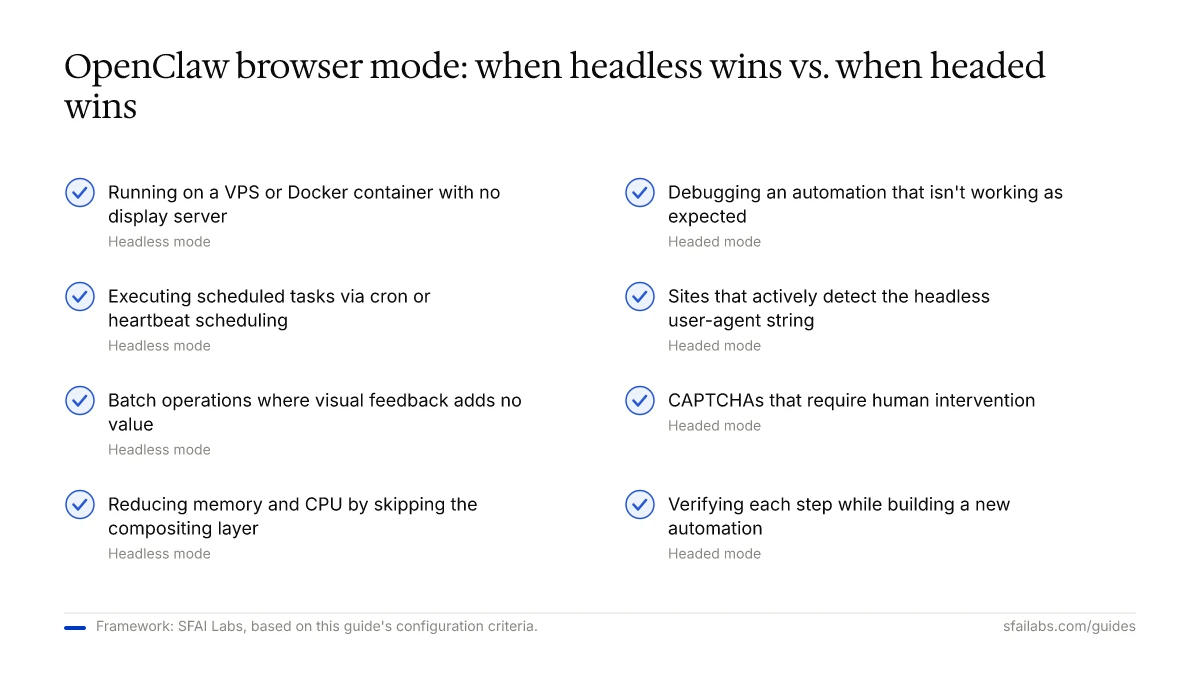
Set "headless": true when:
- Running on a VPS or Docker container with no display server
- Executing scheduled tasks via cron or OpenClaw’s heartbeat system
- Running batch operations where visual feedback adds no value
- You want to reduce memory and CPU usage (headless skips the visual compositing layer)
When Headed Wins
Set "headless": false when:
- Debugging an automation that is not working as expected (watching the browser reveals what the agent sees)
- Dealing with sites that actively detect headless browsers (headless Chrome ships with
HeadlessChromein the user-agent string, which many bot-detection services flag immediately) - Handling CAPTCHAs that require human intervention
- Building a new automation and you want to verify each step visually
The Configuration
Toggle between modes in your OpenClaw config:
{
  "browser": {
    "headless": true
  }
}
Or through environment variables when using the browser-use-api skill:
{
  "mcpServers": {
    "browser-use-api": {
      "command": "npx",
      "args": ["-y", "@openclaw/browser-use-api"],
      "env": {
        "BROWSER_HEADLESS": "true",
        "BROWSER_VIEWPORT_WIDTH": "1280",
        "BROWSER_VIEWPORT_HEIGHT": "900",
        "BROWSER_TIMEOUT_MS": "30000"
      }
    }
  }
}
A practical tip: start in headed mode when building, then switch to headless for production. Debugging a headless automation you cannot see wastes far more time than the extra resources headed mode consumes during development.
Configuring Viewport, User-Agent, and Device Emulation
Default viewport dimensions (1280x900) work for most scraping tasks. But if you are monitoring a mobile-responsive site or trying to avoid bot detection, these settings matter.
Viewport and Device
Set viewport dimensions directly:
openclaw browser set viewport 1280 720Or emulate a specific device using Playwright presets:
openclaw browser set device "iPhone 14"Device emulation adjusts viewport, pixel ratio, and touch capabilities in one command. Use this when testing how sites render on mobile or when a site serves different content to mobile visitors.
User-Agent Strategy
Headless Chrome’s default user-agent contains HeadlessChrome, which is the single easiest signal for bot detection. Two approaches to handle this:
Switch to headed mode. The simplest fix. Headed mode uses the standard Chrome user-agent with no headless indicator.
Override with custom headers. If you need headless for resource reasons:
openclaw browser set headers --headers-json '{"User-Agent": "Mozilla/5.0 (Macintosh; Intel Mac OS X 10_15_7) AppleWebKit/537.36 (KHTML, like Gecko) Chrome/131.0.0.0 Safari/537.36"}'Timezone and Locale
Sites that personalize content by location may behave differently depending on your browser’s reported timezone and locale:
openclaw browser set timezone America/New_York
openclaw browser set locale en-US
For geo-specific monitoring, combine with geolocation spoofing:
openclaw browser set geo 37.7749 -122.4194 --origin "https://example.com"Handling Authentication and Cookies
Browser automation on login-protected sites is where most people get stuck. OpenClaw provides three approaches, each suited to different situations.
Approach 1: Automated Login
For sites with standard username/password forms, let the agent handle login directly. The managed browser maintains its own session storage, so cookies persist between runs on the same profile.
{
  "mission": "Navigate to https://app.example.com/login. Enter username 'user@company.com' and password from environment variable LOGIN_PASS. Click Sign In. Wait for the dashboard to load.",
  "maxSteps": 10
}
Store credentials in environment variables or a secrets manager. Never hardcode them in mission files.
Approach 2: Cookie Import
For sites with complex authentication flows (OAuth, SSO, MFA), it is often easier to log in manually once, export the cookies, and inject them into future sessions:
openclaw browser cookies set session_token abc123def --url "https://app.example.com"Retrieve all cookies from a session:
openclaw browser cookiesClear cookies when you need a fresh session:
openclaw browser cookies clearApproach 3: Extension Relay for Existing Sessions
When authentication is too complex to automate or replicate, use the Chrome extension relay. It inherits every logged-in session from your personal browser. The tradeoff: your personal browsing data is exposed to the agent.
For most recurring automations, approach 1 or 2 is preferable. Reserve the extension relay for tasks where the authentication barrier is genuinely impractical to solve otherwise.
HTTP Basic Auth
Some internal tools and staging environments use HTTP Basic Authentication:
openclaw browser set credentials myuser mypasswordClear when done:
openclaw browser set credentials --clearBrowser Automation Examples
Here are three common browser automation patterns used in production.
Scheduled Price Monitoring
Monitor a product page hourly and alert when the price drops:
{
  "mission": "Check the price of MacBook Pro M4 at apple.com/shop. If below $1,500, send alert via Slack webhook https://hooks.slack.com/YOUR_WEBHOOK. Save current price to ./price-log.json with timestamp.",
  "maxSteps": 10
}
Schedule with cron:
0 * * * * openclaw run --config clawhub.json --mission ./missions/price-monitor.jsonThis works best in headless mode on a VPS. No human needs to watch it run.
Form Submission with Dynamic Data
Fill and submit a contact form reading data from a local file:
{
  "mission": "Go to https://example.com/contact. Fill Name: John Smith, Email: john@company.com, Subject: Partnership. Read message from ./message.txt. Submit and screenshot the confirmation.",
  "maxSteps": 15
}
The agent interprets the page visually rather than relying on CSS selectors, so it adapts when form layouts change. This is a meaningful advantage over traditional Playwright scripts where a single selector change breaks the entire automation.
Multi-Page Data Extraction
Scrape structured data across paginated results:
{
  "mission": "Go to https://shop.example.com/products. For each product on the first 3 pages, extract: product name, price, rating, availability. Save to ./products.json as array of objects.",
  "maxSteps": 40
}
For large scraping jobs, increase BROWSER_TIMEOUT_MS to 60000 and consider using remote CDP with a cloud-hosted browser to avoid local resource pressure.
Resource Management
Browser instances consume real memory and CPU. A few practices prevent resource issues, especially when running multiple profiles or long-lived automations.
Kill stuck processes. Browser instances occasionally hang after a failed automation. Check and clean up:
openclaw browser status --json
pkill -f Chrome  # nuclear option if processes are truly stuck
Limit concurrent profiles. Each managed browser profile occupies a port in the 18800-18899 range and runs its own Chromium process. On a machine with 8GB of RAM, three to four simultaneous headless profiles is a practical upper limit.
Use headless for background tasks. Headed mode renders every frame of every page the browser loads. For tasks that run unattended, headless saves 15-25% memory depending on page complexity.
Restart between long sessions. Cookie accumulation, memory leaks in long-lived browser tabs, and stale CDP connections all degrade over time. For automations that run for hours, build in periodic browser restart logic.
If you are deploying OpenClaw in Docker, add "noSandbox": true to your browser config. Chromium’s sandbox requires kernel features that most Docker containers do not expose by default.
Troubleshooting
Browser Will Not Launch on VPS
Install Chrome directly rather than using snap-packaged Chromium on Ubuntu. Snap packages miss shared libraries that Chromium needs:
wget https://dl.google.com/linux/direct/google-chrome-stable_current_amd64.deb
sudo dpkg -i google-chrome-stable_current_amd64.deb
sudo apt-get -f install
Then point OpenClaw to it:
{
  "browser": {
    "executablePath": "/usr/bin/google-chrome-stable",
    "headless": true,
    "noSandbox": true
  }
}
Timeout Errors
Default timeout is 30 seconds. Heavy pages or slow connections need more:
{
  "env": {
    "BROWSER_TIMEOUT_MS": "60000"
  }
}
If timeouts persist, the page may be waiting on a resource that never loads. Add --disable-dev-shm-usage and --disable-gpu as browser arguments for Docker environments where /dev/shm is small.
Sites Detecting and Blocking the Browser
Three signals give away headless browsers:
- The
HeadlessChromeuser-agent string - Missing browser APIs that bot-detection scripts test for (WebGL, plugins array)
- No persistent cookies making every visit look like a first visit
Fix 1 and 3 with configuration. Fix 2 by switching to headed mode, which exposes the full browser API surface.
Snapshot Errors
If openclaw browser snapshot fails, Playwright may not be installed:
npx playwright install chromiumThis is a one-time 130MB download. Role-mode snapshots work without Playwright but provide less sophisticated element resolution.
Frequently Asked Questions
How do I switch between headless and headed mode?
Set "headless": true or "headless": false in your OpenClaw browser configuration JSON. For the browser-use-api skill, use the BROWSER_HEADLESS environment variable. No restart of OpenClaw itself is required; the setting applies the next time a browser instance launches.
Can OpenClaw browser handle login-protected sites?
Yes, through three methods: automated form-filling where the agent types credentials directly, cookie import/export for complex auth flows, and the Chrome extension relay that inherits your existing logged-in sessions. For recurring automations, cookie import is the most reliable approach since it survives browser restarts.
What is the difference between the managed browser and the Chrome extension relay?
The managed browser launches a separate, isolated Chromium instance with its own data directory. The extension relay attaches to your personal Chrome with all your existing sessions and tabs. Use managed for clean automation. Use the relay only when you need access to sessions that are impractical to reproduce.
Does OpenClaw browser work on a headless VPS or in Docker?
Yes. Set "headless": true and "noSandbox": true in your config. Install Chrome directly (not via snap) and point executablePath to the binary. For Docker, also add --disable-dev-shm-usage as a browser argument since containers often have limited shared memory.
How do I set a custom viewport size and user-agent?
Viewport: openclaw browser set viewport 1280 720 or configure BROWSER_VIEWPORT_WIDTH and BROWSER_VIEWPORT_HEIGHT in environment variables. User-agent: use openclaw browser set headers with a custom User-Agent header. Device emulation is also available via openclaw browser set device "iPhone 14".
How do I fix browser timeout errors?
Increase BROWSER_TIMEOUT_MS from the default 30000 to 60000 or higher. For Docker, add --disable-dev-shm-usage and --disable-gpu flags. If a specific page consistently times out, the issue is usually a resource that never finishes loading rather than a configuration problem.
Can OpenClaw bypass bot detection on websites?
Partially. Switching to headed mode removes the HeadlessChrome user-agent signal and exposes the full browser API surface, which defeats basic detection. For advanced anti-bot systems (Cloudflare Turnstile, PerimeterX), combine headed mode with persistent cookies, realistic viewport sizes, and natural timing between actions. No tool fully defeats every anti-bot system, and aggressive scraping of sites that prohibit it carries legal risk.
How do I manage cookies across browser sessions?
Use openclaw browser cookies to retrieve all cookies, openclaw browser cookies set to inject specific cookies, and openclaw browser cookies clear to reset. Cookies persist within a managed browser profile between runs, so you do not need to re-inject them unless you clear the profile or switch profiles.
Key Takeaways
- Start with the managed browser profile for automation work. Use the extension relay only when you need existing login sessions.
- Develop in headed mode, deploy in headless. Watching the browser during development catches issues that log output misses.
- Override the default user-agent in headless mode. The
HeadlessChromestring is the most common reason sites block OpenClaw. - Cookie import is the most practical approach for login-protected sites with complex auth. Automate the login only when the flow is simple.
- On VPS and Docker, always set
"noSandbox": trueand install Chrome directly rather than using snap packages.
For building custom automations on top of browser mode, see our OpenClaw skills development guide.
SFAI Labs


