Skills tell your OpenClaw agent how to think through a workflow. Tools tell it what it can physically do. If you have read our skills development guide and hit a ceiling where no amount of SKILL.md instruction gets you the result you need, you have found the boundary between the skills layer and the tools layer. This guide is about crossing that boundary.
OpenClaw ships with 25+ built-in tools covering file operations, shell execution, web access, and communication. But the real leverage comes when you build custom tools that connect your agent to your own infrastructure: querying your production database, processing images through your pipeline, or firing notifications through your internal systems.
We will walk through the tool architecture, build three production-grade tools from scratch, and cover the security model you need to understand before letting any custom tool run on your machine.
How OpenClaw’s Three-Layer Architecture Works
OpenClaw separates capabilities into three layers, and confusing them is the fastest way to build something that does not work.
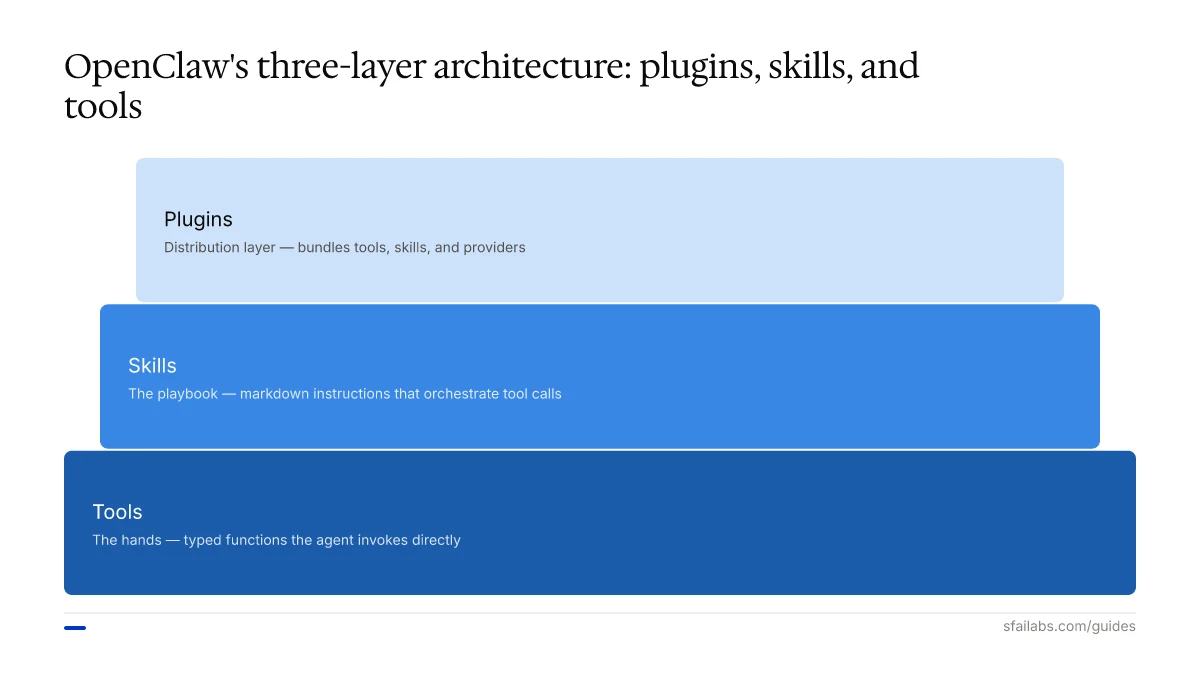
Tools are typed functions the agent can invoke. Each tool has a name, a JSON Schema defining its parameters, and an implementation that executes the actual operation. When the agent calls exec, web_search, or database, it is calling tools. Tools are the hands.
Skills are markdown instructions injected into the agent’s prompt. They teach the agent when and how to use tools for specific workflows. A skill might say “read the CSV, compute statistics, format a report.” The skill does not execute anything itself; it orchestrates tool calls. Skills are the playbook.
Plugins are packages that bundle tools, skills, model providers, channels, and more into installable units. When you build a custom tool, you are writing a plugin that registers one or more tools with the OpenClaw runtime. Plugins are the distribution mechanism.
The critical insight: you cannot create a new tool through a SKILL.md file alone. Skills can only reference tools that already exist. If you need your agent to do something no existing tool supports, you need to build at the tool layer.
When to Build a Tool vs. a Skill vs. an MCP Server
Before writing any code, ask three questions. Getting this decision wrong wastes hours.
Build a skill when existing tools already handle the physical operations and you just need the agent to follow a specific workflow. Example: a code review skill that uses the built-in read, exec, and write tools in a particular sequence.
Build a custom tool when no existing tool can perform the operation you need. Example: querying a proprietary database, calling an internal API with custom authentication, or running image transformations through a specific library.
Build an MCP server when you want to expose a suite of related capabilities as a standalone service that multiple agents (or non-OpenClaw clients) can consume. Example: wrapping your company’s entire inventory management API so any AI agent on the network can check stock levels.
Most teams start by building skills and hit the tool boundary within a few weeks. The typical pattern: someone writes a skill that tells the agent to run a curl command with specific headers and parse the JSON response. That works until the API needs OAuth token refresh, retry logic, or binary payload handling. At that point, a proper tool saves you from increasingly fragile SKILL.md hacks.
Built-in Tools Reference
OpenClaw’s built-in tools span eight categories. Understanding what already exists prevents you from building something redundant.
File System
- read: View file contents
- write: Create or modify files
- list: Display directory contents
- search: Find text within files (grep-like)
Execution
- exec: Run shell commands (high-risk)
- python: Execute Python in sandbox
- node: Execute Node.js in sandbox
Web
- web_search: Internet searches
- web_fetch: Download page content
- web_screenshot: Capture webpage images
Communication
- email: Send emails
- slack: Post to Slack channels
- discord: Send Discord messages
Integration
- github: Manage repos, PRs, issues
- jira: Manage tasks
- database: Query databases (high-risk)
Memory and Context
- memory: Store information across sessions
- context: Manage conversation context
Scheduling
- schedule: Create recurring tasks
- heartbeat: Run background interval tasks
Utility
- calculator, date_time, image_gen, pdf, zip
Each tool is classified by risk level. High-risk tools (exec, database, email) can modify your system or send data externally. Medium-risk tools (write, github, slack) can modify files or post to services. Low-risk tools (read, list, search, web_search, memory) only consume data.
Building Your First Custom Tool
A custom tool requires two files: a schema definition and an implementation. Here is the complete structure:
tools/
  inventory-check/
    tool.json        # Schema definition
    index.js         # Implementation
Step 1: Define the Schema
The schema tells the agent what your tool does and what parameters it accepts. This is the tool.json file:
{
  "name": "inventory_check",
  "description": "Check current inventory levels for a product SKU in the warehouse database. Returns quantity on hand, reorder status, and last restocked date.",
  "parameters": {
    "type": "object",
    "properties": {
      "sku": {
        "type": "string",
        "description": "Product SKU code (e.g., 'WH-4521-BLK')"
      },
      "warehouse": {
        "type": "string",
        "enum": ["east", "west", "central"],
        "description": "Warehouse location to check"
      }
    },
    "required": ["sku"]
  }
}
Two things matter in the schema: the description field and the parameter description fields. The agent reads these to decide when to call your tool and how to populate the arguments. Vague descriptions produce unreliable tool invocation. Write them like you are explaining the tool to a new team member.
Step 2: Write the Implementation
The implementation is an async JavaScript function that receives the parsed parameters and returns a result:
export default async function run({ sku, warehouse = "east" }) {
  const dbUrl = process.env.WAREHOUSE_DB_URL;
  if (!dbUrl) {
    return { error: "WAREHOUSE_DB_URL environment variable not set" };
  }

  try {
    const response = await fetch(`${dbUrl}/api/inventory/${sku}?location=${warehouse}`, {
      headers: {
        "Authorization": `Bearer ${process.env.WAREHOUSE_API_KEY}`,
        "Content-Type": "application/json"
      }
    });

    if (!response.ok) {
      return {
        error: `API returned ${response.status}: ${response.statusText}`,
        suggestion: response.status === 401
          ? "Check WAREHOUSE_API_KEY in your environment"
          : "Verify the SKU exists in the system"
      };
    }

    const data = await response.json();
    return {
      sku: data.sku,
      product_name: data.name,
      warehouse: warehouse,
      quantity_on_hand: data.qty,
      reorder_point: data.reorder_at,
      needs_reorder: data.qty <= data.reorder_at,
      last_restocked: data.last_restock_date
    };
  } catch (err) {
    return { error: `Connection failed: ${err.message}` };
  }
}
Notice the pattern: validate environment variables first, handle HTTP errors with specific suggestions, and return structured data the agent can reason about. Production-grade tools consistently follow this same structure.
Step 3: Register and Test
Place your tool directory in the plugin’s tools/ folder and restart OpenClaw. Verify it loaded:
openclaw tools listYour tool should appear with its name and description. If it does not, check:
tool.jsonhas valid JSON withnameanddescriptionfieldsindex.jsexports a default async function- Required environment variables are set
Test by asking your agent something that should trigger the tool: “Check inventory for SKU WH-4521-BLK in the east warehouse.” Watch the execution log to confirm the tool activates and returns the expected structure.
Three Production Tool Examples
These examples solve common real-world problems. Each goes beyond the trivial API wrapper that every tutorial covers.
Database Query Tool
This tool lets the agent run read-only SQL queries against a PostgreSQL database with guardrails:
{
  "name": "pg_query",
  "description": "Execute a read-only SQL query against the analytics PostgreSQL database. Only SELECT statements are allowed. Use for reporting, data analysis, and answering questions about business metrics.",
  "parameters": {
    "type": "object",
    "properties": {
      "query": {
        "type": "string",
        "description": "SQL SELECT statement to execute"
      },
      "limit": {
        "type": "integer",
        "description": "Maximum rows to return (default 100, max 1000)",
        "default": 100
      }
    },
    "required": ["query"]
  }
}
import pg from "pg";
const FORBIDDEN_PATTERNS = [
/\b(INSERT|UPDATE|DELETE|DROP|ALTER|CREATE|TRUNCATE|GRANT|REVOKE)\b/i,
/;\s*\w/, // Multiple statements
/--/, // SQL comments (potential injection)
];
export default async function run({ query, limit = 100 }) {
// Enforce read-only
for (const pattern of FORBIDDEN_PATTERNS) {
if (pattern.test(query)) {
return { error: "Only SELECT queries are allowed. Write operations are blocked." };
}
}
const safeLimit = Math.min(limit, 1000);
const limitedQuery = query.includes("LIMIT")
? query
: `${query.replace(/;?\s*$/, "")} LIMIT ${safeLimit}`;
const client = new pg.Client({
connectionString: process.env.ANALYTICS_DB_URL,
statement_timeout: 10000, // 10 second max
});
try {
await client.connect();
const result = await client.query(limitedQuery);
return {
rows: result.rows,
row_count: result.rowCount,
columns: result.fields.map(f => f.name),
truncated: result.rowCount >= safeLimit,
};
} catch (err) {
return { error: `Query failed: ${err.message}` };
} finally {
await client.end();
}
}The key design decisions: regex-based write operation blocking, forced LIMIT clauses to prevent memory exhaustion, and a 10-second statement timeout. The timeout is critical because an agent can easily generate a cartesian join on two million-row tables.
Image Processing Tool
This tool resizes and optimizes images using Sharp, which is useful for content pipelines:
{
  "name": "image_process",
  "description": "Resize, compress, or convert images. Supports JPEG, PNG, WebP, and AVIF. Use for optimizing images before upload, generating thumbnails, or converting between formats.",
  "parameters": {
    "type": "object",
    "properties": {
      "input_path": { "type": "string", "description": "Path to source image" },
      "output_path": { "type": "string", "description": "Path for processed image" },
      "width": { "type": "integer", "description": "Target width in pixels" },
      "height": { "type": "integer", "description": "Target height in pixels" },
      "format": {
        "type": "string",
        "enum": ["jpeg", "png", "webp", "avif"],
        "description": "Output format (default: same as input)"
      },
      "quality": {
        "type": "integer",
        "description": "Compression quality 1-100 (default: 80)",
        "default": 80
      }
    },
    "required": ["input_path", "output_path"]
  }
}
import sharp from "sharp";
import path from "path";
import { existsSync } from "fs";
const MAX_DIMENSION = 4096;
const ALLOWED_DIRS = [process.env.WORKSPACE_DIR, "/tmp"];
export default async function run({ input_path, output_path, width, height, format, quality = 80 }) {
// Path traversal protection
const resolvedInput = path.resolve(input_path);
const resolvedOutput = path.resolve(output_path);
if (!ALLOWED_DIRS.some(dir => dir && resolvedInput.startsWith(dir))) {
return { error: "Input path is outside allowed directories" };
}
if (!ALLOWED_DIRS.some(dir => dir && resolvedOutput.startsWith(dir))) {
return { error: "Output path is outside allowed directories" };
}
if (!existsSync(resolvedInput)) {
return { error: `File not found: ${input_path}` };
}
// Dimension guardrails
const safeWidth = width ? Math.min(width, MAX_DIMENSION) : undefined;
const safeHeight = height ? Math.min(height, MAX_DIMENSION) : undefined;
try {
let pipeline = sharp(resolvedInput);
if (safeWidth || safeHeight) {
pipeline = pipeline.resize(safeWidth, safeHeight, { fit: "inside" });
}
if (format) {
pipeline = pipeline.toFormat(format, { quality });
}
const info = await pipeline.toFile(resolvedOutput);
return {
output: resolvedOutput,
width: info.width,
height: info.height,
size_bytes: info.size,
format: info.format,
};
} catch (err) {
return { error: `Processing failed: ${err.message}` };
}
}The path traversal check is non-negotiable. Without it, an agent can be prompted to read /etc/passwd or overwrite system files. Restrict operations to the workspace directory and /tmp.
Notification Tool
This tool sends alerts through multiple channels based on urgency:
{
  "name": "notify",
  "description": "Send a notification through the appropriate channel based on urgency. Low urgency goes to Slack, medium to Slack + email, high to Slack + email + PagerDuty. Use when the agent needs to alert a human about something requiring attention.",
  "parameters": {
    "type": "object",
    "properties": {
      "message": { "type": "string", "description": "Notification message" },
      "urgency": {
        "type": "string",
        "enum": ["low", "medium", "high"],
        "description": "Determines which channels receive the notification"
      },
      "context": {
        "type": "string",
        "description": "Additional context or data relevant to the notification"
      }
    },
    "required": ["message", "urgency"]
  }
}
const CHANNELS = {
slack: async (msg, context) => {
const res = await fetch(process.env.SLACK_WEBHOOK_URL, {
method: "POST",
headers: { "Content-Type": "application/json" },
body: JSON.stringify({ text: `${msg}\n\n${context || ""}` }),
});
return res.ok ? "sent" : `failed (${res.status})`;
},
email: async (msg, context) => {
const res = await fetch(`${process.env.SMTP_API_URL}/send`, {
method: "POST",
headers: {
"Authorization": `Bearer ${process.env.SMTP_API_KEY}`,
"Content-Type": "application/json",
},
body: JSON.stringify({
to: process.env.ALERT_EMAIL,
subject: `[Agent Alert] ${msg.slice(0, 60)}`,
body: `${msg}\n\nContext:\n${context || "None"}`,
}),
});
return res.ok ? "sent" : `failed (${res.status})`;
},
pagerduty: async (msg, context) => {
const res = await fetch("https://events.pagerduty.com/v2/enqueue", {
method: "POST",
headers: { "Content-Type": "application/json" },
body: JSON.stringify({
routing_key: process.env.PAGERDUTY_ROUTING_KEY,
event_action: "trigger",
payload: {
summary: msg,
severity: "critical",
source: "openclaw-agent",
custom_details: { context },
},
}),
});
return res.ok ? "sent" : `failed (${res.status})`;
},
};
const ROUTING = {
low: ["slack"],
medium: ["slack", "email"],
high: ["slack", "email", "pagerduty"],
};
export default async function run({ message, urgency, context }) {
const channels = ROUTING[urgency] || ROUTING.low;
const results = {};
for (const channel of channels) {
const envKey = channel === "slack" ? "SLACK_WEBHOOK_URL"
: channel === "email" ? "SMTP_API_URL"
: "PAGERDUTY_ROUTING_KEY";
if (!process.env[envKey]) {
results[channel] = `skipped (${envKey} not set)`;
continue;
}
results[channel] = await CHANNELS[channel](message, context);
}
return { urgency, channels_attempted: channels, results };
}The routing table approach keeps the logic readable and extensible. Adding a new urgency level or channel is a two-line change, not a refactor.
Tool Permissions and Access Control
OpenClaw gives administrators granular control over which tools the agent can access. This is not optional for production deployments.
Allow and Deny Lists
The tools.allow and tools.deny configuration controls access. Deny always takes precedence:
{
  "tools": {
    "allow": ["group:fs", "browser", "web_search", "inventory_check"],
    "deny": ["exec"]
  }
}
This configuration enables file system tools, browser, web search, and your custom inventory_check tool while blocking shell execution entirely.
Tool Profiles
Profiles provide preset tool configurations for common use cases:
| Profile | What it enables | Use case |
|---|---|---|
| full | All tools | Development and trusted environments |
| coding | File I/O, runtime, sessions, memory, imaging | Software development workflows |
| messaging | Communication and session management | Customer-facing agents |
| minimal | Session status only | Restricted environments |
Tool Groups
Shorthand notation simplifies configuration:
group:runtimecovers execution and processing toolsgroup:fscovers filesystem operationsgroup:webcovers internet access toolsgroup:uicovers browser and canvas toolsgroup:sessionscovers agent coordinationgroup:openclawcovers all built-in tools excluding plugins
Provider-Specific Restrictions
Different model providers can have different tool access. This matters when you route some requests through a less-trusted provider:
{
  "tools": {
    "profile": "coding",
    "byProvider": {
      "local-llama": { "profile": "minimal" }
    }
  }
}
Tool Security Deep-Dive
Custom tools run with your system permissions. Treat every tool as code that executes on your machine, because that is exactly what it is.
Threat Model for Custom Tools
Prompt injection through tool outputs. If your tool returns user-generated content (database records, web page content), that content enters the agent’s context. A malicious record in your database could contain instructions that hijack the agent’s next action. Sanitize tool outputs and never return raw HTML or markdown from untrusted sources.
Data exfiltration via exec. If the exec tool is enabled alongside your custom tools, an agent can be prompted to pipe sensitive tool outputs to external services. Either disable exec when using custom tools that access sensitive data, or use the deny list to prevent network-capable commands.
Path traversal. Tools that accept file paths must validate them against an allowlist of directories. The image processing example above demonstrates this pattern. Without it, the agent can read or write anywhere your user account has access.
Environment variable leakage. Tools read secrets from environment variables. If any tool returns raw error messages that include connection strings or API keys, those secrets enter the conversation context. Catch errors and return sanitized messages.
Sandboxing with Docker
For high-risk tools, run them inside Docker containers. OpenClaw’s Docker deployment already provides a sandbox layer. Custom tools running inside the container inherit its restrictions: no host filesystem access, limited network, resource caps.
You pay for it in latency. A tool call that takes 50ms natively might take 200-300ms with Docker overhead. For most use cases, the security is worth it.
Frequently Asked Questions
What is the difference between a tool and a skill in OpenClaw?
A tool is a function the agent can call to perform a specific action, like reading a file or querying a database. A skill is a set of markdown instructions that tells the agent how to combine multiple tools into a workflow. Tools are the capabilities; skills are the strategy for using them.
When should I build a custom tool instead of a skill?
Build a tool when no existing tool can perform the physical operation you need. If you can accomplish the task by instructing the agent to use exec, web_fetch, or other built-in tools in a specific sequence, write a skill instead. Tools are for new capabilities; skills are for new workflows using existing capabilities.
How do I register a custom tool with OpenClaw?
Create a directory with a tool.json schema file and an index.js implementation file. Place it in your plugin’s tools/ directory. Restart OpenClaw and verify the tool appears in openclaw tools list. The agent will automatically see it and can invoke it based on the description.
Which built-in tools are high-risk?
exec (shell command execution), database (direct database queries), and email (sends messages externally) are classified as high-risk. These can modify your system state or send data outside your environment. Only enable them in environments where you trust the agent’s behavior.
Can a custom tool access external APIs and databases?
Yes. Custom tools run as JavaScript functions with full access to fetch, database client libraries, and any npm package. The tool implementation handles authentication, error handling, and response formatting. Store credentials in environment variables, never in the tool code.
How do tool profiles work?
Profiles are named presets that enable a specific set of tools. The full profile enables everything. The coding profile enables file I/O and runtime tools. The messaging profile enables communication tools. The minimal profile enables only session management. Set a profile in your openclaw.json configuration and override it per-provider if needed.
How do I test and debug custom tools?
Run openclaw tools list to verify your tool loaded. Ask the agent a question that should trigger the tool and watch the execution log for the tool call, parameters, and response. Test error paths by deliberately providing bad inputs, missing environment variables, and unreachable endpoints.
Can I restrict tool access for different team members?
Yes. Use tools.byProvider to set different tool profiles per model provider, or maintain separate openclaw.json configurations per environment. Deny lists override allow lists, so you can start with a broad profile and selectively restrict specific tools.
Key Takeaways
- Tools are the physical capabilities of your agent. Skills orchestrate tools into workflows. Build a custom tool only when no existing tool can perform the operation you need.
- Every custom tool needs a
tool.jsonschema (with descriptive fields the agent reads) and anindex.jsimplementation (with error handling and input validation). - Classify your tools by risk level. High-risk tools that access databases, execute shell commands, or send external communications need explicit access control and should run in sandboxed environments.
- Validate all file paths against an allowlist, sanitize tool outputs before they enter the agent’s context, and never return raw secrets in error messages.
- Start with the built-in 25+ tools and your existing skills. Build a custom tool when you hit a capability gap, not before.
For prerequisite setup, see our OpenClaw setup guide. For workspace configuration, see our memory configuration guide. For Docker-based sandboxing, see our Docker deployment guide.
SFAI Labs


