Getting WhatsApp Business API access is more involved than grabbing an OpenAI or Gemini key. There is no single “generate key” button. Instead, you work through Meta’s developer portal to create an app, connect a phone number, configure webhooks, and get your message templates approved before you can send a single production message. The free tier gives you 1,000 service conversations per month, but reaching it requires business verification that can take days.
This guide walks through the direct Cloud API path, which Meta hosts and maintains. Most guides on this topic are written by Business Solution Providers (BSPs) steering you toward their platform. We are not a BSP, so this covers the steps as they exist in Meta’s developer portal, with honest notes about where the process gets frustrating.
WhatsApp Business App vs the API
Two products share the WhatsApp Business name, and they work differently. The WhatsApp Business App is a free mobile app for small businesses. You download it, verify a phone number, and start chatting. It supports labels, quick replies, and a product catalog. It does not support automation, CRM integration, or sending messages programmatically.
The WhatsApp Business API (now called WhatsApp Business Platform) has no user interface at all. It is a set of HTTP endpoints that let your software send and receive WhatsApp messages. You need it if you want to build chatbots, send automated notifications, integrate with a CRM, or connect WhatsApp to an AI agent like Openclaw.
The API is conversation-priced, not message-priced. A “conversation” is a 24-hour window opened by either you or the customer. Within that window, you can exchange unlimited messages. Outside it, you need pre-approved message templates to initiate contact.
What You Need Before Starting
Gather these before you touch Meta’s developer portal:
- A Meta (Facebook) account. A personal Facebook account works. You do not need a Facebook Business Page, though having one speeds up verification.
- A phone number. This number becomes your WhatsApp sender ID. It cannot be actively registered on WhatsApp or WhatsApp Business app. If you want to use an existing number, you need to delete it from WhatsApp first. Meta now offers free virtual phone numbers during signup if you select “Use a display name only.”
- A registered business. Meta requires business verification for production access. You need your legal business name, address, and potentially a certificate of incorporation or tax document.
- A server or endpoint for webhooks. WhatsApp delivers incoming messages and status updates via webhooks. You need a publicly accessible HTTPS URL. During testing, tools like ngrok work fine.
One thing that surprises most developers: you need a Meta Business Portfolio (formerly called Facebook Business Manager) account at business.facebook.com. This is separate from your personal Facebook account and separate from a Facebook Page. If you have never used Business Manager, creating one takes about five minutes.
Step 1: Create a Meta Developer Account
Go to developers.facebook.com and log in with your Facebook account. If you have never registered as a developer, click Get Started and follow the prompts. You accept the Platform Terms and verify your account with a phone number or email.
Once registered, you land on the Meta Developer Dashboard. This is where all your apps live.
Step 2: Create a WhatsApp Business App
From the developer dashboard, click Create App. Meta walks you through a form:
- Select Business as the app type
- Give your app a name (this is internal and not visible to WhatsApp users)
- Enter your contact email
- Connect it to your Meta Business Portfolio (create one if prompted)
After creation, you land on the app dashboard. In the left sidebar, find WhatsApp and click Set up. This adds the WhatsApp product to your app and connects it to a WhatsApp Business Account (WABA).
Meta automatically provisions a test phone number and a temporary access token at this point. The test number lets you send messages to up to 5 phone numbers that you manually add as recipients. This is enough to verify the integration works before going through full business verification.
Step 3: Get Your Access Token
Meta gives you a temporary access token on the WhatsApp setup page. This token expires in 24 hours. For testing, it works fine. For production, you need a long-lived System User token.
Temporary token (testing): Copy the token from the WhatsApp > API Setup page in the developer dashboard. Use it to send your first test message:
curl -X POST "https://graph.facebook.com/v21.0/YOUR_PHONE_NUMBER_ID/messages" \
  -H "Authorization: Bearer YOUR_ACCESS_TOKEN" \
  -H "Content-Type: application/json" \
  -d '{
    "messaging_product": "whatsapp",
    "to": "RECIPIENT_PHONE_NUMBER",
    "type": "template",
    "template": {
      "name": "hello_world",
      "language": { "code": "en_US" }
    }
  }'
Replace YOUR_PHONE_NUMBER_ID with the ID from the API Setup page (not the phone number itself) and RECIPIENT_PHONE_NUMBER with a number you added to your test recipients list.
System User token (production):
Go to your Meta Business Portfolio > Settings > Users > System Users. Create a System User, assign it admin access to your WhatsApp Business Account, and generate a token with the whatsapp_business_messaging and whatsapp_business_management permissions. This token does not expire unless you revoke it.
The distinction between temporary and system user tokens is something most guides skip, but it matters. If you deploy with a temporary token, your integration breaks silently after 24 hours.
Step 4: Set Up Your Business Phone Number
The test phone number Meta provides works for development, but production messages must come from a number you own.
On the WhatsApp > API Setup page, click Add phone number. You need to:
- Enter the phone number (must be able to receive SMS or voice calls for verification)
- Choose your verification method (SMS or voice call)
- Enter the verification code
The number is now registered as your WhatsApp Business sender. A few important constraints:
- The number cannot be registered on WhatsApp or WhatsApp Business app simultaneously (unless you are in a country where Meta supports “Coexistence” mode, currently limited to the EU, UK, South Africa, and select other regions)
- Your display name must match your business name and comply with Meta’s naming guidelines
- A landline number works if you choose voice verification
Step 5: Configure Webhooks
Webhooks are how WhatsApp tells your server about incoming messages, delivery confirmations, and read receipts. Without webhooks, you can send messages but cannot receive replies.
In the developer dashboard, go to WhatsApp > Configuration. You need two things:
- Callback URL: A publicly accessible HTTPS endpoint on your server (e.g.,
https://yourdomain.com/webhook/whatsapp) - Verify Token: A string you define that Meta uses to verify your endpoint
When you click Verify and Save, Meta sends a GET request to your URL with a challenge parameter. Your server must respond with the challenge value. Here is a minimal Node.js example:
app.get('/webhook/whatsapp', (req, res) => {
  const mode = req.query['hub.mode'];
  const token = req.query['hub.verify_token'];
  const challenge = req.query['hub.challenge'];

  if (mode === 'subscribe' && token === 'YOUR_VERIFY_TOKEN') {
    res.status(200).send(challenge);
  } else {
    res.sendStatus(403);
  }
});

app.post('/webhook/whatsapp', (req, res) => {
  // Process incoming messages here
  console.log(JSON.stringify(req.body, null, 2));
  res.sendStatus(200);
});
After verification, subscribe to the messages webhook field. This ensures your endpoint receives incoming message notifications.
Where to host webhooks: For testing, ngrok exposes your local server to the internet. For production, any server with a public IP and TLS certificate works. If you already run Openclaw on a VPS, you can add the webhook endpoint to the same server.
Step 6: Create Message Templates
You can only send free-form messages to users who messaged you within the last 24 hours. To initiate a conversation outside that window, you need pre-approved message templates.
Go to WhatsApp > Message Templates in Meta Business Manager. Create a template by specifying:
- Category: Marketing, Utility, or Authentication
- Language: Select all languages you need
- Header: Optional (text, image, video, or document)
- Body: Your message text with optional variable placeholders like
{{1}} - Footer: Optional short text
- Buttons: Optional (call-to-action or quick reply)
Meta reviews templates and typically approves them within minutes to a few hours. Rejections happen when templates violate the WhatsApp Commerce Policy or look like spam. Common rejection reasons: promotional language in utility templates, missing opt-out instructions, or vague placeholder usage.
Pricing and the Free Tier
WhatsApp Business API uses conversation-based pricing. A conversation is a 24-hour message window. Costs vary by conversation type and recipient country:
| Conversation Type | What Triggers It | Cost Range (USD) |
|---|---|---|
| Service | Customer messages you first | Free (first 1,000/month) |
| Utility | You send order updates, confirmations | $0.002 - $0.07 |
| Authentication | You send OTP or verification codes | $0.002 - $0.07 |
| Marketing | You send promotions or offers | $0.01 - $0.17 |
The free tier covers 1,000 service conversations per month per WhatsApp Business Account. Service conversations are those initiated by the customer, not by you. This means inbound support and chatbot interactions are free up to that threshold.
For most small businesses testing the API or running a low-volume chatbot, the free tier is sufficient. Marketing campaigns that send outbound messages will incur costs immediately.
Business Verification and Messaging Limits
Without business verification, you are limited to 250 business-initiated conversations in a rolling 24-hour period. That is enough for testing but not for production.
To verify your business, go to Meta Business Suite Security Center and submit your business documents. Meta asks for:
- Legal business name
- Business address
- Phone number
- Business website
- Supporting document (certificate of incorporation, utility bill, or bank statement)
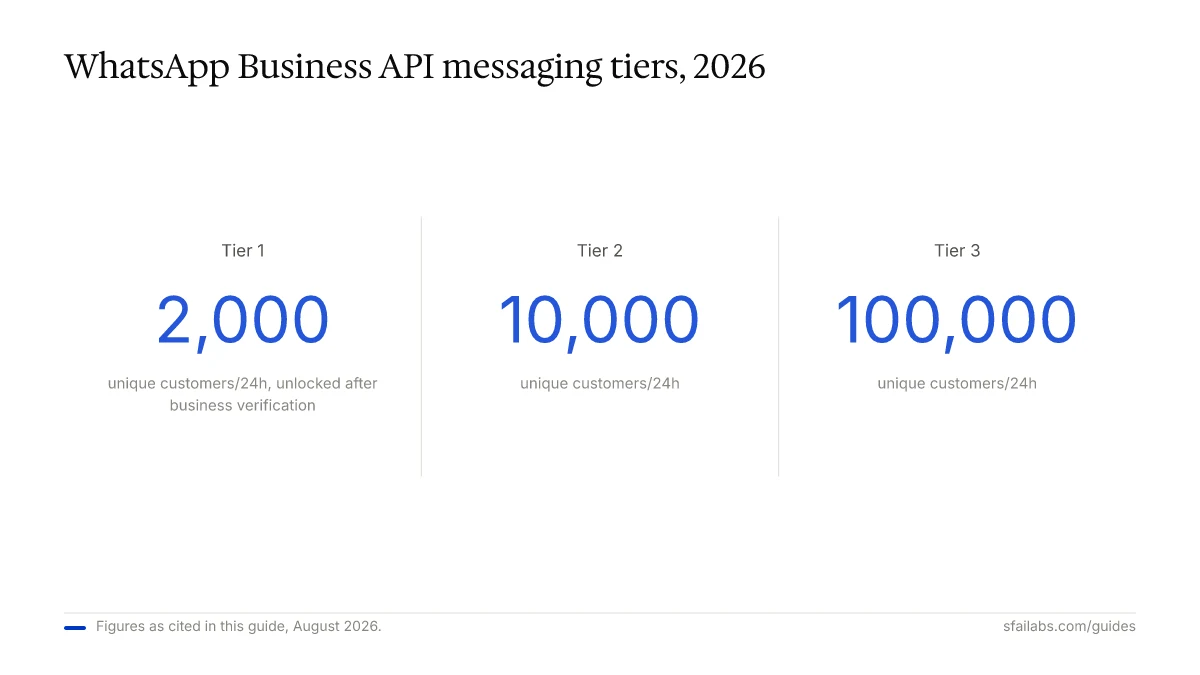
Verification typically takes 2-5 business days, though it can stretch longer. Once verified, your messaging limit increases to 2,000 unique customers per 24 hours. From there, Meta automatically increases your tier based on message volume and quality:
- Tier 1: 2,000 unique customers/24h
- Tier 2: 10,000 unique customers/24h
- Tier 3: 100,000 unique customers/24h
- Tier 4: Unlimited
To advance tiers, you need to message at least 50% of your current limit within a 7-day period while maintaining a high quality rating. Meta monitors a traffic-light quality system: green (good), yellow (warning), red (restricted). User reports and blocks push your rating down.
What to Do After Setup
The API by itself does nothing visible. It is an endpoint. What matters is what you connect it to.
If you want an AI agent on WhatsApp, connect your WhatsApp Business API to Openclaw. We have a dedicated guide for this: How to Connect WhatsApp to Openclaw. Openclaw runs as an autonomous AI agent that reads and responds to WhatsApp messages, handles multi-step tasks, and connects to your other tools. Your WhatsApp Business API access becomes the communication channel for an agent that can draft emails, manage calendars, and query databases on your behalf.
If you are building a custom integration, the Meta WhatsApp Cloud API documentation covers every endpoint. The key ones are:
POST /messagesfor sending messages- Webhook subscriptions for receiving messages
POST /PHONE_NUMBER_ID/registerfor phone number management- Template management via the Business Management API
If you want a no-code solution, BSPs like Twilio, 360Dialog, or Respond.io provide dashboards on top of the API. They charge a platform fee on top of Meta’s conversation costs. The tradeoff is convenience versus cost and control.
Frequently Asked Questions
Is the WhatsApp Business API free?
Partially. Meta gives you 1,000 free service conversations per month, which covers customer-initiated messages. Business-initiated messages (marketing, utility, authentication) cost money from the first conversation. The API itself has no monthly subscription from Meta, but if you use a BSP, they charge platform fees ranging from $50 to $500 per month.
How long does it take to get WhatsApp Business API access?
You can send test messages within 15 minutes of creating your Meta Developer app. Production access with your own phone number takes a few hours to a day. Full business verification, which removes messaging limits, takes 2-5 business days on average but can take up to two weeks if Meta requests additional documents.
Can I use my existing phone number?
Yes, but you must remove it from WhatsApp or WhatsApp Business app first. The number cannot be registered on both the consumer app and the API simultaneously (except in countries where Coexistence mode is available). If the number is critical to your business, consider getting a separate number for the API.
What is the difference between WhatsApp Business App and the API?
The app is a free mobile application for small businesses that supports manual messaging, labels, and a product catalog. The API is a programmatic interface with no UI that supports automation, CRM integration, chatbots, and high-volume messaging. The app is for businesses handling conversations manually. The API is for businesses that need software to handle conversations.
Do I need Facebook Business Manager?
Yes. A Meta Business Portfolio (formerly Facebook Business Manager) account is required to manage your WhatsApp Business Account, submit business verification, and create message templates. You can create one for free at business.facebook.com.
What are message templates and do I need them?
Message templates are pre-approved message formats required for initiating conversations with customers outside the 24-hour response window. If a customer messages you first, you can reply freely for 24 hours without templates. If you want to send the first message (appointment reminders, order updates, promotions), you need an approved template. Template review typically takes minutes to hours.
Should I use a BSP or the direct Cloud API?
Use the direct Cloud API if you have developer resources and want full control with lower per-message costs. Use a BSP if you need a dashboard, team collaboration features, or pre-built integrations without writing code. BSPs add $50-$500/month in platform fees on top of Meta’s conversation charges. For connecting to an AI agent like Openclaw, the direct API path gives you the most flexibility.
How do webhooks work with the WhatsApp API?
Webhooks are HTTP callbacks. When someone sends you a WhatsApp message, Meta posts the message data to a URL you configure. Your server receives this POST request and processes it. You need a publicly accessible HTTPS endpoint. For testing, ngrok creates a temporary public URL for your local machine. For production, any web server with TLS works.
Key Takeaways
- The WhatsApp Business API requires a Meta Developer account, a Meta Business Portfolio, and business verification for production use
- You get 1,000 free service conversations per month, but business-initiated messages are paid from the start
- The direct Cloud API path avoids BSP fees but requires webhook hosting and token management
- Business verification takes 2-5 days and is mandatory to send more than 250 conversations per day
- Message templates need Meta approval before you can initiate outbound conversations
- After setup, connect the API to Openclaw for an AI-powered WhatsApp agent or build your own integration using the Cloud API endpoints
SFAI Labs


