
Every Stripe integration starts with an API key. The key itself takes 30 seconds to generate at dashboard.stripe.com/apikeys, but the decisions around it (which key type, which permissions, how to store and rotate it) are where most developers either get it right or create security problems they discover months later.
Stripe gives you four keys by default: a publishable and secret key for test mode, and another pair for live mode. Most guides stop there. This one covers the full picture, including restricted keys for least-privilege access, key rolling without downtime, and webhook signing secrets, which are a separate credential that trips up even experienced developers.
Find Your API Keys in the Stripe Dashboard
Log in to dashboard.stripe.com and click Developers in the left sidebar. Select API keys.
You see two keys immediately:
- Publishable key (starts with
pk_test_orpk_live_) - Secret key (starts with
sk_test_orsk_live_)
The toggle at the top of the page switches between Test mode and Live mode. Test mode keys simulate transactions without moving real money. Live mode keys process actual charges.
One critical difference from other API providers: live mode secret keys can only be revealed once. After you dismiss the key display, Stripe will not show it again. If you lose it, your only option is to roll the key and generate a new one. Copy it into a password manager or .env file the moment you see it.
Publishable Keys vs Secret Keys
These two key types serve fundamentally different purposes, and confusing them causes real problems.
Publishable keys identify your Stripe account in client-side code. They go in your frontend JavaScript, mobile apps, or anywhere code is visible to end users. A publishable key can create tokens and confirm payments, but it cannot read customer data, issue refunds, or access your balance. Exposing it is expected behavior, not a security incident.
Secret keys authenticate server-side requests with full account access. Anyone holding your secret key can create charges, issue refunds, read customer data, and transfer funds. Treat it like a database password. It belongs on your server, in environment variables, never in client-side code or version control.
| Key Type | Prefix | Where It Goes | What It Can Do |
|---|---|---|---|
| Publishable (test) | pk_test_ |
Frontend / client | Tokenize cards, confirm payments |
| Publishable (live) | pk_live_ |
Frontend / client | Same, with real payment methods |
| Secret (test) | sk_test_ |
Backend / server | Full API access (test data) |
| Secret (live) | sk_live_ |
Backend / server | Full API access (real money) |
A common mistake: putting the secret key in a React environment variable prefixed with NEXT_PUBLIC_. The key ends up in the browser bundle, visible to anyone who opens DevTools. This has caused real security incidents.
Set Your Key as an Environment Variable
Store your secret key in an environment variable rather than hardcoding it. Every Stripe SDK reads from environment variables automatically.
macOS / Linux (Zsh or Bash):
export STRIPE_SECRET_KEY="sk_test_your-key-here"Add this line to ~/.zshrc or ~/.bashrc to persist across sessions.
Windows (PowerShell):
$env:STRIPE_SECRET_KEY = "sk_test_your-key-here"For permanent storage on Windows, add it through System Settings under “Environment Variables.”
In a Node.js project, create a .env file at the project root:
STRIPE_SECRET_KEY=sk_test_your-key-here
STRIPE_PUBLISHABLE_KEY=pk_test_your-key-here
Load it with dotenv or your framework’s built-in env handling. Add .env to .gitignore immediately. This is not optional.
Verify Your Key Works
Run a quick test to confirm the key is active. This curl command creates a minimal PaymentIntent in test mode:
curl https://api.stripe.com/v1/payment_intents \
  -u "sk_test_your-key-here:" \
  -d "amount=1000" \
  -d "currency=usd" \
  -d "payment_method_types[]=card"
If you get a JSON response with a pi_ ID, the key works. The colon after the key in -u is intentional: Stripe uses HTTP Basic Auth with the key as the username and an empty password.
Note the authentication difference from other providers. OpenAI and Anthropic pass keys as Bearer tokens in the Authorization header. Google Gemini uses a URL query parameter. Stripe uses HTTP Basic Auth. Mixing these patterns up is a common source of “invalid API key” errors when developers switch between providers.
Restricted Keys for Least-Privilege Access
Default secret keys have full access to everything in your Stripe account. For production applications, that is more power than most services need.
Restricted keys let you grant only the permissions a specific service requires. Create one from the API keys page by clicking Create restricted key.
You assign permissions per resource type. Each resource gets one of three levels: None, Read, or Write.
Here are practical configurations we use in client projects:
Reporting dashboard (read-only access):
- Charges: Read
- Balance Transactions: Read
- Customers: Read
- Everything else: None
Webhook handler (needs to read events and update orders):
- Events: Read
- Charges: Read
- Payment Intents: Read
- Everything else: None
Checkout service (creates charges but nothing else):
- Charges: Write
- Payment Intents: Write
- Payment Methods: Write
- Customers: Write
- Everything else: None
Restricted keys use the rk_test_ and rk_live_ prefixes. Like live secret keys, restricted live keys can only be revealed once.
This limits the blast radius of a leak. If a restricted key is compromised, the attacker can only do what the key permits. A leaked reporting key cannot create charges or transfer funds. We recommend restricted keys for every production service that does not need full account access.
Rolling Keys Without Downtime
When a key is compromised (or when policy requires periodic rotation), you need to swap it without breaking your running application.
Stripe’s key rolling creates a new key and gives you a configurable transition window, up to 12 hours, during which both the old and new key work. Here is the process:
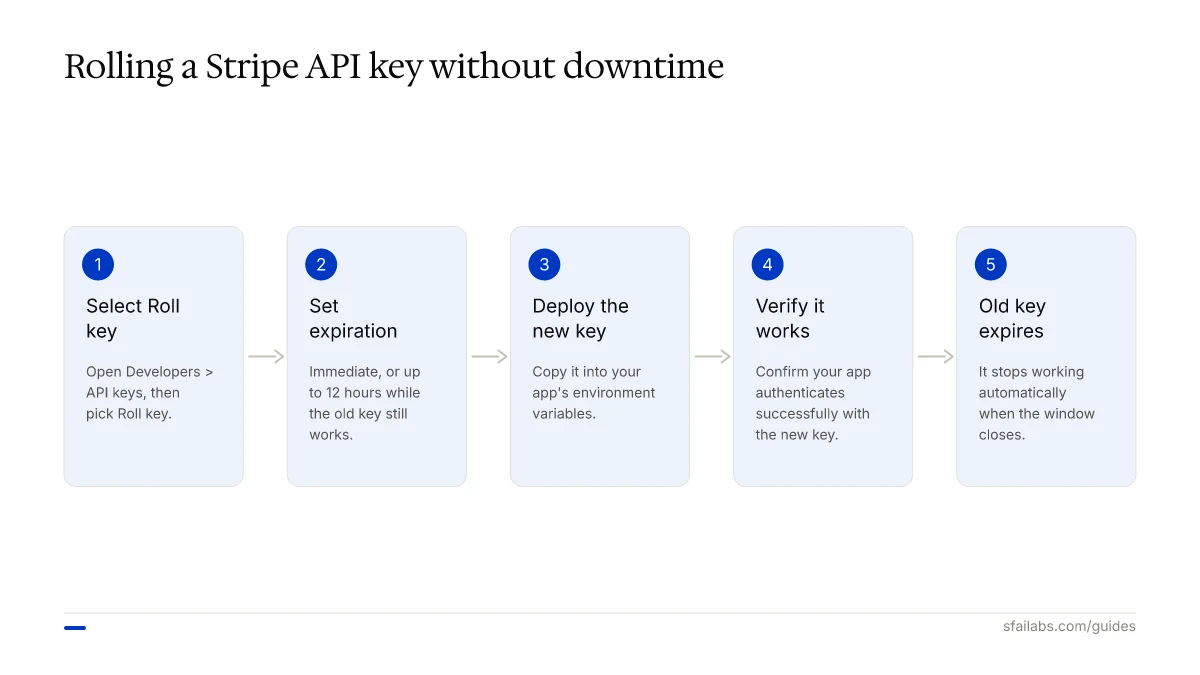
- Go to Developers > API keys in the Dashboard
- Click the overflow menu (three dots) next to the key you want to roll
- Select Roll key
- Choose an expiration window for the old key (immediate, or up to 12 hours)
- Copy the new key and deploy it to your application
- Verify the application works with the new key
- The old key expires automatically after the window closes
For zero-downtime rotation in a deployed application: set the transition window to a few hours, deploy the new key to your environment variables, restart your services, and confirm they are using the new key. The old key keeps working until the window expires, so there is no gap in service.
If you chose “immediate” expiration, any request using the old key fails the moment you roll. Only use immediate expiration if you are certain the old key is compromised and you want to cut access instantly.
Webhook Signing Secrets
Webhook signing secrets are a separate credential type that developers frequently confuse with API keys. They serve a different purpose: verifying that incoming webhook events genuinely came from Stripe, not from an attacker posting fake events to your endpoint.
Each webhook endpoint has its own signing secret, prefixed with whsec_. Find it in the Dashboard under Developers > Webhooks, then select your endpoint and expand Signing secret.
When Stripe sends a webhook event, it includes a Stripe-Signature header. Your server uses the signing secret to verify this signature before processing the event. Every Stripe SDK includes a verification helper:
const event = stripe.webhooks.constructEvent(
  requestBody,
  request.headers['stripe-signature'],
  process.env.STRIPE_WEBHOOK_SECRET
);
Skipping signature verification is a security hole. Without it, anyone who discovers your webhook URL can post fabricated events (fake successful payments, fake refunds) and your application will process them as real.
Like live secret keys, webhook signing secrets can only be revealed once. Test and live mode endpoints have different secrets. Store them in environment variables alongside your API keys.
Switch From Test Mode to Live Mode
When you are ready to accept real payments:
- Toggle off Test mode in the Developers Dashboard
- Replace
pk_test_with your live publishable key in client-side code - Replace
sk_test_with your live secret key in server-side environment variables - Create new webhook endpoints for live mode and update signing secrets
- Run through Stripe’s go-live checklist
Test and live mode are completely separate environments. Customers, charges, and subscriptions created in test mode do not exist in live mode. This catches some developers off guard during their first deployment.
Connect Your Stripe Key to Openclaw
If you want an AI agent that can interact with Stripe autonomously, connect your key to Openclaw. Openclaw is a personal AI agent that runs on your machine and connects through Telegram or WhatsApp. It can check payment statuses, look up customer information, and trigger Stripe operations through natural language.
Add your Stripe key to the Openclaw environment file alongside your other API provider keys. Openclaw supports multiple providers, so your Stripe credentials work alongside OpenAI, Anthropic, and Gemini keys in a unified setup.
We have guides for getting Openclaw running:
- How to Set Up Openclaw: 10-Step Guide covers workspace configuration, memory, and model selection
- Deploy Openclaw on Hostinger VPS for 24/7 uptime without keeping your laptop open
- Openclaw for E-commerce walks through payment and order management automation
For other API key setup guides, see:
- How to Get Your OpenAI API Key
- How to Get Your Anthropic API Key
- How to Get Your Google Gemini API Key
Frequently Asked Questions
Where do I find my Stripe API key?
Log in to dashboard.stripe.com, click Developers in the left sidebar, then select API keys. Your publishable and secret keys are listed there. Toggle between test mode and live mode using the switch at the top of the page.
What is the difference between a publishable key and a secret key?
Publishable keys are meant for client-side code (browsers, mobile apps) and can only tokenize payment information. Secret keys have full account access and belong on your server. A leaked publishable key is low risk. A leaked secret key gives an attacker full control over charges, refunds, and customer data.
Is it safe to put my Stripe publishable key in frontend code?
Yes. Publishable keys are designed for client-side use. Stripe limits what publishable keys can do: they can create tokens and confirm payments, but they cannot read sensitive data, issue refunds, or transfer funds. This is by design.
What happens if my Stripe secret key is leaked?
Anyone with the key can make API calls as your account: create charges, issue refunds, read customer data, and initiate transfers. Roll the key immediately from the Dashboard (Developers > API keys > Roll key with immediate expiration). Then audit your Stripe logs for unauthorized activity. Stripe does not automatically detect or block usage from leaked keys.
How do I rotate a Stripe API key without downtime?
Use Stripe’s key rolling feature with a transition window. Set the old key to expire in a few hours, deploy the new key to your environment, and restart your services. Both keys work during the transition period. Once the new key is confirmed working, the old key expires automatically.
What are restricted API keys and when should I use them?
Restricted keys have granular permissions (None, Read, or Write per resource type). Use them whenever a service does not need full account access. A reporting tool only needs read access to charges and transactions. A checkout service only needs write access to payment intents. Restricted keys limit the blast radius if a key is compromised.
Where do I find my Stripe webhook signing secret?
Go to Developers > Webhooks in the Dashboard, select your endpoint, and expand Signing secret. The secret starts with whsec_ and is different from your API keys. Each endpoint has its own secret, and test and live mode endpoints have separate secrets.
Can I use the same Stripe API keys for test and live mode?
No. Test and live mode have completely separate key sets with different prefixes (sk_test_ vs sk_live_). Objects created in test mode do not exist in live mode. When deploying to production, you must replace all test keys with their live counterparts and create new webhook endpoints.
Key Takeaways
- Stripe gives you four default keys: publishable and secret pairs for both test and live modes. Live secret keys can only be revealed once, so copy them immediately.
- Use restricted keys in production. Full-access secret keys are convenient for development, but any production service should have only the permissions it needs.
- Webhook signing secrets (
whsec_) are not API keys. They verify incoming webhook events and belong in your environment variables alongside your API keys. - Roll keys with a transition window to avoid downtime. Immediate expiration is for emergencies only.
- Connect your Stripe key to tools like Openclaw to automate payment operations alongside your other API providers.
SFAI Labs


