GitHub killed password authentication for Git operations in August 2021. If you need to push code, call the GitHub API, or connect a tool like an AI agent to your repositories, you need a personal access token (PAT). The whole process takes under three minutes through GitHub’s web interface, and this guide covers every step, including the choice most tutorials skip: which token type and which scopes to pick for your specific use case.
Fine-Grained vs Classic Tokens
GitHub offers two types of personal access tokens. Picking the right one before you start saves you from creating the wrong token and having to redo it.
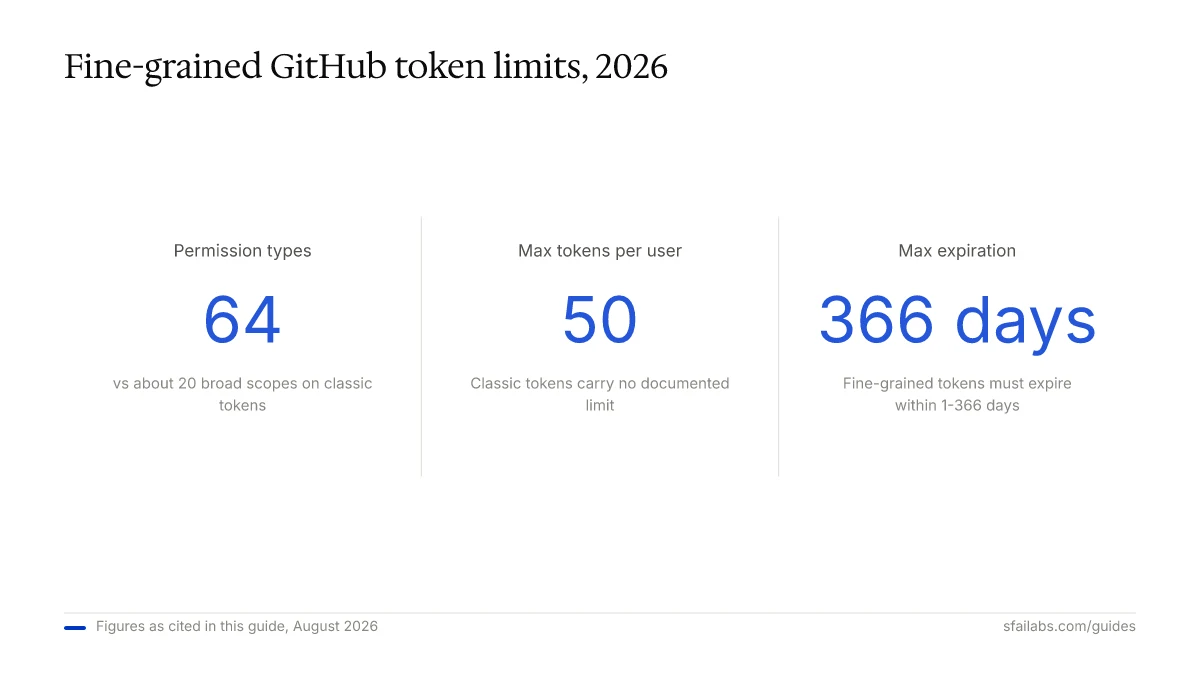
Fine-grained tokens are the newer option and what GitHub recommends. They let you limit access to specific repositories and set granular permissions (read-only on issues, write on pull requests, no access to organization settings). They also have mandatory expiration dates, which forces good security hygiene.
Classic tokens are the original format. They use broad scopes like repo (full access to all your repositories) and admin:org (full organization control). They can be set to never expire. GitHub still supports them because some features, including access to Gists and notifications, are not yet available through fine-grained tokens.
| Feature | Fine-Grained | Classic |
|---|---|---|
| Repository-level access | Yes, per-repo | No, all repos |
| Permission granularity | 64 specific permissions | ~20 broad scopes |
| Expiration required | Yes (1-366 days) | Optional |
| Organization approval | Can require admin approval | No approval flow |
| Token limit | 50 per user | No documented limit |
| Gist access | Not supported | Supported |
| GitHub Packages | Not supported | Supported |
When to use which: We recommend fine-grained tokens for any new project, CI/CD pipeline, or third-party tool integration. Choose classic only if you need Gist access, GitHub Packages, or are working with a tool that specifically requires classic token scopes.
Step 1: Open Developer Settings
Sign in to github.com with your account. Click your profile picture in the top-right corner and select Settings from the dropdown menu.
Scroll down the left sidebar until you see Developer settings at the bottom. Click it.
You land on a page with three options: GitHub Apps, OAuth Apps, and Personal access tokens. Click Personal access tokens, then choose either Fine-grained tokens or Tokens (classic) depending on your needs.
Step 2: Create a Fine-Grained Token
Click Generate new token. GitHub presents a form with these fields:
Token name: Give it a descriptive name you will recognize later. Something like openclaw-repo-access or ci-deploy-token beats my-token. You will accumulate tokens over time, and vague names make auditing painful.
Expiration: Choose a duration between 1 and 366 days. GitHub does not allow non-expiring fine-grained tokens. For development and testing, 90 days is a reasonable default. For production integrations, match the expiration to your rotation schedule.
Resource owner: Select yourself or an organization. If you choose an organization, the token may require admin approval before it becomes active.
Repository access: You get three choices:
- Public repositories only (read-only access to public repos)
- All repositories (access to every repo you own or have access to)
- Only select repositories (pick specific repos from a list)
Choose “Only select repositories” unless you have a specific reason to grant broader access. Based on experience, this is the single most effective security decision you make during token creation.
Permissions: Expand the sections for Repository permissions, Account permissions, and Organization permissions. Toggle only what you need. For common use cases:
| Use Case | Permissions Needed |
|---|---|
| Push and pull code | Contents: Read and write |
| Create pull requests | Contents: Read and write, Pull requests: Read and write |
| Read issues | Issues: Read-only |
| GitHub Actions workflows | Actions: Read and write, Contents: Read and write |
| Connect to Openclaw | Contents: Read and write, Pull requests: Read and write, Issues: Read and write |
| Read organization members | Organization > Members: Read-only |
Click Generate token. Your token appears on the next screen. Copy it immediately. GitHub shows fine-grained tokens only once. If you lose it, you have to create a new one.
Step 3: Create a Classic Token (If Needed)
If you specifically need classic token features (Gists, Packages, or a tool requiring classic scopes), select Tokens (classic) and click Generate new token.
Note: A label for your reference. Same naming advice applies.
Expiration: Choose from 7 days, 30 days, 60 days, 90 days, custom, or no expiration. GitHub recommends against “no expiration” and will show a warning, but it is allowed.
Scopes: Check the boxes for the access levels you need:
repogrants full control of private and public repositories. This is the most commonly selected scope and covers push, pull, and status access.workflowallows updating GitHub Actions workflows.read:orglets you read organization membership.admin:orggives full control of organization settings, teams, and members.gistallows creating and editing Gists.delete_repoallows deleting repositories. Think twice before selecting this one.
Click Generate token at the bottom. Copy it immediately. The same one-time display rule applies.
Step 4: Store Your Token Securely
The token you just copied is equivalent to your password. Anyone who has it can act as you within the scopes you granted. Store it properly from the start.
For local development, set it as an environment variable. Add this to your ~/.zshrc or ~/.bashrc:
export GITHUB_TOKEN="ghp_your_token_here"Then reload your shell:
source ~/.zshrcFor CI/CD systems, use the platform’s secrets manager. GitHub Actions has repository secrets. GitLab uses CI/CD variables. Never paste a token into a config file that gets committed to version control.
For tools like Openclaw, paste the token into the .env file that the tool reads at runtime. The .env file should be in your .gitignore before you add the token.
Step 5: Verify Your Token Works
Test the token with a curl command against the GitHub API:
curl -H "Authorization: Bearer ghp_your_token_here" https://api.github.com/userIf you get a JSON response with your GitHub username and profile data, the token is active and has the correct permissions. If you get a 401 error, the token is invalid or expired. A 403 error means the token is valid but lacks the required scope for the endpoint you called.
For Git operations, test a clone:
git clone https://x-access-token:ghp_your_token_here@github.com/your-username/your-repo.gitOnce you have confirmed it works, avoid embedding the token in URLs. Use credential helpers or environment variables for ongoing use.
Keeping Your Token Secure
GitHub’s secret scanning program automatically detects tokens that get committed to public repositories and revokes them. That protects against the most common mistake, but it only covers public repos. If your token leaks in a private repo, a Slack message, or a blog post, GitHub will not catch it.
Three practices that prevent most token security incidents:
-
Add
.envto.gitignorebefore adding any tokens. This is the single most common way tokens end up in version control. Do it first, not after. -
Use fine-grained tokens with minimal scopes. A leaked token with “Contents: Read-only” on a single repository does far less damage than a classic token with the
reposcope across all repositories. -
Set expiration dates and honor them. A 90-day token is useless if you create a new one when it expires and forget to revoke the old one. Calendar a reminder to rotate, not just to renew.
GitHub lets organizations enforce token policies: requiring approval for fine-grained tokens, blocking classic token creation, and setting maximum token lifetimes. If you are an org admin, these policies are in Settings > Personal access tokens.
What to Do With Your Token Next
A personal access token unlocks the GitHub API and authenticated Git operations. What matters is what you connect it to.
If you are a developer working from the command line, configure Git to use your token through a credential helper. On macOS:
git config --global credential.helper osxkeychainThe next time Git prompts for a password, paste your token instead. The keychain stores it so you do not get prompted again.
If you want an AI agent that interacts with your GitHub repos, connect your token to Openclaw. Openclaw is a personal AI agent that runs on your machine and connects through Telegram or WhatsApp. With a GitHub token, it can read issues, create pull requests, review code, and manage repositories on your behalf.
We have guides for the full setup:
- Connect GitHub to Openclaw walks through the integration step by step
- How to Set Up Openclaw: 10-Step Guide covers workspace configuration, memory, and model selection
- Deploy Openclaw on Hostinger VPS for 24/7 uptime without keeping your laptop open
If you need API keys for other services, we have guides for those too:
- How to Get Your OpenAI API Key
- How to Get Your Anthropic API Key
- How to Get Your Google Gemini API Key
Frequently Asked Questions
What is the difference between fine-grained and classic GitHub tokens?
Fine-grained tokens let you restrict access to specific repositories and set granular permissions (64 permission types across three categories). Classic tokens use broader scopes like repo that grant access to all repositories at once. GitHub recommends fine-grained tokens for everything except features that require classic tokens, such as Gist access and GitHub Packages.
Which scopes do I need for my GitHub personal access token?
It depends on what you are doing. For pushing and pulling code, repo (classic) or Contents: Read and write (fine-grained) is sufficient. For GitHub Actions, add workflow. For reading organization membership, add read:org. Start with the minimum and add scopes later if you get 403 errors on specific API endpoints.
How long does a GitHub personal access token last?
Fine-grained tokens expire between 1 and 366 days (you choose at creation). Classic tokens can be set to 7, 30, 60, or 90 days, a custom date, or no expiration. GitHub automatically deletes any token that has not been used for 12 months, regardless of its expiration setting.
Can I use one GitHub token for multiple repositories?
With classic tokens, yes. The repo scope grants access to every repository your account can access. With fine-grained tokens, you choose during creation: all repositories, public repositories only, or a specific list of repositories. For security, creating separate tokens per project or integration is better practice.
What happens if my GitHub personal access token is leaked?
If the token is committed to a public repository, GitHub’s secret scanning detects it and automatically revokes it. If it leaks elsewhere (Slack, email, private repo), anyone who finds it can act as you within the granted scopes until you manually revoke it. Go to Settings > Developer settings > Personal access tokens and delete the compromised token immediately.
Where do I find my existing GitHub personal access tokens?
Go to github.com, click your profile picture, select Settings, scroll to Developer settings, and click Personal access tokens. You see a list of all active tokens with their names, expiration dates, and last-used timestamps. You cannot view the token value itself after creation, only metadata about it.
Why is my GitHub personal access token not working?
Check these four things in order: the token has not expired, the token has the required scopes for the operation you are attempting, you are passing it correctly (as a Bearer token in the Authorization header or as a password in Git HTTPS auth), and the token has not been revoked by an organization admin. If using fine-grained tokens with an organization, confirm the token has been approved by an admin.
Is a GitHub personal access token more secure than SSH?
They serve different purposes. PATs authenticate over HTTPS and work well for API access, CI/CD, and tool integrations. SSH keys authenticate over SSH and are preferred for developer workstation Git operations. PATs have the advantage of granular scopes and expiration dates. SSH keys have the advantage of not being transmitted in requests. For most developers, using SSH for daily Git work and PATs for API access and integrations is the strongest setup.
Key Takeaways
- Use fine-grained tokens for new projects. They restrict access to specific repos and force expiration dates. Classic tokens are only needed for Gists, Packages, and legacy integrations.
- Start with minimal permissions. You can always create a new token with more scopes. You cannot reduce the scope of an existing token.
- Store tokens in environment variables or your platform’s secrets manager. Never commit them to version control.
- GitHub auto-revokes tokens found in public repos via secret scanning, but this does not protect against leaks in private channels. Rotate tokens on a schedule.
- Connect your token to Openclaw to let an AI agent manage GitHub tasks like issue triage, code review, and pull request creation.
SFAI Labs


