
Jira holds your backlog, sprint boards, and bug reports. OpenClaw is an AI agent that can create issues, query boards, transition tickets through workflow states, and send you a Telegram summary when your sprint is going sideways. Connecting the two takes about 15 minutes.
This guide covers the full setup: generating a Jira API token with the right scopes, configuring OpenClaw to authenticate against the Jira Cloud REST API v3, writing your first Jira skill, and building four automations that engineering teams use daily. We also cover the gotchas that trip people up, like the fact that Jira Cloud uses accountId instead of username for assignee fields.
Before You Start
You need three things in place:
-
OpenClaw installed and running. If you have not done this yet, follow our OpenClaw setup guide. That covers installation, workspace configuration, memory, and model selection.
-
A Jira Cloud account with project access. You need permission to create API tokens for your Atlassian account. You do not need Jira admin access for basic issue operations.
-
A messaging channel connected. OpenClaw works through Telegram, Slack, Discord, or the terminal. You need at least one channel active to interact with the agent.
If you want OpenClaw running 24/7 without keeping your laptop open, deploy it on a VPS. Our Hostinger deployment guide covers that.
Step 1: Create a Jira API Token
OpenClaw authenticates with Jira Cloud using your email address and an API token. Jira does not accept password-based API authentication, so this token is required.
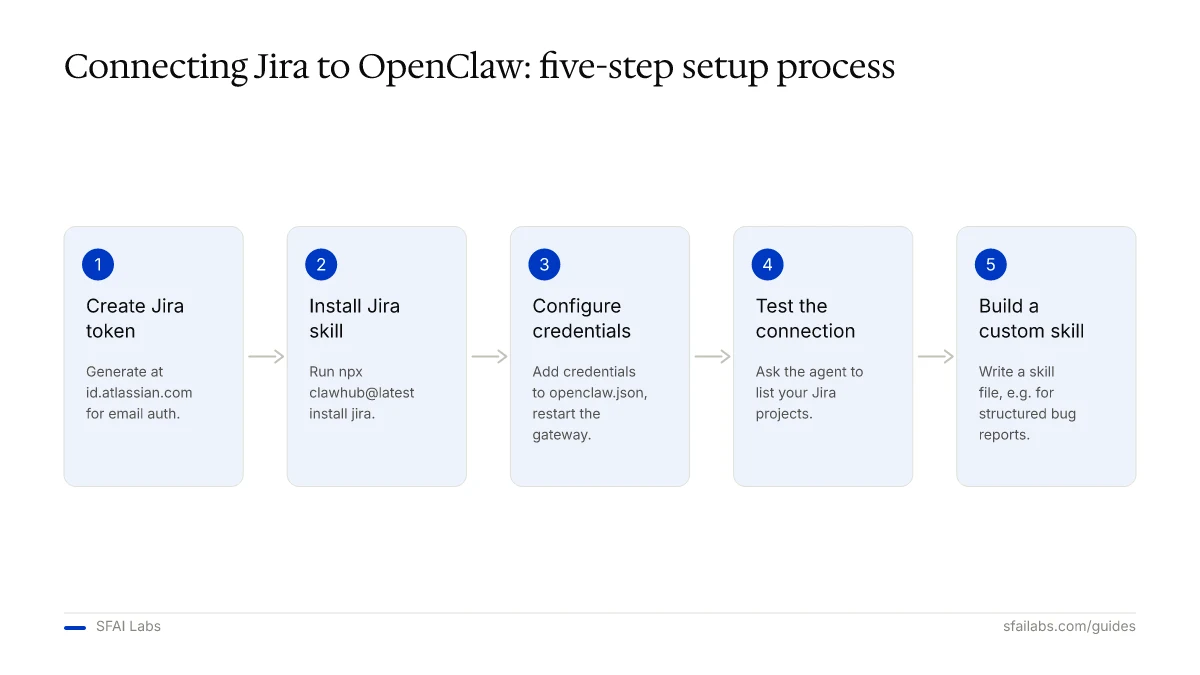
- Go to id.atlassian.com/manage-profile/security/api-tokens
- Click Create API token
- Name it something descriptive:
openclaw-jira-integration - Click Create
- Copy the token immediately. Atlassian will not show it again.
Store the token in a password manager. You will paste it into your OpenClaw config in the next step.
A few things worth knowing about Jira API tokens:
- Tokens inherit the permissions of the Atlassian account that created them. If your account can view a project, the token can too.
- Tokens do not expire automatically, but an admin can revoke them. Check your organization’s security policies.
- One token works across all Jira Cloud products tied to your Atlassian account (Jira Software, Jira Service Management, Confluence).
Step 2: Install the Jira Skill
OpenClaw uses skills to interact with external services. The Jira skill wraps the Jira Cloud REST API v3 into capabilities your agent can invoke through natural language.
Install it:
npx clawhub@latest install jiraVerify the installation:
clawhub listYou should see jira in the output. The skill gives your agent access to issue creation, JQL queries, sprint management, and workflow transitions.
For background on how skills work and how to customize them, see our OpenClaw skills development guide.
Step 3: Configure OpenClaw with Jira Credentials
Open your OpenClaw config file (~/.openclaw/openclaw.json) and add the Jira integration block:
{
  "integrations": {
    "jira": {
      "enabled": true,
      "baseUrl": "https://your-org.atlassian.net",
      "email": "you@company.com",
      "apiToken": "your-jira-api-token",
      "defaultProject": "ENG"
    }
  }
}
Replace the values:
| Field | What to Enter |
|---|---|
baseUrl |
Your Jira Cloud URL. Find it in your browser address bar when logged into Jira. |
email |
The email address tied to the Atlassian account that created the API token. |
apiToken |
The token you generated in Step 1. |
defaultProject |
The project key for your most-used project (e.g., ENG, PROD, OPS). The agent uses this when you do not specify a project. |
Do not store the API token in skill files, agent prompts, or any file the agent loads into context. The config file is the right place because OpenClaw reads credentials at runtime without exposing them in conversation memory.
Restart the gateway to pick up the new config:
openclaw gateway restartStep 4: Test the Connection
Before building automation, confirm OpenClaw can reach Jira. Open a conversation with your agent and try these:
What Jira projects do I have access to?The agent should return a list of project names and keys. If this works, the authentication is good.
Try a few more commands:
| Ask OpenClaw | What It Does |
|---|---|
| “Show open bugs in ENG” | Runs a JQL query: project = ENG AND issuetype = Bug AND status != Done |
| “What is in the current sprint for ENG?” | Fetches the active sprint and lists issues by status |
| “Show me ENG-142” | Retrieves full issue details: summary, status, assignee, description |
| “Who has the most open tickets in ENG?” | Queries assignee distribution across open issues |
If you see a 401 error, your API token is wrong or expired. If you see a 403, your Atlassian account lacks permission to the project you queried.
Step 5: Create Your First Jira Skill
The built-in Jira skill handles common operations. But the real power comes from writing custom skills that match your team’s workflow.
Here is a skill that creates a bug report with structured fields:
name: create-jira-bug
description: Create a bug report in Jira with severity, component, and reproduction steps
instructions: |
  When triggered, gather the following from the user:
  - Bug summary (one-line title)
  - Severity: critical, high, medium, or low
  - Affected component (optional)
  - Steps to reproduce

  Map severity to Jira priority:
  - critical -> Highest
  - high -> High
  - medium -> Medium
  - low -> Low

  Create a Jira issue using the REST API:
  - Project: ENG (or specified project)
  - Issue type: Bug
  - Priority: mapped from severity
  - Components: if provided
  - Description: formatted with reproduction steps

  After creation, return the issue key and a direct link.
integrations:
  - jira
Save this file to your skills directory. The agent can now execute it when you say something like:
Create a bug: login page returns 500 after password reset, high severity, auth componentThe agent parses your message, maps the fields, calls the Jira REST API POST /rest/api/3/issue endpoint, and returns the new issue key (e.g., ENG-287) with a clickable link.
Four Automations Worth Building
Once the connection works, here are four automations that deliver consistent value.
Auto-Create Issues from Slack
The highest-friction workflow in most engineering teams: someone reports a bug in Slack, and it never makes it to Jira because nobody wants to context-switch into another tool.
The fix: connect OpenClaw to both Slack and Jira, then create a skill that watches for bug reports in a designated channel.
The skill monitors your #bugs channel. When someone posts a message that looks like a bug report, the agent extracts the summary, infers severity from the language, creates a Jira issue, and replies in the Slack thread with the issue key.
When the friction of filing drops to near zero, more bugs actually get reported. The agent does the filing; the humans just describe the problem where they already are.
For the complete Slack integration setup, see our Slack to OpenClaw guide.
Sprint Summary Reports
A heartbeat-scheduled skill that runs every morning at 9 AM and sends a sprint summary to your Telegram or Slack:
The agent queries the active sprint, groups issues by status (To Do, In Progress, In Review, Done), calculates completion percentage, and flags any issues that have been in the same status for more than 3 days.
This replaces the “let me pull up the board” ritual at standup. The summary arrives before the meeting starts, so the team can spend standup time on blockers instead of status reads.
Blocker Alerts
A skill that runs every 2 hours and checks for issues marked as blockers or issues with the blocked label that have not been updated in 24 hours.
When it finds a stale blocker, it sends an alert to the assigned engineer and their team lead via Telegram. The alert includes the issue key, summary, who it is assigned to, and how long it has been stale.
Blockers that sit untouched are sprint killers. This automation catches them before they derail the sprint goal.
Status Update Digest
A daily skill that looks at all issues that changed status in the last 24 hours and compiles a digest. It groups changes by engineer and by transition type (e.g., “In Progress to In Review” vs “In Review to Done”).
The digest goes to the engineering manager and gives them a clear picture of throughput without requiring anyone to fill out a status update form.
Troubleshooting Common Problems
| Symptom | Likely Cause | Fix |
|---|---|---|
| 401 Unauthorized | API token is wrong, expired, or revoked | Generate a new token at id.atlassian.com and update your config |
| 403 Forbidden | Your Atlassian account lacks permission to the project | Ask your Jira admin to grant access, or switch to a project you can access |
| Agent cannot find issues | Wrong defaultProject key in config |
Open Jira, check the project key in the URL (e.g., ENG in /projects/ENG/board) |
| “Issue type not found” error | The project uses a different issue type scheme | Ask the agent to list available issue types: “What issue types exist in ENG?” |
| Assignee field errors | Jira Cloud v3 requires accountId, not username |
The skill handles this mapping automatically. If using custom skills, use accountId from the user search endpoint |
| Rate limiting (429 errors) | More than 5,000 API requests per hour | Batch operations using JQL bulk queries instead of individual issue fetches. Use maxResults parameter to paginate. |
| Slow responses on large queries | JQL returning thousands of results | Add filters to narrow the query. The agent summarizes large result sets, but narrower queries return faster. |
If you hit rate limiting consistently, the practical workaround is combining multiple queries into a single JQL statement. Instead of fetching 50 issues one by one, query issue in (ENG-100, ENG-101, ..., ENG-149) in a single call.
Frequently Asked Questions
Does OpenClaw need admin access to my Jira instance?
No. The API token inherits the permissions of the Atlassian account that created it. For most use cases, a standard project member account is sufficient. The agent can read issues, create tickets, add comments, and transition workflow states with regular member permissions. Admin access is only needed if you want the agent to modify project settings, custom fields schemas, or permission schemes, which is rare for automation use cases.
Can OpenClaw create issues across multiple Jira projects?
Yes. The defaultProject in your config is a convenience default, not a restriction. When asking the agent to create an issue, specify the project: “Create a task in OPS: update SSL certificates.” The agent routes to the correct project as long as your API token has access. You can also write project-specific skills that always target a particular board.
How do I connect OpenClaw to Jira Server or Data Center instead of Cloud?
Jira Server and Data Center use a different authentication mechanism. Instead of email + API token, they require either a personal access token (PAT) or OAuth 1.0a. The OpenClaw Jira skill supports both, but the config format differs. Set authType: "pat" and provide the PAT in the apiToken field. The baseUrl should point to your on-premise Jira URL. Note that Jira Server reached end-of-life in February 2024, so Atlassian recommends migrating to Cloud or Data Center.
What happens if my Jira API token stops working?
The agent’s Jira commands start returning 401 errors. OpenClaw does not crash; it just cannot complete Jira tasks. Generate a new token, update ~/.openclaw/openclaw.json, and restart the gateway. The agent picks up the new credentials immediately. Unlike GitHub PATs, Jira API tokens do not have expiration dates by default, but your organization’s admin can revoke them at any time.
Can OpenClaw handle Jira custom fields?
Yes, but it requires the custom field ID. Jira custom fields have internal IDs like customfield_10042 that differ between instances. Ask the agent: “What custom fields exist in project ENG?” It queries the /rest/api/3/field endpoint and returns the field names and IDs. You can then reference these IDs in your custom skills. This is one area where testing in a sandbox project first saves time.
Is my Jira data sent to OpenAI or Anthropic when OpenClaw processes issues?
It depends on your model configuration. If OpenClaw uses a cloud LLM (like OpenAI’s API or Anthropic’s API), issue summaries and descriptions are sent to that provider for processing. If you use a local model through Ollama or llama.cpp, all data stays on your machine. For sensitive projects, configure a local model for Jira operations and a cloud model for non-sensitive tasks. OpenClaw supports this split through its multi-model configuration.
How do I set up automatic Jira ticket creation from Slack messages?
Connect both Slack and Jira integrations to OpenClaw, then create a skill that monitors a specific Slack channel for messages matching bug report patterns. The skill extracts the summary, infers severity, creates the Jira issue, and replies in the Slack thread with the ticket link. Our Slack integration guide covers the Slack side of this setup. The Jira side uses the same configuration from this guide.
Can OpenClaw transition issues through Jira workflow states?
Yes. The agent calls the /rest/api/3/issue/{issueKey}/transitions endpoint to move issues between states. Say “Move ENG-142 to In Review” and the agent fetches available transitions, matches the target state, and executes the transition. This works with custom workflows too. The only requirement is that the transition is valid from the issue’s current state in your workflow configuration.
Key Takeaways
- Start with a standard Atlassian account and API token. You do not need Jira admin access for issue automation.
- Install the Jira skill with
npx clawhub@latest install jiraand add your credentials to~/.openclaw/openclaw.json. Test with “What projects do I have access to?” before building automation. - Write custom skills for your team’s specific workflows. A bug intake skill that maps Slack messages to Jira issues can push bug filing rates from patchy to near-complete.
- Schedule recurring skills for sprint summaries and blocker alerts using heartbeat scheduling. The highest-value automations are the ones that run without anyone asking.
- Keep your initial setup read-heavy. Start by querying issues and generating reports before enabling write operations like issue creation and status transitions.
- If you hit Jira API rate limits, batch operations with JQL bulk queries instead of individual issue fetches. The 5,000 requests/hour limit for Cloud is generous for most teams, but automated polling can burn through it.
SFAI Labs


