Discord is where OpenClaw stops being a personal assistant and starts being a shared tool for a community. You can drop it into a support channel to answer member questions, assign it moderation duties, or have it summarize long threads so nobody has to scroll through 200 messages. The catch: connecting the two involves a Discord Application, a bot token, gateway intents, and a pairing step that trips up most people on the first try.
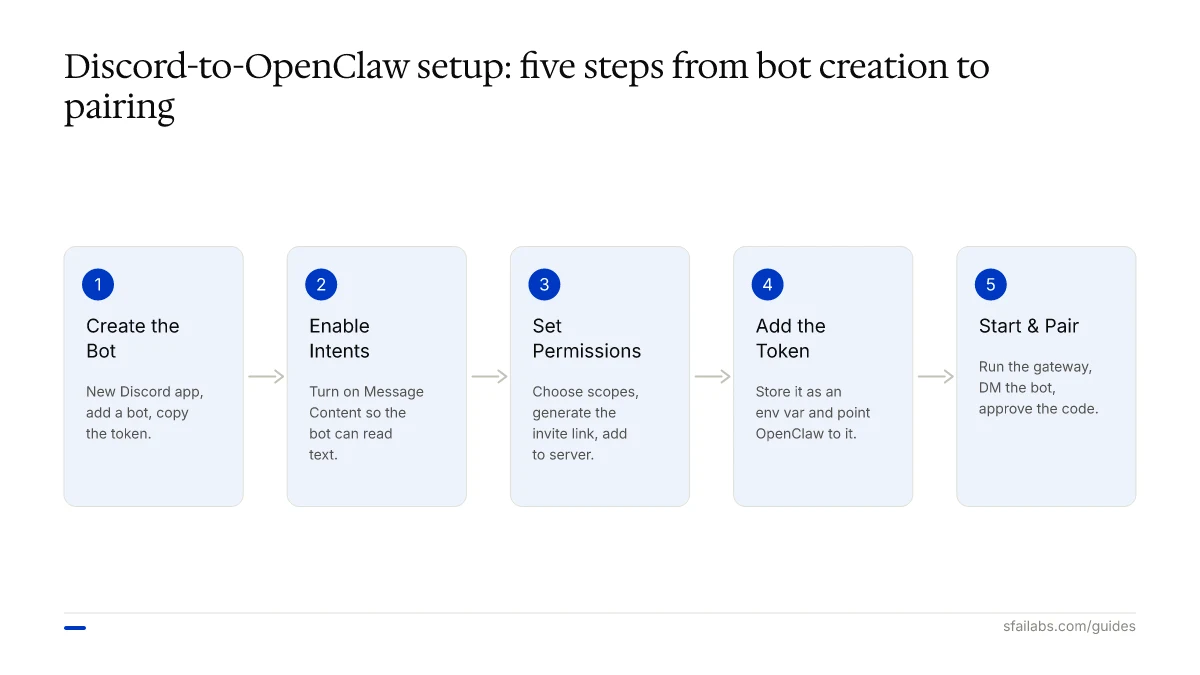
This guide walks through every step from creating the Discord bot to configuring OpenClaw, testing the connection, and then building the automations that make the integration worth the setup. If OpenClaw is already running on your machine or a VPS, the connection takes about 15 minutes. The second half covers what most guides skip entirely: what to build once the bot is live.
Before You Start
Three things need to be in place:
-
OpenClaw installed and running. If you have not set this up yet, follow our OpenClaw setup guide. That guide covers installation, workspace files, memory, and model configuration.
-
A Discord server where you have Manage Server permissions. You do not need Discord Nitro or any paid features. Bot tokens, gateway intents, and OAuth2 work on every Discord server.
-
A text editor for editing OpenClaw configuration files. VS Code, Cursor, or any editor that handles JSON works.
If you want the bot available 24/7 without keeping your laptop open, you will need OpenClaw running on a VPS. Our Hostinger deployment guide covers that.
Step 1: Create a Discord Application and Bot
Every Discord bot lives inside a Discord Application. The application holds your bot’s identity, permissions, and event subscriptions.
- Go to the Discord Developer Portal
- Click New Application
- Name it something members will recognize:
OpenClaworAI Assistant - Click Create
You are now on the application’s General Information page. Navigate to Bot in the left sidebar and click Add Bot (or Reset Token if a bot already exists). Copy the bot token immediately. It starts with a long alphanumeric string, and Discord will not show it again.
Store this token somewhere safe. Anyone with this token controls your bot. Treat it like an SSH key, not a username.
Step 2: Configure Gateway Intents
Gateway intents tell Discord what events your bot wants to receive. Without the right intents enabled, OpenClaw cannot read messages.
Still on the Bot page in the Developer Portal, scroll down to Privileged Gateway Intents and enable:
| Intent | Required? | What It Does |
|---|---|---|
| Message Content | Yes | Lets the bot read the text of messages in guild channels. Without this, OpenClaw sees message events but not what anyone typed. |
| Server Members | Recommended | Enables member lookups, role-based allowlists, and user resolution. Needed if you want to restrict bot access by role. |
| Presence | Optional | Tracks online/offline/idle status of members. Only enable if you need status-aware automations. |
Message Content Intent is the one that breaks things when missing. If your bot connects but never responds to messages, this is almost always the cause. Discord requires it for reading message text in servers with more than 100 members, and it must be explicitly toggled on.
Step 3: Set Permissions and Invite the Bot
Navigate to OAuth2 in the left sidebar, then URL Generator.
Under Scopes, check:
botapplications.commands
Under Bot Permissions, check:
- View Channels
- Send Messages
- Read Message History
- Embed Links
- Attach Files
- Add Reactions
Avoid granting Administrator. It works, but it gives the bot every permission on the server. Start with the minimum and add more later if a specific workflow needs it.
Copy the generated URL at the bottom of the page, open it in your browser, select your Discord server, and click Authorize. The bot now appears in your server’s member list, but it is offline until OpenClaw connects.
Step 4: Configure OpenClaw with Your Bot Token
Back on your machine, set the bot token as an environment variable:
export DISCORD_BOT_TOKEN="your-bot-token-here"Then tell OpenClaw to use it:
openclaw config set channels.discord.token --ref-provider default --ref-source env --ref-id DISCORD_BOT_TOKEN
openclaw config set channels.discord.enabled true --strict-json
If you prefer editing the config file directly, open your openclaw.json (typically in ~/.openclaw/) and add:
{
  "channels": {
    "discord": {
      "enabled": true,
      "token": {
        "source": "env",
        "provider": "default",
        "id": "DISCORD_BOT_TOKEN"
      }
    }
  }
}
Do not paste the raw token into the config file. Environment variables keep the secret out of any file your agent might read into context, and they make token rotation painless.
Step 5: Start the Gateway and Pair
Start (or restart) the OpenClaw gateway:
openclaw gatewayWatch the logs for a Discord connection confirmation:
openclaw logs --followOnce the gateway is running, open Discord and send a direct message to your bot. OpenClaw will reply with a pairing code. Approve it from your terminal:
openclaw pairing approve discord ABC123Replace ABC123 with the actual code. Pairing codes expire after one hour.
After approval, test in three ways:
DM test. Send the bot a message like “What can you do?” It should respond based on your agent’s configured skills.
Mention test. Go to a channel where the bot is present and type @OpenClaw summarize this channel. If the bot does not respond, it likely has not been invited to the channel or requireMention is blocking it. Type /invite @OpenClaw or drag the bot into the channel’s member list.
Permission test. Upload a small file and ask the bot to describe it. This confirms the Attach Files and Read Message History permissions are working.
Locking Down Access: Allowlists and Mention Gating
Discord servers are noisy. If you let the bot respond to every message in every channel, your members will hate it within a day. Configure access controls before you announce the bot to your server.
Mention-only mode is the safest default. The bot reads all messages (for context) but only responds when someone @mentions it:
{
  "channels": {
    "discord": {
      "groupPolicy": "allowlist",
      "guilds": {
        "YOUR_SERVER_ID": {
          "requireMention": true,
          "users": ["YOUR_USER_ID"]
        }
      }
    }
  }
}
Use server IDs and user IDs, not names. Enable Developer Mode in Discord (User Settings, Advanced, toggle Developer Mode) and right-click to copy IDs.
Per-channel restrictions let you limit which channels the bot operates in:
{
  "channels": {
    "discord": {
      "guilds": {
        "YOUR_SERVER_ID": {
          "channels": {
            "GENERAL_CHANNEL_ID": { "allow": true },
            "HELP_CHANNEL_ID": { "allow": true, "requireMention": true }
          }
        }
      }
    }
  }
}
DM policy controls who can message the bot directly. The default is pairing, which prompts unknown users with a code. For community servers, allowlist is safer:
{
  "channels": {
    "discord": {
      "dmPolicy": "allowlist",
      "allowFrom": ["USER_ID_1", "USER_ID_2"]
    }
  }
}
Skipping this step is a common mistake. If you deploy an OpenClaw bot to a busy community server without mention gating, the bot tries to respond to everything in #general, burns through your LLM budget in days, and annoys the server. Mention-only mode with a dedicated #ask-ai channel is the pattern that works.
What to Build After Connecting
The connection is live. Members can message the bot. Now what?
The mistake most server admins make is treating the Discord bot as a shared ChatGPT window. Everyone asks random questions, nobody configures workflows, and after a week the bot sits idle. The teams and communities that get lasting value follow a deliberate progression.
Community Q&A Bot
Start by giving your agent a knowledge base worth querying. Create a skill that points to your community’s docs, FAQ, or wiki:
---
name: community-knowledge
description: Answer questions about our community, rules, and resources.
tools:
  - shell
---

# Community Knowledge Base

## Sources
When asked about community topics, check these locations:
- ~/docs/community-rules/ for server rules and guidelines
- ~/docs/faq/ for frequently asked questions
- ~/docs/resources/ for links, tutorials, and guides

## Rules
- Always cite which document the answer came from
- If no document covers the question, say so
- Do not guess or fabricate community policies
Drop the bot into a channel like #ask-ai and tell members to use it for questions they would normally search your docs for. Within 48 hours, you discover which questions come up repeatedly and which docs are missing.
Moderation Assistant
OpenClaw can manage Discord server actions when moderation gates are enabled:
{
  "channels": {
    "discord": {
      "actions": {
        "moderation": true
      }
    }
  }
}
With this enabled, your agent can timeout users, delete messages, assign roles, and manage channels based on rules you define. Build a skill that monitors for specific patterns:
## Moderation Rules
When a message in a monitored channel contains spam patterns:
1. Delete the message
2. Timeout the user for 10 minutes
3. Log the action in #mod-log with the original message content and reason
Start conservative. Give the bot timeout and delete powers before ban powers. Review the #mod-log daily for the first two weeks to catch false positives.
Content Summarizer
Long threads are Discord’s biggest pain point. A 200-message discussion thread is useless to anyone who missed it. Configure your agent to summarize on demand:
When someone types @OpenClaw summarize this thread, the bot reads the thread history, extracts key decisions and action items, and posts a structured summary. This works because OpenClaw has access to channel and thread history through the permissions you configured earlier.
For scheduled summaries, pair this with OpenClaw’s heartbeat scheduling:
## Daily Channel Digest (weekdays at 6:00 PM)
Read messages posted today in #general and #development.
Post a summary to #daily-digest with:
- Key discussions and decisions
- Questions that went unanswered
- Links shared
Announcement Automation
If your community has recurring announcements (weekly updates, event reminders, scheduled posts), configure these as heartbeat tasks:
## Weekly Community Update (Mondays at 10:00 AM)
Post to #announcements:
- Check ~/docs/weekly-updates/ for the latest update file
- Format it for Discord (use embeds if available)
- Include any upcoming events from the events calendar
This turns your agent into a publishing assistant that pulls from your docs and posts on schedule, without you having to remember every Monday morning.
Troubleshooting
| Symptom | Likely Cause | Fix |
|---|---|---|
| Bot appears offline | Gateway not running | Run openclaw gateway and check logs |
| Bot online but never responds | Message Content Intent disabled | Enable it in Developer Portal, restart gateway |
| “Not authorized” on DM | Pairing not completed | Send DM, get code, run openclaw pairing approve discord CODE |
| Bot responds in DMs but not channels | Not invited or wrong policy | Check groupPolicy, verify channel is in allowlist |
| Duplicate messages | HTTP webhook retries | Use default gateway mode (WebSocket), not HTTP |
| Slow responses | Large context or slow model | Reduce historyLimit in config, or switch to a faster model for Discord |
| “Unknown Channel” errors | Channel ID mismatch | Verify IDs with Developer Mode, right-click to copy |
A useful diagnostic command: openclaw channels status --probe shows whether the Discord connection is active and which guilds and channels the bot can see.
Frequently Asked Questions
Does connecting Discord to OpenClaw require writing code?
No code. The entire setup is configuration: creating a Discord Application in the Developer Portal, toggling intents, and editing OpenClaw’s config file. OpenClaw handles the Discord API connection through its built-in gateway. You write skills in markdown, not JavaScript or Python.
What Discord permissions does the OpenClaw bot need?
At minimum: View Channels, Send Messages, and Read Message History. Add Embed Links and Attach Files if you want the bot to share rich content. Add Manage Messages and Moderate Members if you enable moderation skills. Never grant Administrator unless you have a specific reason and understand the blast radius.
Can one OpenClaw agent serve multiple Discord servers?
Yes. Add each server’s ID to the guilds section of your Discord channel config. Each server gets its own session context, so conversations in Server A do not leak into Server B. For different behavior per server, use per-guild skill routing or deploy separate agents with separate bot tokens.
Why does my bot say “not authorized” when I message it?
The “not authorized” message comes from OpenClaw, not Discord. Even with Discord admin permissions, you must complete the OpenClaw pairing process. Send a DM to the bot, copy the pairing code it returns, and approve it with openclaw pairing approve discord CODE. If the code expired (they last one hour), send another DM to get a fresh one.
How do I make the bot respond only when @mentioned?
Set requireMention: true in your guild configuration. The bot still reads all messages in allowed channels (for context if asked “what were people discussing?”), but it only sends a reply when someone includes @YourBotName in their message.
Does OpenClaw support Discord slash commands?
Yes. Slash commands are enabled by default when you add the applications.commands scope during setup. OpenClaw registers its native commands automatically. Responses to slash commands are ephemeral by default, meaning only the person who triggered the command sees the reply. You can change this in the config.
What should I do if my bot token leaks?
Go to the Discord Developer Portal, navigate to your application’s Bot page, and click Reset Token. This invalidates the old token immediately. Update the DISCORD_BOT_TOKEN environment variable on every machine running OpenClaw, then restart the gateway. The bot reconnects with the new token. Existing sessions and configurations stay intact.
Can OpenClaw moderate my Discord server?
It can, with explicit opt-in. Moderation actions (timeout, ban, role assignment, message deletion) are disabled by default. Enable them with actions.moderation: true in your Discord channel config. Even with moderation enabled, the agent only acts based on skills you write. It will not moderate on its own unless you tell it what to watch for and how to respond.
Key Takeaways
- Connect Discord to OpenClaw by creating a Discord Application, enabling Message Content Intent, inviting the bot, setting the token as an environment variable, and completing the pairing process
- Enable mention-only mode and per-channel allowlists before announcing the bot to your server, otherwise the bot responds to everything and burns through your LLM budget
- The real value starts after the connection: build a community Q&A bot first, add moderation rules second, then layer in content summarization and scheduled announcements
- Each Discord channel gets its own session context, so you can assign different skills to different channels without cross-contamination
- Store your bot token in an environment variable, never in a config file the agent can read, and rotate it immediately if it leaks
SFAI Labs


