
Shopify does not hand you an API key when you sign up. You have to create a custom app inside your store’s admin panel, assign it the right permissions, and install it to get an access token. The process takes about five minutes once you know where to look, but Shopify’s terminology trips up a lot of store owners because what most people call an “API key” is three separate credentials.
Before we get into the steps: Shopify deprecated legacy custom apps on January 1, 2026. If you are following an older guide that mentions “Manage private apps” in your admin, that option no longer exists for new apps. The current path goes through Settings > Apps > Develop apps, and that is what this guide covers.
API Key vs Access Token vs Secret Key
This is where most confusion starts, so let us clear it up first.
When you create a custom app in Shopify, you get three credentials:
| Credential | What It Is | When You Use It |
|---|---|---|
| API key | A public identifier for your app | OAuth flows, Partner Dashboard references |
| API secret key | A private key paired with the API key | Webhook signature verification, OAuth handshake |
| Admin API access token | The credential that authenticates API requests | Every API call to your store’s data |
For most store owners connecting to external tools like Openclaw, the Admin API access token is the one you need. The API key and secret key matter more if you are building a public app or verifying webhook signatures. When someone tells you to “get your Shopify API key,” they almost always mean the access token.
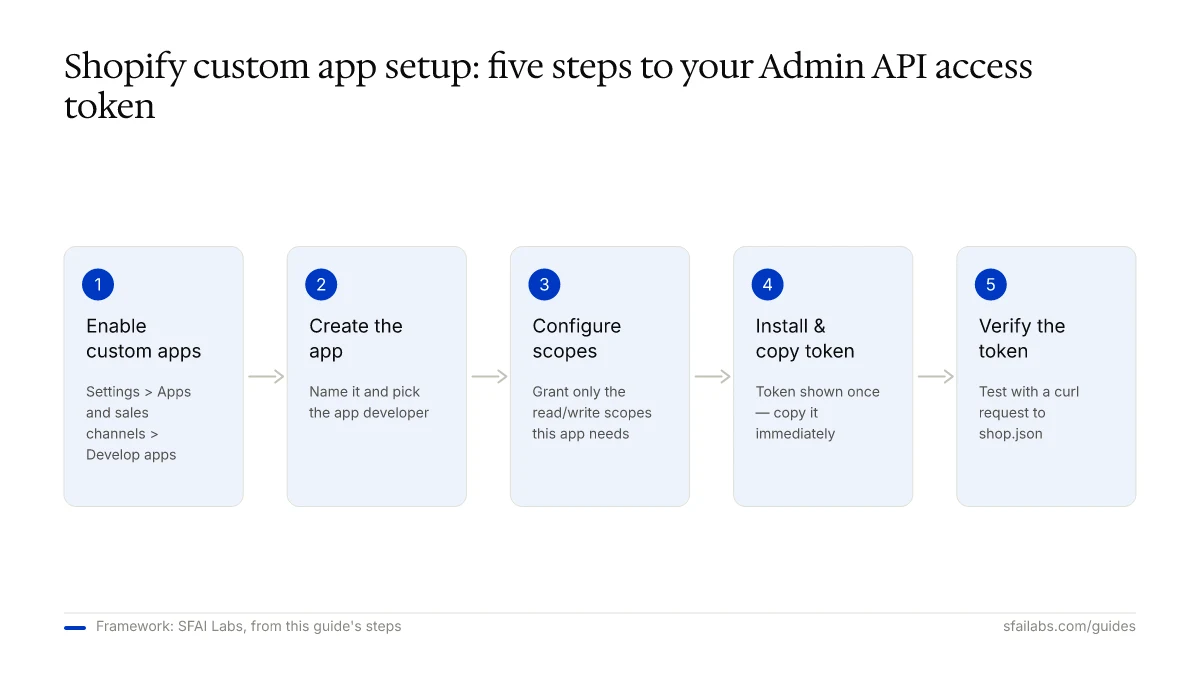
Step 1: Enable Custom App Development
Log into your Shopify admin at your-store.myshopify.com/admin. Go to Settings (bottom of the left sidebar), then click Apps and sales channels.
Click Develop apps in the top-right area. If this is your first time, Shopify will show a screen asking you to enable custom app development. Click Allow custom app development.
You need to be the store owner or have a staff account with the “Develop apps” permission to do this. If the button is grayed out, ask your store owner to grant that permission or enable it themselves.
Step 2: Create a Custom App
Click Create an app. Shopify asks for two things:
- App name: Use something descriptive. “Openclaw Integration” or “Inventory Sync” works better than “My App” when you have multiple integrations later.
- App developer: Select your email from the dropdown.
Click Create app and you land on your new app’s configuration page.
Step 3: Configure Admin API Scopes
Click Configure Admin API scopes. This is where you tell Shopify what data this app is allowed to read and write.
Shopify lists 40+ scopes covering products, orders, customers, inventory, fulfillment, themes, and more. Do not select everything. Grant only the permissions your integration needs. Over-permissioning an app is a security risk, and if the token gets compromised, the blast radius is smaller when scopes are limited.
Here are the scopes most store owners need for common use cases:
| Use Case | Recommended Scopes |
|---|---|
| Product catalog sync | read_products |
| Order notifications | read_orders |
| Inventory management | read_inventory, write_inventory |
| Customer data sync | read_customers |
| Full store integration | read_products, read_orders, write_orders, read_customers, read_inventory, write_inventory |
| Openclaw Shopify agent | read_products, read_orders, read_customers, read_inventory |
After selecting your scopes, click Save.
A practical tip: start with read-only scopes. You can always go back and add write permissions later. Integrations that request write_products on day one risk accidentally overwriting product descriptions during testing. Read-first protects your store data while you are still learning the integration.
Step 4: Install the App and Get Your Access Token
Scroll to the top of the app configuration page and click Install app. Shopify will show a confirmation dialog listing the access this app will have. Click Install.
After installation, Shopify reveals your Admin API access token.
Copy it immediately. Shopify shows this token exactly once. After you close the dialog or navigate away, the token is masked and cannot be retrieved. If you lose it, you need to uninstall the app and reinstall it to generate a new token, which also changes your API key and secret.
Store the token in a password manager, a .env file, or your platform’s secrets management. Never paste it into code that gets committed to a repository.
Step 5: Verify Your Token Works
Open a terminal and run this command, replacing your-store with your myshopify domain and your-token with the access token you just copied:
curl -X GET "https://your-store.myshopify.com/admin/api/2025-01/shop.json" \
  -H "X-Shopify-Access-Token: your-token"
If you get a JSON response with your shop details (name, domain, plan, etc.), your token is working. If you see a 401 Unauthorized or 403 Forbidden error, check that you copied the token correctly and that the app is installed.
A 403 with a message about scopes means your app does not have permission for the endpoint you are calling. Go back to Step 3 and add the required scope.
Custom Apps vs Public Apps
Everything above covers custom apps, which are built for a single store and managed directly in the Shopify admin. This is the right path for most store owners who want to connect their store to an external tool.
Public apps are different. They are built through the Shopify Partner Dashboard, use OAuth 2.0 for authentication, and can be installed on multiple stores. They can optionally be listed on the Shopify App Store.
| Custom App | Public App | |
|---|---|---|
| Who it is for | Your own store | Multiple stores / distribution |
| Setup location | Shopify Admin | Partner Dashboard |
| Authentication | Direct access token | OAuth 2.0 |
| App Store listing | No | Optional |
| Best for | Personal integrations, internal tools | Commercial apps, client work |
If you are reading this guide, you almost certainly want a custom app. Public apps add complexity (OAuth flows, app review) that is unnecessary when you just need your own store’s data.
What to Do With Your Token Next
The token sitting in your clipboard is not useful until it is connected to something.
If you are building a custom integration, use Shopify’s Admin API reference to start making requests. The API supports both REST and GraphQL. Shopify recommends GraphQL for new projects because it is more efficient and returns only the data you ask for.
If you want an AI agent that manages Shopify tasks for you, connect your token to Openclaw. Openclaw can monitor orders, track inventory changes, and send you alerts through Telegram or WhatsApp when something needs attention.
We have a full walkthrough for connecting Shopify:
- Connect Shopify to Openclaw covers pasting your Admin API access token into Openclaw’s integration settings and configuring which store events to track
- Openclaw for E-Commerce explains the broader set of e-commerce automations Openclaw can handle once connected
If you are collecting API keys for multiple services, we have sibling guides for the other keys you might need:
- How to Get Your OpenAI API Key
- How to Get Your Anthropic API Key
- How to Get Your Google Gemini API Key
Keeping Your Token Secure
Three rules that prevent most problems:
-
Never commit your token to version control. Add
.envto your.gitignorefile. If you push a token to GitHub, revoke it immediately by uninstalling and reinstalling the app in your Shopify admin. -
Use environment variables. Store the token in a
.envfile and load it at runtime. Hardcoding tokens into application source code is the fastest way to leak them. -
Scope your apps tightly. Each custom app should have only the permissions it needs. If your order-notification tool only reads orders, do not give it
write_products. This limits damage if a token is ever exposed.
Frequently Asked Questions
Is the Shopify API free?
Yes. API access is included with every Shopify plan at no additional cost. There are no per-call fees. Shopify does enforce rate limits (2 requests per second for REST, 50 points per second for GraphQL on most plans), but for typical integration use cases these limits are generous.
Can I get my access token back if I forgot to copy it?
No. Shopify displays the Admin API access token exactly once when you install the app. If you missed it, go to Settings > Apps > Develop apps, select your app, click Uninstall app, and then reinstall it. This generates a new token (and new API key and secret). Update any tools using the old credentials.
What is the difference between a Shopify API key and an access token?
The API key is a public identifier for your custom app. The Admin API access token is the private credential that authenticates your API requests. For connecting to external tools, you need the access token. See the disambiguation table at the top of this guide for the full breakdown.
How do I get a Shopify API key without being a Shopify Partner?
You do not need a Partner account. Custom apps are created directly in your store’s admin panel under Settings > Apps > Develop apps. The Partner Dashboard is only required for public apps that install on multiple stores.
Which API scopes should I select?
Only the ones your integration needs. For read-only data sync, read_products, read_orders, and read_customers cover most use cases. For tools that write back to your store (updating inventory, fulfilling orders), add the corresponding write_ scopes. Start with read-only and expand later.
Can I create multiple custom apps for one store?
Yes. Shopify does not limit the number of custom apps per store. Creating separate apps for separate integrations is a good security practice because you can revoke one app’s access without disrupting others.
What happens if my token gets compromised?
Uninstall the compromised app immediately from Settings > Apps > Develop apps. This revokes the token. Then create a new custom app with fresh credentials and update your integrations. Review your store’s recent API activity in the Shopify admin to check for unauthorized changes.
How do I connect my Shopify API key to Openclaw?
Follow our Connect Shopify to Openclaw guide. The short version: paste your Admin API access token and your your-store.myshopify.com domain into Openclaw’s Shopify integration settings. Openclaw uses these to read your store data and trigger automations.
Key Takeaways
- What most people call a “Shopify API key” is the Admin API access token. You get it by creating and installing a custom app in your admin panel.
- Legacy custom apps were deprecated January 1, 2026. The current path is Settings > Apps > Develop apps.
- Copy your access token the moment Shopify displays it. You cannot retrieve it later.
- Start with read-only scopes and add write permissions only when you need them.
- Connect your token to Openclaw to get real automation, not just raw API access.
SFAI Labs


