SendGrid gives you 100 free emails per day with no credit card required. Getting an API key takes about five minutes through app.sendgrid.com, but the key alone does not let you send email. You also need to verify a sender identity, which is the step most guides skip and the reason most developers’ first API call either fails or lands in spam.
This guide covers the full path from account creation to a working curl test. If you have already done some of these steps, skip ahead to the section you need.
Step 1: Create Your SendGrid Account
Go to signup.sendgrid.com and create a free account. You need an email address and a password. SendGrid asks for your company name and website during signup, but a personal project name works fine.
After creating your account, SendGrid sends a verification email. Click the link to confirm your address. You cannot access the API key settings until this step is complete.
One thing to know: SendGrid (owned by Twilio since 2019) sometimes places new free-tier accounts under review for 24-48 hours before enabling full sending. If your account shows a “pending” status, this is normal. The API key creation works immediately, but actual email delivery may be delayed until the review clears.
Step 2: Verify Your Sender Identity
Before SendGrid lets you send a single email through the API, you must prove you own the address or domain you are sending from. Skip this step and your API calls return a 403 Forbidden error.
Two options:
Single Sender Verification (Fast, Good for Testing)
Go to Settings > Sender Authentication > Single Sender Verification and click Create New Sender. Fill in your name, email address, and mailing address (required by CAN-SPAM). SendGrid sends a verification email to that address. Click the link, and you can send from that specific address immediately.
This works for development and testing. For production, use domain authentication instead.
Domain Authentication (Production-Ready)
Go to Settings > Sender Authentication > Domain Authentication and follow the wizard. SendGrid gives you three DNS records (CNAME entries) to add to your domain’s DNS settings. Once the records propagate (usually 15-60 minutes, sometimes up to 48 hours), SendGrid verifies your domain and you can send from any address on that domain.
Domain authentication also improves deliverability. It sets up DKIM signing and custom return-path records, which tell receiving mail servers that SendGrid is authorized to send on your behalf. Without it, your emails are more likely to hit spam folders.
Step 3: Create Your API Key
Now the part every guide covers. Go to Settings > API Keys in the left sidebar. Click Create API Key in the top right.
Give your key a descriptive name. “My App Transactional Email” is better than “API Key 1” because you will forget what unnamed keys are for when you have several.
Choosing Permission Scopes
SendGrid offers three access levels:
Full Access grants read and write permissions to every API endpoint except billing. Use this for development or when you need a single key that does everything. Not recommended for production, because if this key leaks, an attacker has full control of your account.
Restricted Access lets you pick exactly which permissions the key has. For transactional email sending, you need one scope: Mail Send. Toggle it to “Full Access” and leave everything else at “No Access.” This follows the principle of least privilege. If the key leaks, the attacker can send email but cannot read your contact lists, delete templates, or modify account settings.
Billing Access is for managing payment methods and invoices. You almost certainly do not need this.
For most developers building an app that sends transactional email, the right choice is Restricted Access with Mail Send only. The most common post-launch security incident is a leaked API key in a public GitHub repo. Restricting scopes limits the blast radius.
Click Create & View. Your API key appears once.
Copy it now and store it in a password manager or .env file. SendGrid does not show the key again. If you lose it, you have to create a new one.
The key is 69 characters long and starts with SG.. If your key does not match this format, something went wrong during creation.
Step 4: Test Your Key With curl
Open a terminal and run this command. Replace YOUR_API_KEY with the key you copied, and replace the email addresses with your verified sender and a recipient you can check:
curl -X POST "https://api.sendgrid.com/v3/mail/send" \
  -H "Authorization: Bearer YOUR_API_KEY" \
  -H "Content-Type: application/json" \
  -d '{
    "personalizations": [{"to": [{"email": "recipient@example.com"}]}],
    "from": {"email": "your-verified-sender@example.com"},
    "subject": "SendGrid API Key Test",
    "content": [{"type": "text/plain", "value": "If you see this, your API key works."}]
  }'
A successful send returns HTTP 202 Accepted with an empty body. That 202 means SendGrid accepted the message for delivery. It does not guarantee the email arrived, but it confirms your key, sender verification, and API call are all working.
If you get a 401 Unauthorized, your key is wrong or malformed. If you get a 403 Forbidden, your sender address is not verified. If you get a 429 Too Many Requests, you have hit the rate limit on the free tier.
SendGrid Free Tier and Pricing
The free tier gives you 100 emails per day, forever, with no credit card. For prototyping, password reset emails for a small app, or testing integrations, this is enough to get started without spending anything.
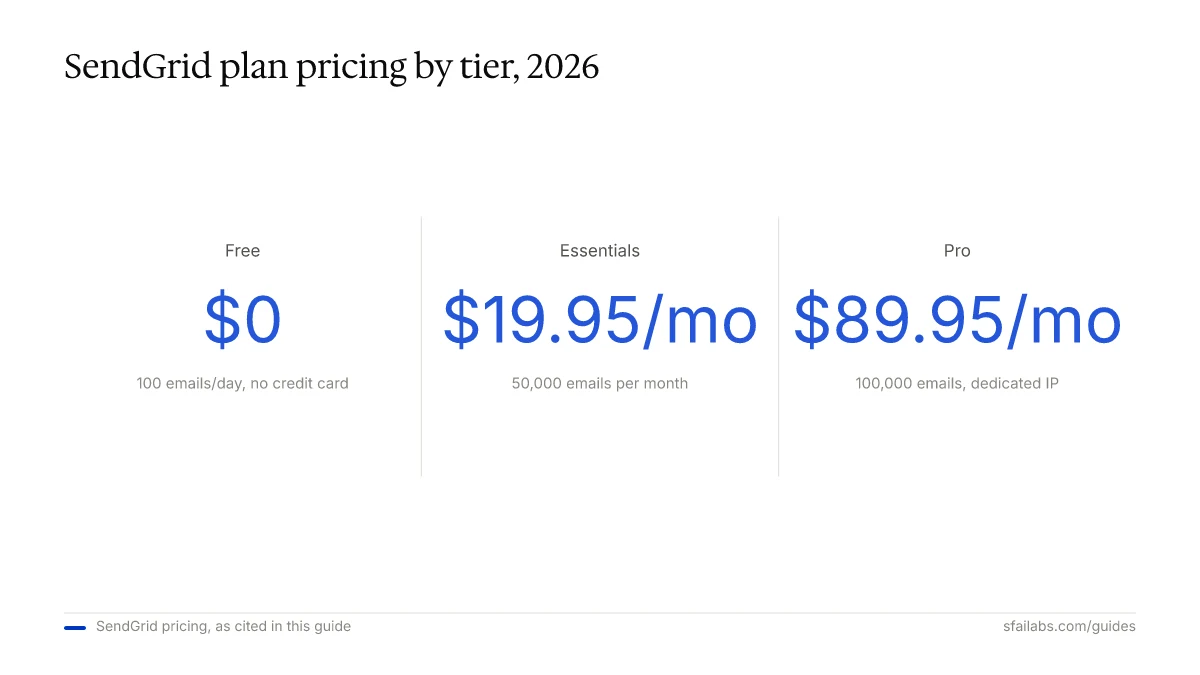
When you outgrow 100 emails/day, SendGrid’s paid plans start at:
| Plan | Monthly Emails | Price |
|---|---|---|
| Free | 100/day | $0 |
| Essentials | 50,000 | $19.95/mo |
| Pro | 100,000 | $89.95/mo |
| Premier | Custom volume | Custom pricing |
All paid plans include dedicated IP addresses at the Pro tier and above, which matters for deliverability at scale. The Essentials plan shares IPs with other senders.
For comparison, Amazon SES charges $0.10 per 1,000 emails with no monthly fee, Postmark charges $1.25 per 1,000, and Mailgun starts at $0.80 per 1,000 on their pay-as-you-go plan. SendGrid’s free tier is the most generous among dedicated email API providers if your volume stays under 100/day.
What to Do With Your Key Next
Your key unlocks the SendGrid API. The most common next steps:
If you are building an app, install the official SDK. For Node.js:
npm install @sendgrid/mailFor Python:
pip install sendgridThen set your API key as an environment variable:
export SENDGRID_API_KEY="your-key-here"The SDKs pick up SENDGRID_API_KEY automatically. You can also pass the key directly in code, but environment variables keep secrets out of version control.
If you want automated email through an AI agent, connect your SendGrid key to Openclaw. Openclaw uses SendGrid (or any SMTP-compatible provider) to send emails on your behalf through Telegram or WhatsApp commands. You tell the agent “email the weekly report to the team” and it composes and sends the message using your verified sender address.
We have setup guides for the full workflow:
- How to Set Up Openclaw: 10-Step Guide covers agent configuration, memory, and model selection
- Connect Email to Openclaw walks through SMTP configuration with SendGrid
- How to Get Your OpenAI API Key and How to Get Your Anthropic API Key if you need model provider keys alongside your email key
- How to Get Your Google Gemini API Key for another model provider option
Frequently Asked Questions
Is the SendGrid API free?
Creating an account and generating API keys costs nothing. The free tier includes 100 emails per day with no credit card required and no expiration date. You only pay when you need higher volume or features like dedicated IP addresses, which start at the Pro plan ($89.95/month).
Can I see my SendGrid API key after creating it?
No. SendGrid shows your API key exactly once, at the moment you create it. There is no way to retrieve or view an existing key. If you lose it, delete the old key from Settings > API Keys and create a new one. This is a security measure, not a bug.
What permission scopes do I need for sending email?
For transactional email, you need only the Mail Send scope set to Full Access. If you also use SendGrid for marketing campaigns, add the Marketing scope. If you manage email templates through the API, add Template Engine. Start with the minimum and add scopes as needed.
What is the difference between SendGrid SMTP and API?
Both let you send email through SendGrid. The API (REST endpoint at api.sendgrid.com/v3/mail/send) is faster and gives you structured JSON responses with delivery status. SMTP (host: smtp.sendgrid.net, port: 587, username: apikey, password: your API key) works with any application that supports SMTP, including WordPress and legacy systems. Use the API for new applications. Use SMTP when you need to plug SendGrid into software you cannot modify.
Why are my SendGrid emails going to spam?
Three common causes: you skipped domain authentication (fix it in Settings > Sender Authentication), you are sending from a shared IP on the free or Essentials plan (upgrade to Pro for a dedicated IP), or your email content triggers spam filters (avoid ALL CAPS subjects, excessive links, and missing unsubscribe headers). Domain authentication alone resolves the majority of spam folder issues.
How do I connect my SendGrid API key to Openclaw?
Add your SendGrid credentials to Openclaw’s environment file. Set the SMTP host to smtp.sendgrid.net, port to 587, username to apikey (literally the string “apikey”), and password to your SendGrid API key. See our full guide: Connect Email to Openclaw.
How many SendGrid API keys can I create?
SendGrid allows up to 100 API keys per account. Create separate keys for each application or environment (development, staging, production). This way, if one key is compromised, you revoke it without disrupting your other services.
Does SendGrid work with all programming languages?
SendGrid provides official SDKs for Python, Node.js, Ruby, Go, Java, C#, and PHP. Any language that can make HTTP requests can use the REST API directly. The SMTP interface works with any language or framework that supports SMTP, which covers virtually everything.
Key Takeaways
- The free tier gives you 100 emails/day with no credit card. Generate your key at app.sendgrid.com under Settings > API Keys.
- Verify your sender identity before attempting to send. This is the step most developers miss, and it causes
403 Forbiddenerrors and spam folder delivery. - Use Restricted Access with the Mail Send scope for production keys. Full Access keys are a security liability if they leak.
- Test with the curl command above. A
202 Acceptedresponse confirms everything is working. - Connect your key to Openclaw for AI-powered automated email sending alongside your other API provider keys.
SFAI Labs


