If you search HubSpot’s settings for an API key, you will not find one. HubSpot deprecated legacy API keys on November 30, 2022 and replaced them with Private App access tokens. The new system gives you granular control over what each integration can access, but it trips up a lot of people who expect the old one-click API key flow.
This guide walks through creating a Private App, selecting the right scopes for your use case, generating your access token, and testing it. The whole process takes about five minutes.
What Changed and Why It Matters
Legacy HubSpot API keys granted full access to every endpoint in your account. One leaked key meant everything was exposed: contacts, deals, marketing data, all of it. There was no way to limit what the key could do.
Private App tokens fix this. Each token is scoped to specific permissions you choose during setup. If you need an integration that only reads contacts, you grant only crm.objects.contacts.read. If that token leaks, the damage is contained.
The practical difference for you: instead of going to Settings and copying a pre-generated key, you now create a Private App, configure its permissions, and generate a token tied to those permissions.
Step 1: Open Private Apps in HubSpot Settings
Log into your HubSpot account at app.hubspot.com. You need Super Admin permissions to create Private Apps. If you do not see the options described below, check your role with your account admin.
Navigate to Settings (gear icon in the top navigation bar), then in the left sidebar go to Integrations > Private Apps.
If you do not see “Private Apps” in your sidebar, two common reasons:
- You are in a developer account. Private Apps are not available in HubSpot developer portal accounts. You need a regular HubSpot portal (even a free one, though some free plan tiers restrict this feature).
- Your plan does not support it. Most paid HubSpot plans include Private Apps. Some legacy free accounts may not. If you are blocked, upgrading to Starter unlocks it.
Step 2: Create Your Private App
Click Create a private app. You will see the Basic Info tab.
Fill in:
- App name: Use something descriptive that identifies the integration. Examples: “Openclaw CRM Sync”, “Zapier Contact Export”, “Internal Reporting Tool”
- Description (optional): A short note about what this app does. Useful when your team has multiple Private Apps and needs to tell them apart.
- Logo (optional): Upload an icon if you want visual identification in the settings panel.
The name matters more than people think. Six months from now, when someone audits your integrations, “My App” tells them nothing. “Openclaw HubSpot Agent” tells them everything.
Step 3: Select Your Scopes
Click the Scopes tab. This is where you define what your Private App can access.
HubSpot displays a searchable list of available scopes. Each scope controls access to a specific part of your HubSpot data. Select only what your integration needs.
Here are the scopes you will most likely need based on common use cases:
| Use Case | Required Scopes |
|---|---|
| Read contacts | crm.objects.contacts.read |
| Create or update contacts | crm.objects.contacts.read, crm.objects.contacts.write |
| Read and manage deals | crm.objects.deals.read, crm.objects.deals.write |
| Read company records | crm.objects.companies.read |
| Access form submissions | forms |
| Read marketing emails | content |
| Manage tickets | tickets |
| Full CRM read access | crm.objects.contacts.read, crm.objects.companies.read, crm.objects.deals.read, crm.objects.line_items.read |
For Openclaw’s HubSpot integration, select at minimum: crm.objects.contacts.read, crm.objects.contacts.write, crm.objects.deals.read, and crm.objects.deals.write. This covers the contact and deal sync that most users need.
Resist the urge to check every box. Granting all scopes defeats the purpose of the new system. If you discover later that your integration needs additional permissions, you can edit the Private App and add scopes without creating a new one.
Step 4: Generate Your Access Token
After configuring scopes, click Create app in the top right.
HubSpot will show you your access token. Copy it immediately. Unlike the old API key, HubSpot will not show the full token again after you close this dialog. You can always view a masked version later and generate a new token if needed, but the original is displayed only once.
Store the token in:
- A password manager (1Password, Bitwarden, etc.)
- A
.envfile that is included in your.gitignore - Your platform’s secrets manager (AWS Secrets Manager, Vercel Environment Variables, etc.)
Never paste the token directly into source code. Never commit it to a Git repository.
Step 5: Test Your Token
Open a terminal and run this curl command, replacing YOUR_TOKEN with the actual token:
curl https://api.hubapi.com/crm/v3/objects/contacts?limit=1 \
  -H "Authorization: Bearer YOUR_TOKEN" \
  -H "Content-Type: application/json"
If your token is valid and has the crm.objects.contacts.read scope, you will get a JSON response containing one contact record from your CRM. If you see a 401 error, double-check that you copied the token correctly. If you see a 403 error, your token is missing the required scope for that endpoint.
A 403 Forbidden is the most common issue developers hit when testing. It means authentication worked but the scope is wrong. Go back to your Private App settings and add the missing scope.
What Your Token Costs
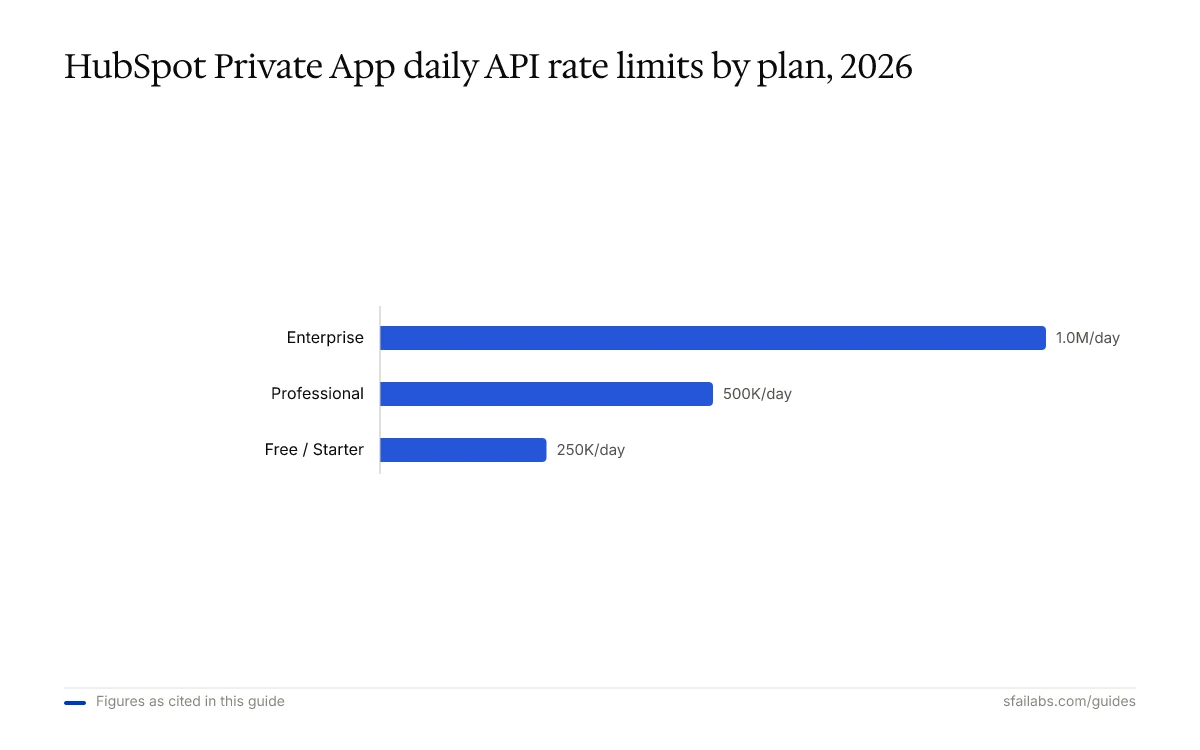
Private App tokens are free on every HubSpot plan that supports them. There is no per-call charge from HubSpot’s side. What varies is the rate limit:
| HubSpot Plan | Requests per 10 Seconds | Daily Limit |
|---|---|---|
| Free / Starter | 100 | 250,000 |
| Professional | 190 | 500,000 |
| Enterprise | 190 | 1,000,000 |
For reference, 250,000 daily requests is more than enough for most small-to-mid-size integrations. If you are running a high-volume sync (thousands of contacts updated per minute), you will want Professional or higher.
What to Do With Your Token Next
The token is only useful when you connect it to something. Two paths depending on your situation:
If you want an AI agent managing your CRM: Connect your token to Openclaw. Openclaw uses your HubSpot Private App token to read and update contacts, track deals, and automate CRM tasks through natural conversation. We have a full walkthrough: How to Connect HubSpot to Openclaw.
If you are building a custom integration: Use HubSpot’s official client libraries. Install the Node.js SDK (npm install @hubspot/api-client) or the Python SDK (pip install hubspot-api-client) and pass your token when initializing the client:
const hubspot = require('@hubspot/api-client');
const client = new hubspot.Client({ accessToken: 'YOUR_TOKEN' });
For more API key setup guides, see our walkthroughs for OpenAI, Anthropic, and Google Gemini.
Keeping Your Token Secure
Three practices that prevent most problems:
-
Rotate your token every six months. HubSpot recommends periodic rotation. Go to your Private App settings, click the Auth tab, and click Rotate token. HubSpot generates a new token and the old one stops working after a brief grace period.
-
Use one Private App per integration. If your Zapier connection gets compromised, you revoke that specific token without breaking your Openclaw agent or your internal reporting tool. Creating additional Private Apps is free and takes two minutes.
-
Never commit tokens to version control. Add
.envto your.gitignore. If a token accidentally gets pushed to GitHub, rotate it immediately from HubSpot settings.
Frequently Asked Questions
Are HubSpot API keys still available?
No. HubSpot deprecated legacy API keys on November 30, 2022. If you search for “API key” in your settings, you will not find it. The replacement is Private App access tokens, which work similarly but with granular scope control. Any guide telling you to navigate to Settings > Integrations > API Key is outdated.
Do I need a paid HubSpot plan to create a Private App?
Most HubSpot plans, including free tiers, support Private Apps. However, some older free accounts or developer portal accounts do not. If you cannot see “Private Apps” under Integrations in your settings, your account type may not support it. Upgrading to HubSpot Starter unlocks the feature.
What is the difference between a Private App token and OAuth?
Private App tokens are static credentials for single-account integrations. They do not expire and require no refresh flow. OAuth is for multi-account apps (like a SaaS product that connects to many HubSpot portals). OAuth tokens expire every six hours and require a refresh mechanism. For most internal integrations and personal tools, Private App tokens are simpler and sufficient.
Can I use one Private App token across multiple tools?
You can, but you should create separate Private Apps for separate tools. If one tool leaks the token, you can revoke it without disrupting your other integrations. Each Private App gets its own scoped token. Creating them is free and takes under two minutes.
What scopes should I select for basic CRM access?
For read-only CRM access: crm.objects.contacts.read, crm.objects.companies.read, and crm.objects.deals.read. For read-write access, add the corresponding .write scopes. Start with the minimum you need and expand later. You can edit scopes on an existing Private App without creating a new one.
Why do I get a 403 error when using my token?
A 403 means your token authenticated successfully but lacks the required scope for the endpoint you called. Check which scope the endpoint needs in HubSpot’s API documentation, then add that scope to your Private App. After saving, test again with the same token.
What are HubSpot’s API rate limits?
Free and Starter plans allow 100 requests per 10 seconds with a daily cap of 250,000 requests. Professional and Enterprise plans allow 190 requests per 10 seconds with daily caps of 500,000 and 1,000,000 respectively. These limits apply per Private App, not per account.
Key Takeaways
- HubSpot legacy API keys are gone. Private App access tokens replaced them in November 2022.
- You need Super Admin permissions in a regular HubSpot portal (not a developer account) to create Private Apps.
- Select only the scopes your integration needs. You can always add more later without creating a new app.
- Copy your token the moment it appears. HubSpot shows it once.
- Connect your token to Openclaw’s HubSpot integration to put it to work immediately.
SFAI Labs


