The Mac mini became the default OpenClaw host in 2026 for a simple reason: a $599 box sits on a shelf drawing 8–15 watts, runs 24/7 without fan noise, and gives an AI agent first-class access to Reminders, Notes, Shortcuts, iMessage, and the Keychain. No Linux VPS can do that.
But “Mac mini” is not a single answer. An M4 with 16 GB of unified memory is a great cloud-API agent host and a terrible local-LLM host. An M4 Pro with 48 GB runs a 70B model — and is usually overkill for anyone who only wants their agent to reply to Telegram. This guide walks through the decision, the install, and the operational details SFAI Labs has learned from running OpenClaw on Mac minis for client pilots, so you buy the right box once instead of upgrading twice.
Why a Mac Mini Is a Good OpenClaw Host
Three things matter for an always-on AI agent: it stays up, it stays quiet, and it keeps your electricity bill unchanged. The Mac mini clears all three.
A Mac mini M4 draws roughly 8–15 watts at idle and around 30 watts under sustained AI load. For comparison, a dual-GPU PC rig pulls 600 watts or more under similar workloads. At typical US electricity rates, a Mac mini running OpenClaw 24/7 costs about $3–5 per month. The hardware pays for itself against any cloud VPS plus API cost difference inside a year for most single-user setups.
Beyond the economics, macOS gives your agent capabilities you cannot replicate on a Linux VPS. With the right permissions, an OpenClaw instance running on a Mac mini can read and write Apple Notes, create Reminders, trigger Shortcuts workflows, send iMessages, and access credentials stored in the Keychain. If you want your agent to drop a todo into your personal Reminders list when a specific Telegram message arrives, you need a Mac host. Nothing else does this.
The reliability story is also strong. Mac minis run for years without maintenance. macOS handles power-failure restarts gracefully, the hardware has no moving parts, and Apple Silicon thermals mean the fan rarely spins up even under load.
When a Mac Mini Is the Wrong Choice
The competing guides for this topic tend to assume a Mac mini is always the right answer. It isn’t. There are four situations where you should pick something else.
You need to train or fine-tune models. Apple Silicon is an inference machine. It lacks the FP8/FP16 throughput, tensor cores, and mature training software stack of NVIDIA GPUs. If your OpenClaw deployment involves custom model training, buy a CUDA machine or rent one.
You need many parallel browser agents. Each Playwright Chromium instance consumes 200–400 MB of RAM and burns CPU during rendering. A Mac mini M4 with 16 GB comfortably handles two or three browser agents. If your plan is ten concurrent scraping agents, a beefier workstation or a VPS fleet makes more operational sense.
Your data is regulated and you need OS-level hardening. macOS is a fine secure desktop OS, but the CIS Benchmark surface area, audit logging, and SELinux-style mandatory access controls are thinner than on a hardened Linux server. Financial, healthcare, or government workloads with strict compliance requirements usually end up on Linux.
You want hardware you can upgrade. Unified memory is soldered. The RAM you buy today is the RAM you have in three years. If your agent workload is uncertain, this is a real risk. A self-assembled Linux workstation lets you add memory or swap a GPU when your needs change.
If none of those apply, a Mac mini is almost certainly the right choice.
Which Mac Mini to Buy
Apple sells the Mac mini in two families: the base M4 and the M4 Pro. Both fit the OpenClaw use case, but they sit at different price and capability points.
| Configuration | CPU | GPU | Memory Bandwidth | Max RAM | Street Price | Best For |
|---|---|---|---|---|---|---|
| M4 base (16 GB) | 10-core | 10-core | 100 GB/s | 32 GB | ~$599 | Cloud-API agent, 1–2 browser instances |
| M4 base (24 GB) | 10-core | 10-core | 100 GB/s | 32 GB | ~$799 | Cloud-API agent with small local model (7B–8B) |
| M4 Pro (48 GB) | 12–14 core | 16–20 core | 273 GB/s | 64 GB | ~$1,599 | Local 30B–70B models, multi-agent, browser-heavy |
| M4 Pro (64 GB) | 14-core | 20-core | 273 GB/s | 64 GB | ~$1,999 | Zero-cloud setups, 70B models with headroom |
For most readers, the M4 base with 16 GB is enough. It runs the OpenClaw gateway, one or two Playwright browser instances, and an IDE session with memory to spare — as long as you route inference to the Anthropic or OpenAI API rather than a local model.
If you want to run a local LLM on the same box, jump to the M4 Pro with at least 48 GB. The jump is not primarily about CPU cores or GPU cores: it’s about memory bandwidth. Local LLM tokens-per-second scales almost linearly with memory bandwidth, and the M4 Pro’s 273 GB/s is 2.7x the base M4’s 100 GB/s. Running Llama 3.3 70B on an M4 16 GB is technically possible with aggressive quantization but practically painful.
RAM Sizing for Real OpenClaw Workloads
Most buying guides give you generic LLM benchmarks. They miss the fact that OpenClaw itself uses RAM, and so does every browser instance you spawn. Here is the honest accounting for a Mac mini running OpenClaw.
| Component | Memory Use |
|---|---|
| macOS base (Sonoma/Sequoia, minimal apps) | 3–4 GB |
| OpenClaw gateway process | 400–800 MB |
| Each Playwright Chromium instance | 200–400 MB |
| Node.js runtime overhead | 150–300 MB |
| Local LLM (Llama 3.1 8B, Q4) | ~5 GB |
| Local LLM (Llama 3.3 70B, Q4) | ~40 GB |
| Working headroom | 2–4 GB |
A concrete example: two browser agents plus a small local 8B model on the same Mac mini consumes roughly 4 GB (macOS) + 0.8 GB (gateway) + 0.6 GB (2 browsers) + 0.3 GB (Node) + 5 GB (model) + 3 GB (headroom) = about 14 GB. That fits on a 16 GB machine but leaves no room to open Xcode or Chrome for debugging. A 24 GB M4 handles the same setup comfortably with room for interactive work.
For a deeper breakdown of the OpenClaw process tree and what consumes resources in each deployment scenario, see our OpenClaw hardware requirements guide.
Installing OpenClaw on macOS
The install is three commands after Homebrew is in place. If you are starting from a fresh Mac mini, walk through these in order.
# 1. Install Homebrew if you do not already have it
/bin/bash -c "$(curl -fsSL https://raw.githubusercontent.com/Homebrew/install/HEAD/install.sh)"

# 2. Install Node.js 22 (OpenClaw requires 22 or higher)
brew install node@22
brew link --overwrite node@22

# 3. Install OpenClaw globally
npm install -g openclaw

# 4. Initialize a new agent in your workspace directory
mkdir -p ~/openclaw && cd ~/openclaw
openclaw init
The openclaw init step walks you through selecting a messaging channel (Telegram, Slack, WhatsApp, Discord, or iMessage), adding your LLM provider API key, and generating the workspace files. Keep the workspace somewhere outside iCloud Drive — agents write session files continuously and iCloud sync conflicts cause state corruption.
Once init completes, run openclaw start to launch the gateway. If your messaging channel is configured correctly, you can send your agent a message right now and get a response.
For a deeper walkthrough including channel-specific quirks and the skill system, see our OpenClaw installation guide.
Keeping It Running 24/7
An AI agent that stops running when the Mac goes to sleep is a chat bot, not an always-on assistant. macOS ships with the tools you need to prevent that, but the defaults are wrong for this use case.
Step 1: Disable automatic sleep for the server. Open System Settings → Energy → and set “Prevent automatic sleeping when the display is off” to on. Also set “Start up automatically after a power failure.”
Step 2: Wrap OpenClaw in caffeinate. The caffeinate command prevents the system from entering any idle state while a process is running. The canonical invocation:
caffeinate -i -s openclaw startThe -i flag prevents idle system sleep and -s prevents system sleep while on AC power. This is the minimum for a reliable always-on setup.
Step 3: Create a LaunchDaemon for auto-start. A LaunchDaemon starts OpenClaw at boot without requiring a user login. Create /Library/LaunchDaemons/com.openclaw.agent.plist:
<?xml version="1.0" encoding="UTF-8"?>
<!DOCTYPE plist PUBLIC "-//Apple//DTD PLIST 1.0//EN"
  "http://www.apple.com/DTDs/PropertyList-1.0.dtd">
<plist version="1.0">
<dict>
    <key>Label</key>
    <string>com.openclaw.agent</string>
    <key>ProgramArguments</key>
    <array>
        <string>/usr/bin/caffeinate</string>
        <string>-i</string>
        <string>-s</string>
        <string>/opt/homebrew/bin/openclaw</string>
        <string>start</string>
    </array>
    <key>WorkingDirectory</key>
    <string>/Users/youruser/openclaw</string>
    <key>RunAtLoad</key>
    <true/>
    <key>KeepAlive</key>
    <true/>
    <key>StandardOutPath</key>
    <string>/var/log/openclaw.log</string>
    <key>StandardErrorPath</key>
    <string>/var/log/openclaw.err</string>
</dict>
</plist>
Load it with sudo launchctl load /Library/LaunchDaemons/com.openclaw.agent.plist. From this point on, OpenClaw starts at boot, restarts if it crashes, and runs regardless of whether a user is logged in.
One operational gotcha we hit repeatedly in client pilots: FileVault plus auto-login disables unattended reboots. If the Mac restarts after a power outage, FileVault waits for you to type the disk password before LaunchDaemons run. For true unattended operation either disable FileVault, or enable the “auto-login” bypass with sudo fdesetup authrestart configured — understanding the security tradeoff.
Running a Local LLM Alongside OpenClaw
The Mac mini’s killer feature for OpenClaw is that you can keep the whole stack local. No API keys, no egress, no rate limits. This only makes sense on an M4 Pro with 48 GB or more, and it adds complexity you should understand before committing.
Install Ollama via Homebrew:
brew install ollama
ollama serve &
ollama pull llama3.1:8b
For OpenClaw to route inference to Ollama instead of Anthropic or OpenAI, point the provider config at http://localhost:11434 in your openclaw workspace configuration. The Ollama API is OpenAI-compatible, so most OpenClaw provider adapters work without modification.
Expected performance on Apple Silicon with 4-bit quantization:
| Model | M4 16 GB | M4 24 GB | M4 Pro 48 GB |
|---|---|---|---|
| Llama 3.1 8B | 18–22 tokens/sec | 18–22 tokens/sec | 25–30 tokens/sec |
| Llama 3.1 13B | 10 tokens/sec (tight) | 10–12 tokens/sec | 15–18 tokens/sec |
| Llama 3.3 70B | Not usable | Not usable | 8–12 tokens/sec |
Tokens per second scales almost linearly with memory bandwidth, which is why the M4 Pro is dramatically faster on larger models even though CPU/GPU core counts are close.
The honest tradeoff: local 8B models are fast but noticeably dumber than Claude Sonnet or GPT-4 class cloud models for agent-style reasoning. They handle narrow, well-scoped tasks well. They struggle with multi-step planning and tool use. If your agent workload is “summarize this message and route it,” a local 8B is fine. If it’s “read my calendar, my email, and draft a response,” you probably still want a cloud model.
Remote Access and Headless Operation
A Mac mini tucked in a closet is only useful if you can reach it from anywhere. Three setups cover almost every case.
SSH for terminal access. Enable Remote Login in System Settings → General → Sharing. Generate an SSH key on your laptop with ssh-keygen -t ed25519, copy the public key to the Mac mini with ssh-copy-id youruser@mac-mini.local, and disable password SSH in /etc/ssh/sshd_config by setting PasswordAuthentication no. This is the minimum for a Mac mini exposed to the network.
Tailscale for zero-config remote access. For secure access from outside your home network without opening ports, install Tailscale on both the Mac mini and your laptop. Your Mac mini becomes reachable at mac-mini on the Tailscale network, which works from any coffee shop Wi-Fi without VPN configuration. This is the recommended setup for single-user deployments.
Headless operation. A Mac mini can run without a monitor, but the GPU downgrades its output resolution when no display is detected, which can affect any workload that uses the GPU (including local LLM inference). A $10 HDMI dummy plug tricks macOS into thinking a 1080p display is connected and keeps the GPU at full capability. This is a small hardware addition that materially improves local LLM performance in headless deployments.
For multi-user or team deployments, add a reverse proxy like Caddy in front of the OpenClaw HTTP endpoints and terminate TLS with Let’s Encrypt certificates through Tailscale’s integration.
Mac Mini vs Workstation vs VPS
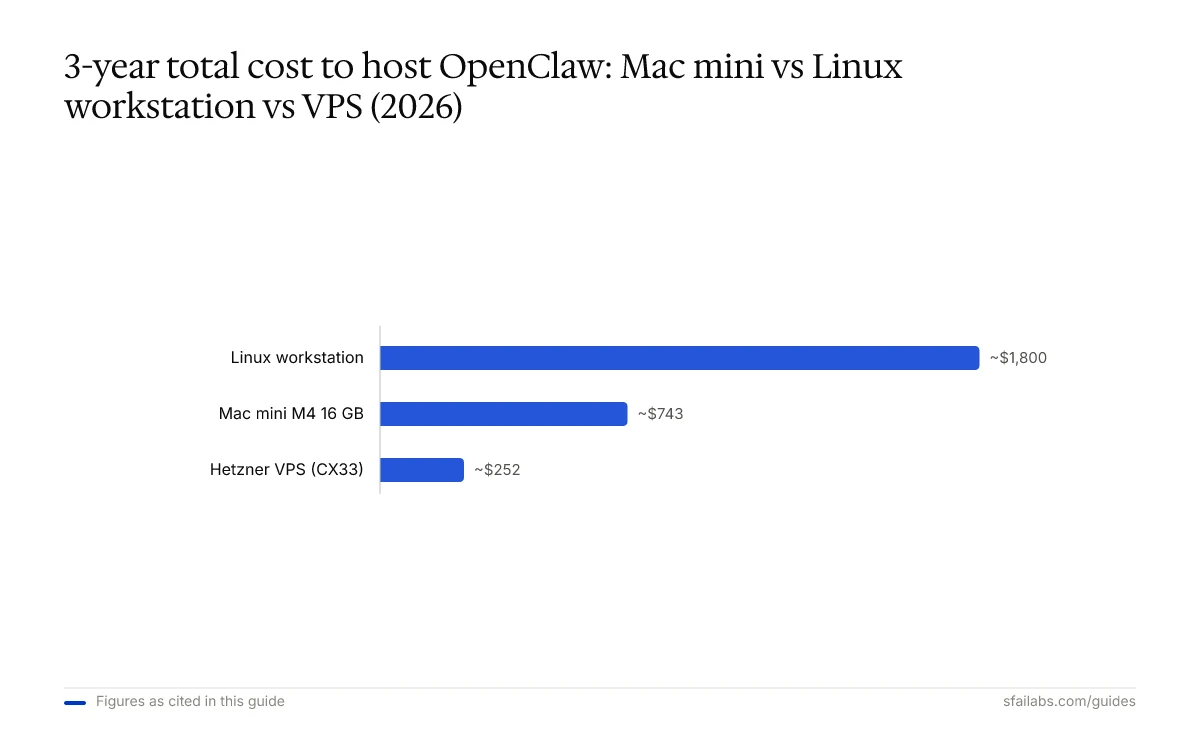
The three realistic options for hosting OpenClaw each have a clean break-even point. This table is the decision we help clients make when they ask us where to run their agent.
| Criterion | Mac Mini M4 16 GB | Linux Workstation | Hetzner VPS (CX33) |
|---|---|---|---|
| Upfront cost | $599 | $1,200–2,000 (custom build) | $0 |
| Monthly cost (electricity or rent) | ~$4 | $15–25 | ~$7 |
| 3-year total | ~$743 | ~$1,800 | ~$252 |
| Local LLM support | Limited (8B only) | Excellent with GPU | None |
| Browser automation at scale | Limited | Excellent | Good |
| Apple-native integrations | Yes | No | No |
| Upgrade path | None | Full | Re-provision |
| OS hardening ceiling | Medium | High | High |
| Best for | Solo developer, always-on personal agent | Multi-agent, local LLMs, heavy browser | Cloud-API agent, zero physical footprint |
The Mac mini wins for solo developers and indie hackers running an always-on personal agent with cloud APIs. The Linux workstation wins if you run local LLMs at scale or need ten parallel browser agents. The VPS wins if you already live in the cloud, have no hardware budget, and don’t need Apple integrations.
Most SFAI Labs client pilots start on a Mac mini, move to a hybrid (Mac mini for Apple integrations, VPS for heavy browser work) once usage grows, and only assemble a dedicated Linux workstation when a specific workload demands it.
Frequently Asked Questions
Which Mac mini should I buy for OpenClaw?
For cloud-API agents (most users), the M4 base with 16 GB at $599 is the right starting point. If you know you want to run a small local LLM alongside, step up to 24 GB. If your plan is a zero-cloud setup with a 30B or 70B model, go straight to the M4 Pro with 48 GB or 64 GB.
Is 16 GB enough for OpenClaw on a Mac mini?
Yes, for a standard cloud-API agent with one or two browser instances. No, if you also want to run a local LLM of any meaningful size. macOS plus the OpenClaw gateway plus two Chromium instances already consumes 6–8 GB, which leaves too little for a local model.
Can I run a local LLM on a Mac mini with OpenClaw?
Yes. Ollama is the common path. An M4 16 GB runs Llama 3.1 8B at 18–22 tokens per second. An M4 Pro 48 GB runs Llama 3.3 70B at 8–12 tokens per second. Local 8B models are capable for narrow tasks but fall behind cloud frontier models on multi-step reasoning.
How do I keep my Mac mini awake 24/7 for OpenClaw?
Disable automatic sleep in Energy settings, enable “Start up after power failure,” and run OpenClaw under caffeinate -i -s inside a LaunchDaemon. That combination survives restarts, crashes, and power outages without manual intervention.
How much does it cost to run OpenClaw on a Mac mini per month?
Roughly $3–5 per month in electricity at US rates. Add your LLM API costs if you use a cloud provider. A typical indie hacker using the Anthropic API for 20–40 agent conversations per day spends $10–30 per month on inference on top of electricity.
Can I access my OpenClaw Mac mini remotely?
Yes. SSH is built in. For access from outside your home network, install Tailscale on both the Mac mini and your client device and the machine becomes reachable at a stable hostname without opening ports or configuring a VPN.
Mac mini vs VPS vs workstation — which should I use for OpenClaw?
Mac mini for solo always-on with Apple integrations. VPS for pure cloud-API setups with no hardware footprint. Linux workstation for heavy local LLMs or many parallel browser agents. The Mac mini wins for most solo developers; the other two win at specific edges.
Does OpenClaw work on older Apple Silicon (M1, M2, M3)?
Yes. OpenClaw supports any ARM64 macOS 13+ system. An M1 Mac mini with 16 GB still runs a cloud-API agent well. Older machines are fine for text-only agents; the main limitation is unified memory, which tops out lower on earlier generations than on the M4 Pro.
Key Takeaways
- The Mac mini M4 with 16 GB at $599 is the default OpenClaw host for solo developers running cloud-API agents.
- Step up to the M4 Pro with 48 GB or more only if you plan to run local LLMs larger than 8B or need the memory bandwidth for 70B-class inference.
- Electricity runs about $3–5 per month, which is cheaper than most VPS options and dramatically cheaper than a dual-GPU PC.
- Always-on requires three changes: disable sleep, enable auto-restart after power failure, and wrap OpenClaw in
caffeinateinside a LaunchDaemon. - Unified memory is soldered. Buy more than you think you need, because you cannot add it later.
- A Mac mini is the wrong choice for model training, many-parallel browser agents, or regulated data with strict OS-hardening requirements. For everything else, it is the right choice.
SFAI Labs


