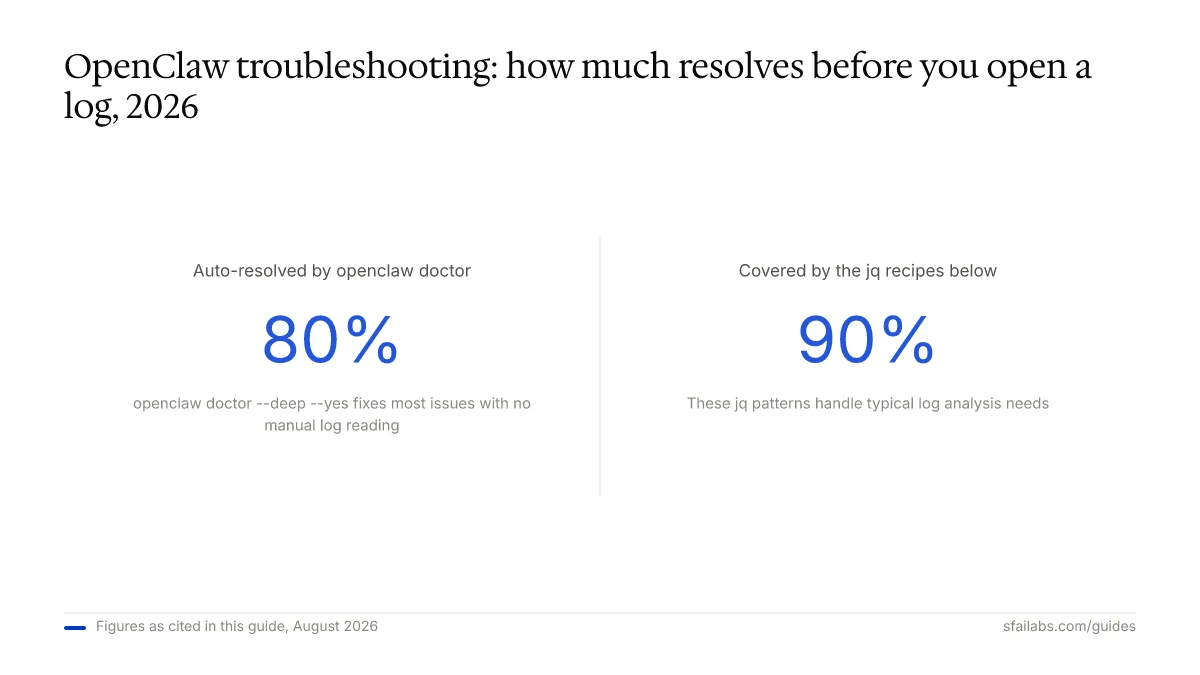
Running openclaw doctor --deep --yes auto-resolves roughly 80% of OpenClaw issues without any manual work. But the other 20% require you to read logs, trace agent decisions, and understand what went wrong at the system level. This guide covers a structured debugging workflow: where to find logs, how to read them, and how to move from “something broke” to “here is the root cause” in minutes instead of hours.
The Debugging Escalation Ladder
Most operators jump straight to reading logs. That works sometimes, but it wastes time when the problem is obvious from a status check. This five-step escalation ladder narrows the problem efficiently. Stop as soon as you find the cause.
Step 1: Check status.
openclaw status --allIf the process is not running, you have your answer. Restart it. If a channel shows disconnected, that narrows the problem to networking or auth.
Step 2: Check the gateway.
openclaw gateway statusA disconnected or unauthorized status here means the gateway cannot reach the model provider or the client cannot reach the gateway. Jump to the common error patterns section.
Step 3: Run the doctor.
openclaw doctor --deep --yesThis command validates your configuration, checks connectivity, verifies channel bindings, and auto-fixes what it can. If the doctor resolves the issue, you are done.
Step 4: Stream the logs.
openclaw logs --follow --jsonNow you are reading real-time output. Look for error level entries. If you see repeated errors from the same component, you have found the failing subsystem. The next sections explain how to interpret what you see.
Step 5: Enable raw stream logging.
If the standard logs do not show enough detail, enable raw provider output:
OPENCLAW_RAW_STREAM=1 OPENCLAW_RAW_STREAM_PATH=~/.openclaw/logs/raw-stream.jsonl openclaw tuiThis writes every token the LLM sends back, before any filtering or formatting. Use this when you suspect the model is returning something unexpected, like reasoning tokens appearing as plain text or tool calls arriving malformed.
Most problems resolve at steps 1 through 3. Steps 4 and 5 are for the stubborn cases.
Log Locations and Structure
OpenClaw writes JSON-formatted logs to ~/.openclaw/logs/. Each log entry contains a timestamp, level, component name, and message. Here are the files that matter:
~/.openclaw/logs/openclaw.json– Main application log. Gateway events, channel messages, skill executions, and errors all land here.~/.openclaw/logs/raw-stream.jsonl– Raw LLM output whenOPENCLAW_RAW_STREAM=1is set. One JSON object per line.~/.openclaw/workspace/[job-name]/logs/$(date +%Y-%m-%d).log– Per-job session logs. These contain the conversation history for a specific agent run, including tool calls and their results.
For Docker deployments, logs go to the container’s stdout by default. Access them with:
docker logs openclaw-gateway --follow --tail 200If you need persistent Docker logs, mount a volume to ~/.openclaw/logs/ inside the container. Our Docker deployment guide covers the volume configuration.
Log Levels and Verbose Mode
OpenClaw supports five log levels: error, warn, info, debug, and trace. The default is info.
To increase verbosity for a single session:
openclaw tui --log-level debugTo set it globally via environment variable:
export OPENCLAW_LOG_LEVEL=debugOr in your ~/.openclaw/openclaw.json:
{
  "logging": {
    "level": "debug",
    "redactSensitive": "tools"
  }
}
The redactSensitive setting controls whether API keys and tokens are masked in log output. Keep it set to tools in production. Only disable redaction temporarily when you need to verify that the correct key is being sent.
When to use each level:
info(default) – Enough to see message flow and errors. Use for normal operation.debug– Adds tool execution details, configuration loading, and channel handshake steps. Use when info-level logs do not explain the behavior.trace– Adds raw HTTP request/response headers and full payloads. Generates a lot of output. Use only for specific, time-bounded debugging sessions.
Reading Conversation Logs
This is the gap most guides skip. Knowing where logs are stored is table stakes. Understanding what a conversation log entry tells you about agent behavior is what helps you debug.
A session log in ~/.openclaw/workspace/[job-name]/logs/ records each turn of the conversation: the user message, the system prompt, the model’s response, any tool calls the model made, and the tool results.
Here is what to look for:
The agent chose the wrong tool. Check the tool_calls array in the model response. If the agent called web_search when it should have called file_read, the problem is in your skill configuration or system prompt, not in the logging layer. Adjust your AGENTS.md or the skill’s SKILL.md to give the model clearer instructions about when to use which tool.
The agent produced a correct tool call but the tool failed. Look at the tool result entry that follows the tool call. A status: "error" with a message like ENOENT: no such file or directory tells you the tool tried to access a path that does not exist. This is common when workspace paths change between deployments, and it is the fastest type of error to troubleshoot because the log message tells you exactly which path is wrong.
The agent looped on the same tool repeatedly. Search the session log for repeated tool call entries with the same name. This happens when a tool returns an error and the model keeps retrying without changing its approach. The fix is usually adding an explicit retry limit in the skill definition or improving the error message the tool returns so the model can adapt.
The agent stopped mid-conversation. Look for the last log entry. If it is an LLM request with no corresponding response, the model provider timed out. The default timeout is 60 seconds. Increase it with LLM_REQUEST_TIMEOUT=120 in your .env file and restart. If the last entry is a tool call, the tool itself hung. Check whether the tool makes external HTTP requests that could be timing out.
Debugging Skill Failures
When a custom skill does not load or execute, work through this checklist in order:
1. Verify the skill directory.
openclaw config get skills.directoryThe default is ~/.openclaw/workspace/skills/. If your skill lives somewhere else, OpenClaw will not find it. Each skill needs its own subdirectory containing at minimum a SKILL.md file.
2. Check the SKILL.md structure.
The file must have valid YAML frontmatter with name, description, and allowed-tools fields. A missing allowed-tools field means the skill has no permission to call any tools, so it will appear to do nothing.
3. Test the skill in isolation.
openclaw reloadThis hot-reloads all skills without restarting the gateway. After reloading, try invoking the skill directly in the chat. If it fails, the logs at debug level will show exactly which part of the skill loading process broke.
4. Check file permissions.
On Linux VPS deployments, the OpenClaw process needs read access to the skill directory. A common mistake is creating skills as root while running OpenClaw as a non-root user. Run ls -la ~/.openclaw/workspace/skills/your-skill/ and verify the ownership matches the OpenClaw process user.
5. Read the skill execution log.
With OPENCLAW_LOG_LEVEL=debug, skill execution produces entries showing which tools the skill attempted to call and whether each call was allowed. A SYSTEM_RUN_DENIED error means the tool is not in the skill’s allowed-tools list.
For a deeper dive into building and testing skills, see our skills development guide.
Common Error Patterns and What They Mean
When you need to troubleshoot a specific error, start here. These are the most frequently reported patterns and the reasoning behind each fix.
Gateway error 4008 (connect failed). The WebSocket handshake between the client and gateway failed. The most common cause is a protocol mismatch: your GATEWAY_URL uses ws:// but the gateway expects wss:// (or vice versa). If you are behind a reverse proxy that terminates TLS, the client needs wss:// but the gateway listens on ws:// internally. Fix the URL in your .env to match your actual network setup.
HTTP 401 from model provider. Your API key is invalid, expired, or has a trailing whitespace character. Validate it directly:
openclaw models testIf the key works in the provider’s playground but not in OpenClaw, copy-paste it again carefully. A trailing newline character in the .env file is a surprisingly common cause of 401 errors. See our guide on API costs for key management best practices.
HTTP 429 (rate limited). You are sending more requests than your provider tier allows. Short-term fix: wait for the rate limit window to reset (usually 60 seconds). Long-term fix: configure a fallback model so OpenClaw automatically switches providers when one is throttled. You can also set MAX_REQUESTS_PER_MINUTE in your .env to self-throttle below the provider limit.
EADDRINUSE on port 18789. Another process is already using the gateway port. Find it and kill it:
lsof -i :18789
kill -9 <PID>
Or change the port with GATEWAY_PORT=18790 in your .env.
Context length exceeded. The conversation has grown beyond the model’s token limit. Start a new session, or configure context management in ~/.openclaw/config.yaml:
context_strategy: scoped
context_reset_on: task_boundary
This prevents cross-task memory contamination and resets working memory between discrete tasks. For persistent memory across sessions, see our memory configuration guide.
Log Analysis With jq
The JSON-formatted logs are designed for filtering with jq. Here are the most useful recipes:
Show only errors from the last hour:
openclaw logs --level error --since "1h"Filter real-time logs for a specific error type:
openclaw logs --follow --json | jq 'select(.error_type == "timeout")'Count errors by type over the full log:
cat ~/.openclaw/logs/openclaw.json | jq -s 'group_by(.error_type) | map({type: .[0].error_type, count: length}) | sort_by(-.count)'Trace a single conversation thread:
cat ~/.openclaw/workspace/main/logs/2026-04-01.log | jq 'select(.session_id == "abc123")'Find the slowest LLM requests:
cat ~/.openclaw/logs/openclaw.json | jq 'select(.duration_ms > 5000) | {timestamp, model, duration_ms}'These patterns cover about 90% of typical log analysis needs. For more advanced observability (Prometheus metrics, Grafana dashboards, ELK integration), the official monitoring docs cover the setup.
The /debug Command
OpenClaw includes a runtime debug interface you can use directly in the chat. It is disabled by default. Enable it in your config:
{
  "commands": {
    "debug": true
  }
}
Once enabled, these commands are available inside the chat:
/debug show– Display current runtime configuration overrides./debug set agent.workspace /tmp/test– Override a config value for this session only. Changes are in-memory and do not persist to disk./debug unset agent.workspace– Remove a runtime override./debug reset– Clear all runtime overrides.
This is useful for testing configuration changes without restarting the gateway. Change a value, test the behavior, and if it works, commit the change to your config file permanently.
Safety note: /debug overrides are session-scoped. They disappear when the session ends. They do not affect other users connected to the same gateway.
Frequently Asked Questions
Where are OpenClaw log files stored?
Main application logs live at ~/.openclaw/logs/openclaw.json. Session-specific conversation logs are in ~/.openclaw/workspace/[job-name]/logs/ with one file per day. Docker deployments output to container stdout by default unless you mount a log volume.
How do I enable verbose logging in OpenClaw?
Set OPENCLAW_LOG_LEVEL=debug as an environment variable, pass --log-level debug to a specific command, or set logging.level to debug in ~/.openclaw/openclaw.json. For maximum detail, use trace level, but be aware it generates substantial output.
What does openclaw doctor do and when should I run it?
It validates your configuration, checks connectivity to model providers and channels, verifies file permissions, and auto-fixes common misconfigurations. Run it first whenever something breaks. The --deep --yes flags enable the most thorough checks and auto-apply fixes.
How do I debug a custom skill that will not execute?
Check five things in order: the skill directory path matches openclaw config get skills.directory, the SKILL.md has valid frontmatter with allowed-tools, you have run openclaw reload after making changes, file permissions allow the OpenClaw process to read the skill, and debug-level logs do not show SYSTEM_RUN_DENIED for the tools the skill needs.
Why does my agent stop responding mid-conversation?
The most common cause is an LLM request timeout. The default is 60 seconds, which is too short for complex tool chains. Set LLM_REQUEST_TIMEOUT=120 in your .env. If timeouts are not the cause, check whether a tool the agent called is hanging on an external HTTP request. Our not-responding troubleshooting guide covers all ten common causes.
How do I read conversation logs to understand agent decisions?
Open the session log at ~/.openclaw/workspace/[job-name]/logs/[date].log. Each entry shows the user message, model response, tool calls, and tool results in sequence. Look for unexpected tool selections, tool errors, or missing responses to trace where the agent’s behavior diverged from what you expected.
What is the /debug command and how do I enable it?
The /debug command lets you set runtime configuration overrides inside the chat without restarting the gateway. Enable it by setting commands.debug to true in your openclaw.json. Changes made via /debug are session-scoped and do not persist to disk.
Can I view OpenClaw logs from a remote gateway?
Yes. Configure remote mode with the correct gateway.remote.url and gateway.remote.token in your local CLI config. Then openclaw gateway logs fetches logs from the remote server via RPC, so you do not need SSH access for basic log review.
Key Takeaways
- Start with
openclaw statusandopenclaw doctor --deep --yesbefore reading logs. Most problems resolve at these two steps. - Set
OPENCLAW_LOG_LEVEL=debugwhen default logs are not enough, and useOPENCLAW_RAW_STREAM=1for provider-level debugging. - Read conversation logs to understand why the agent made specific decisions, not just that an error occurred.
- Use the jq recipes in this guide to filter, count, and trace errors efficiently in JSON logs.
- The /debug command lets you test config changes live without restarting the gateway.
SFAI Labs


