An e-commerce team running OpenClaw as their frontline support agent could realistically resolve 60 to 70 percent of incoming tickets without a human ever touching them. The agent categorizes each ticket, drafts a response, and only escalates the ones that need a real person. The total cost: a Mac mini in the office and roughly $40 per month in API fees.
This guide walks through the complete workflow for building that kind of support agent with OpenClaw. Not a conceptual overview, but the actual configuration: connecting your helpdesk, writing triage rules in agents.md, setting up auto-drafted responses, defining escalation logic, monitoring SLA compliance with heartbeat scheduling, and generating a daily support metrics summary. You will need a working OpenClaw installation (follow our setup guide if you do not have one yet) and access to your helpdesk platform’s API.
Connecting OpenClaw to Your Helpdesk
OpenClaw does not ship with a native Zendesk or Freshdesk connector. Instead, it connects to helpdesk tools through three methods: API integration via custom skills, webhook listeners, and email-based monitoring. The method you choose depends on your helpdesk platform and how much control you want.
API Integration (Recommended)
The most reliable approach is a custom OpenClaw skill that calls your helpdesk’s REST API. This works with Zendesk, Freshdesk, Intercom, HubSpot Service Hub, and any platform with a documented API.
Create a skill file in your OpenClaw workspace at skills/support-triage/skill.md:
# Support Triage Skill

## Description
Monitor helpdesk for new tickets, classify by priority, draft responses,
and escalate when needed.

## Tools Required
- fetch (for API calls to helpdesk)
- send_message (for Telegram/Slack notifications)

## Instructions
1. Call GET /api/v2/tickets?status=new to retrieve unresolved tickets
2. For each ticket, classify priority using the rules in agents.md
3. Draft a response based on the knowledge base
4. For P1/P2 tickets, notify the on-call channel immediately
5. For P3/P4 tickets, draft a response and queue for review
Then add your helpdesk API credentials to openclaw.json:
{
  "integrations": {
    "helpdesk": {
      "platform": "zendesk",
      "base_url": "https://yourcompany.zendesk.com/api/v2",
      "api_token": "${ZENDESK_API_TOKEN}",
      "email": "${ZENDESK_EMAIL}"
    }
  }
}
Store the actual token in your .env file. Never put API keys directly in configuration files.
Webhook-Based Integration
If your helpdesk supports webhooks (most do), you can have it push new tickets to OpenClaw instead of polling. Set up a webhook in your helpdesk that fires on ticket creation, pointing to your OpenClaw instance’s webhook endpoint. This gives you near-instant response times instead of waiting for the next heartbeat poll.
Email Channel Monitoring
For teams using shared email inboxes (support@company.com) without a formal helpdesk, OpenClaw can monitor the inbox directly via IMAP. We covered this setup in detail in our email management guide. The same triage principles apply, but you lose the structured metadata that helpdesk APIs provide.
Ticket Triage Classification
The core of any support agent is its classification logic. OpenClaw handles this through rules defined in agents.md, the file that governs how your agent thinks and makes decisions.
The Four-Priority System
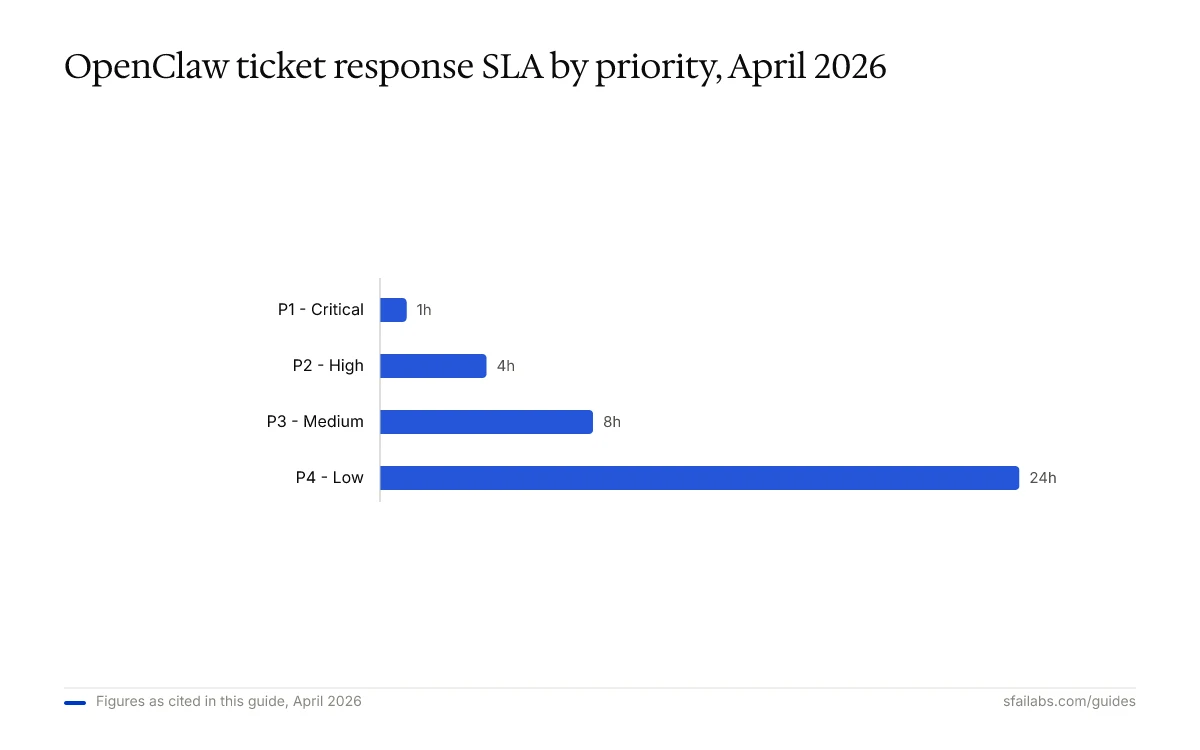
A four-tier priority model that maps directly to SLA targets works well here. Define this in your agents.md:
## Support Ticket Triage Rules

When you receive a new support ticket, classify it into one of four priorities:

### P1 - Critical (SLA: 1 hour response, 4 hour resolution)
- Service is completely down or inaccessible
- Data loss or security breach reported
- Payment processing failures affecting multiple customers
- Keywords: "down", "outage", "breach", "cannot access", "data loss"

### P2 - High (SLA: 4 hour response, 24 hour resolution)
- Major feature broken but workaround exists
- Single customer unable to complete core workflow
- Performance degradation affecting user experience
- Billing errors on individual accounts

### P3 - Medium (SLA: 8 hour response, 48 hour resolution)
- How-to questions about existing features
- Minor bugs that do not block workflows
- Configuration or setup assistance
- Account changes (password resets, plan changes)

### P4 - Low (SLA: 24 hour response, 5 day resolution)
- Feature requests
- General feedback
- Documentation suggestions
- Questions answered in existing help docs
Sentiment-Based Priority Escalation
Priority classification based on keywords alone misses frustrated customers filing what looks like a P3 ticket. Add sentiment detection rules to your agents.md:
## Sentiment Override Rules

If the customer's message contains signs of high frustration or anger
(profanity, ALL CAPS, threats to cancel, mentions of switching to a
competitor), escalate the ticket priority by one level regardless of
the topic classification. A frustrated P3 becomes a P2.

Never escalate P1 further. P1 is already the highest priority.

If the customer mentions they are on an enterprise plan or have
been a customer for more than 2 years, add a "VIP" tag and ensure
the ticket is routed to a senior support agent.
Sentiment-based escalation typically catches about 15 percent of tickets that keyword rules alone would misclassify. A customer writing “I’ve been trying to fix this for THREE DAYS” about a configuration issue is not a P3, even though the topic is routine.
Auto-Drafting Responses
Once a ticket is classified, the agent drafts a response. The key here is giving the agent access to your knowledge base so its replies are grounded in your actual product documentation, not generic AI-generated advice.
Configuring Response Behavior
Add these instructions to your agents.md:
## Response Drafting Rules

When drafting a response to a support ticket:

1. Search the knowledge base files in /docs/ for relevant information
2. Match the customer's specific issue to documented solutions
3. Write a response that directly addresses their problem
4. Include specific steps they can follow
5. If the answer requires accessing their account data, say so
   and escalate to a human agent
6. Use a friendly, professional tone. No marketing language.
7. Sign responses as "Support Team" not as an AI

### Response Templates by Priority

- P1: Acknowledge the severity. State we are investigating. Provide
  the incident status page URL. Do NOT attempt to troubleshoot in
  the initial response.
- P2: Acknowledge the issue. Provide the known workaround if one
  exists. Set expectation for resolution timeline.
- P3/P4: Provide the answer directly from the knowledge base.
  Include links to relevant documentation.
Knowledge Base Integration
Point your OpenClaw agent at your documentation by adding doc files to the workspace. The agent reads these as context when drafting responses:
workspace/
  docs/
    getting-started.md
    billing-faq.md
    api-reference.md
    troubleshooting.md
    known-issues.md
  skills/
    support-triage/
      skill.md
  agents.md
  heartbeat.md
The agent will search these files when a ticket comes in and ground its response in the actual documentation. This prevents hallucinated troubleshooting steps, which is the fastest way to destroy customer trust in automated support.
Escalation Rules
Not every ticket should be handled by the agent. Defining clear escalation boundaries is more important than expanding what the agent can resolve. An agent that confidently gives wrong answers is worse than one that escalates too often.
When to Escalate
Add these escalation rules to agents.md:
## Escalation Rules

Immediately escalate to a human agent when:

1. The ticket involves account cancellation or churn risk
2. The customer requests to speak with a human
3. The issue requires access to internal admin tools
4. The ticket involves billing disputes over $100
5. You cannot find a relevant answer in the knowledge base
   after searching all documentation files
6. The customer has replied more than twice to your drafted
   responses without resolution
7. The ticket involves legal, compliance, or security topics

When escalating:
- Include your priority classification and reasoning
- Attach the full conversation history
- Note what you already tried or suggested
- Tag the ticket with "escalated-from-ai" for tracking
Escalation Routing
Different issues should reach different people. Configure routing in your skill file:
## Routing Rules

- Billing issues → #billing-support Slack channel
- Technical bugs → #engineering-escalations Slack channel
- Enterprise accounts → Direct message to account manager
- Security reports → #security-incidents Slack channel (P1 always)
- Everything else → #general-support Slack channel
If your team uses Slack with OpenClaw, the agent can post directly to these channels with the ticket context attached. For Discord-based teams, the same routing pattern works with Discord channels.
SLA Monitoring with Heartbeat Scheduling
This is where OpenClaw’s heartbeat feature becomes a genuine operational tool. Instead of just checking for new tickets, your heartbeat schedule can monitor SLA compliance and alert you before breaches happen.
Configuring SLA Checks
Add an SLA monitoring task to your heartbeat.md:
## Every 30 minutes

### Check for New Tickets
- Poll the helpdesk API for tickets with status "new"
- Run triage classification on each new ticket
- Draft responses for P3/P4 tickets
- Alert on-call for P1/P2 tickets immediately

### SLA Breach Monitor
- Query all open tickets with their creation timestamps
- Compare elapsed time against the SLA target for each priority level
- If any ticket is within 30 minutes of breaching its response SLA,
  send an urgent alert to the assigned agent and team lead
- If any ticket has already breached its SLA, send a breach
  notification to the support manager with ticket details

## Every morning at 8:00 AM

### Daily Support Metrics Summary
- Count tickets opened in the last 24 hours by priority
- Count tickets resolved in the last 24 hours
- Calculate average first response time
- Calculate SLA compliance rate (tickets responded within SLA / total)
- List any currently breached tickets
- Send this summary to Telegram and the #support-metrics Slack channel
For more on heartbeat scheduling patterns, see our heartbeat scheduling guide. The SLA monitoring pattern works because heartbeat runs reliably on a cron, and you can set the interval tight enough (every 15 to 30 minutes) that you always catch approaching breaches before they happen.
What the Daily Metrics Summary Looks Like
The morning Telegram message from your support agent should look like this:
Support Summary — March 31, 2026

Tickets opened: 47 (P1: 2, P2: 8, P3: 24, P4: 13)
Tickets resolved: 41
  - Auto-resolved by agent: 28 (68%)
  - Resolved by human: 13

Average first response: 4 min (target: varies by priority)
SLA compliance: 95.7%

Currently breached: 1 ticket
  - #4821 (P2) — assigned to @sarah, 2h overdue

Top issue today: Password reset failures (9 tickets)
  → Consider adding to known-issues.md
This is the kind of operational visibility that support team leads need. Teams can go from “how are we doing?” guesswork to data-driven daily standups just by having the agent compile this report automatically.
Security Considerations
Running an AI agent with access to customer data requires careful boundaries.
Limit what the agent can access. The support agent should read tickets and documentation. It should not have access to customer payment details, internal admin panels, or the ability to modify account settings. Keep its API permissions scoped to read tickets, create comments, and update ticket status.
Audit what the agent does. Enable OpenClaw’s audit logging to track every action the agent takes. Review the logs weekly, especially for the first month. Look for misclassifications, inappropriate responses, and escalation patterns.
Start with draft mode. For the first two weeks, configure the agent to draft responses that a human reviews before sending. This builds your confidence in the classification accuracy and response quality before going fully autonomous. Flip the switch to auto-send only after you have reviewed at least 100 drafted responses and are satisfied with the accuracy.
Frequently Asked Questions
How do I connect OpenClaw to Zendesk or Freshdesk?
Create a custom skill that calls the helpdesk REST API. For Zendesk, use their Tickets API with token-based authentication. For Freshdesk, use their Conversations API. Store API credentials in your .env file and reference them in openclaw.json. The skill file defines what the agent does with the ticket data — classify, respond, escalate. Both platforms also support webhooks for push-based integration.
Can OpenClaw auto-respond to support tickets?
Yes, but start in draft mode. Configure the agent to draft responses in a review queue for the first two weeks. Once classification accuracy exceeds 90 percent on reviewed drafts, switch P3 and P4 tickets to auto-send. Keep P1 and P2 in draft mode permanently — high-priority tickets should always get human review before a response goes out.
How does OpenClaw detect ticket priority?
Through rules you define in agents.md. The agent evaluates ticket content against keyword patterns, topic classification, and sentiment signals. You set the priority criteria based on your team’s definitions. The agent applies them consistently across every ticket, which is where AI triage beats manual triage — humans get fatigued and inconsistent after the 50th ticket in a shift.
What happens when OpenClaw cannot resolve a ticket?
The agent escalates following the rules in your agents.md. It attaches its classification reasoning, the full conversation history, and any knowledge base articles it considered. The human agent picks up with full context instead of starting from scratch. Configure the agent to tag escalated tickets with “escalated-from-ai” so you can track escalation rates and identify patterns.
How much does an OpenClaw support agent cost per month?
The software is free and open-source. Your costs are API usage and hosting. A support agent handling 50 to 100 tickets per day typically uses $30 to $70 per month in API fees with Claude Opus 4.6 or Claude Sonnet 4.6 as the backend model. Hosting on a Mac mini or VPS adds $5 to $20 per month. Compare that to a dedicated support coordinator at $3,000 to $5,000 per month. See our API costs breakdown and pricing guide for detailed calculations.
Can OpenClaw monitor SLA compliance?
Yes, using heartbeat scheduling. Configure a heartbeat task that runs every 15 to 30 minutes, checks open ticket timestamps against your SLA targets, and sends alerts when tickets approach or breach their deadlines. This is one of the highest-value applications of the heartbeat feature for support teams.
Is customer data safe with an OpenClaw support agent?
OpenClaw runs on your infrastructure — your Mac mini, your VPS, your office server. Customer data never passes through a third party beyond the LLM API call. Scope API permissions to read-only where possible. Use audit logging to track agent actions. For regulated industries, see our guides on data privacy and data retention.
What AI model should I use for ticket triage?
Claude Sonnet 4.6 is the best balance of speed, accuracy, and cost for ticket triage. It handles classification and response drafting well at roughly half the token cost of Claude Opus 4.6. Use Opus 4.6 if you need the agent to reason through complex multi-step troubleshooting or synthesize across long documentation. For teams on a tight budget, GPT-5.4 is a solid alternative. See our multi-model configuration guide for running different models for different task types.
Key Takeaways
- Connect OpenClaw to your helpdesk via API skills, webhooks, or email monitoring — API integration gives you the most control and structured ticket data.
- Define a four-priority classification system (P1 through P4) with explicit criteria and SLA targets in your
agents.md. Add sentiment-based escalation to catch frustrated customers that keyword rules miss. - Start with draft mode for at least two weeks before enabling auto-responses. Let P3/P4 go autonomous first. Keep P1/P2 human-reviewed permanently.
- Use heartbeat scheduling for SLA monitoring — a 30-minute check interval catches approaching breaches before they happen.
- Generate daily metrics summaries automatically so your support team has operational visibility without manual reporting.
- Scope the agent’s permissions tightly: read tickets, create comments, update status. No access to customer payment data or admin tools.
SFAI Labs


