Notion calls its API key an “internal integration token.” You create it at notion.so/my-integrations, not in some separate developer console. The whole process takes about three minutes, but there is one step that trips up almost every developer on first attempt: you have to manually share each page or database with your integration before the API can access it. Skip that step, and every request returns a “Could not find object” error with no further explanation.
This guide covers creating the integration, copying the token, setting capabilities, sharing content, and verifying everything works with a single curl command.
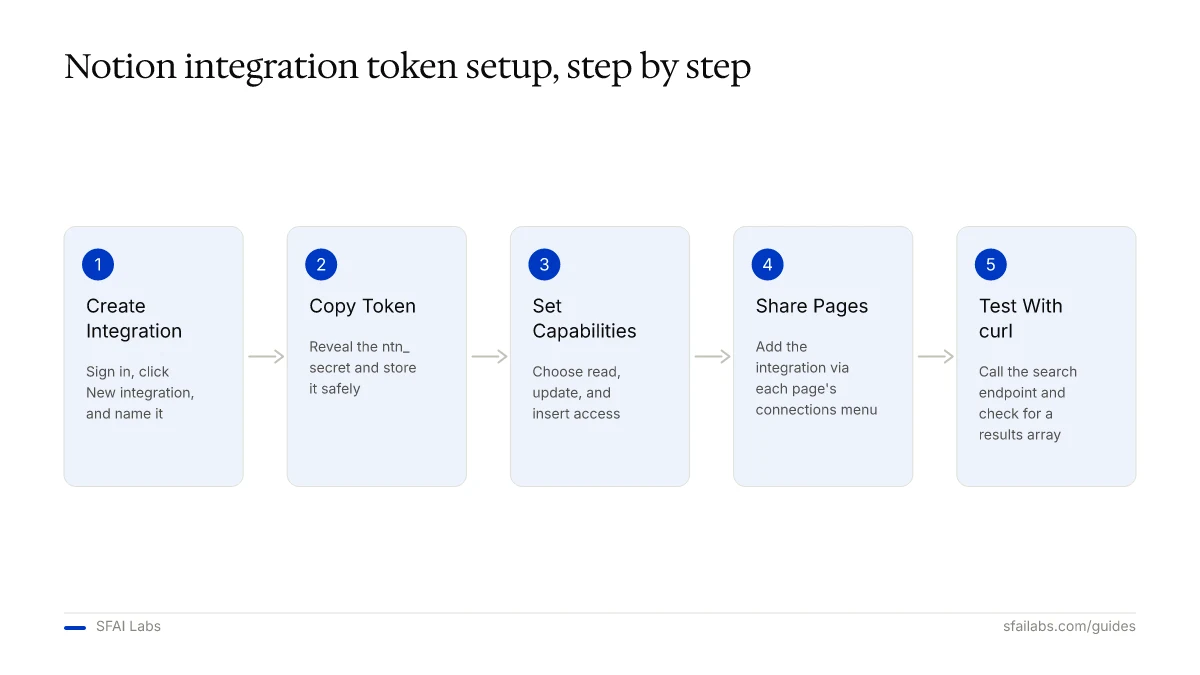
Step 1: Create an Internal Integration
Go to notion.so/my-integrations and sign in with the account that owns the workspace you want to connect.
Click New integration. Fill in three fields:
- Name – something descriptive like “My App” or “Openclaw Agent.” This name appears when you share pages with the integration, so make it recognizable.
- Associated workspace – select the workspace from the dropdown. Internal integrations are locked to one workspace. If you need access to a different workspace later, you create a separate integration.
- Logo (optional) – upload an icon if you want to distinguish it in the connections menu.
Click Submit. Notion creates the integration and drops you on its configuration page.
One requirement that catches people: you must be a Workspace Owner to create integrations. Members and guests cannot access the integrations page. If you do not see the option, ask your workspace admin to create the integration for you or upgrade your permissions.
Step 2: Copy Your Integration Token
On the integration’s configuration page, find the Internal Integration Secret section. The token starts with ntn_ followed by a long alphanumeric string.
Click Show to reveal the full token, then copy it. Store it somewhere safe: a password manager, a .env file, or your system’s secret store.
If you need to invalidate the token later (a team member leaves, or you suspect a leak), click Refresh on the same page. This generates a new token and immediately invalidates the old one. Any application using the old token stops working.
Step 3: Set Integration Capabilities
Before leaving the configuration page, review the Capabilities section. This controls what your integration can do:
Content capabilities:
- Read content – query databases, retrieve pages and blocks
- Update content – edit existing pages and blocks
- Insert content – create new pages, add blocks to existing pages
User capabilities:
- No user information – the integration cannot see who made changes
- Read user information (without email) – see user names and avatars
- Read user information (with email) – full user details
For most use cases, enable all three content capabilities. If you are building a read-only dashboard or reporting tool, disable update and insert to follow the principle of least privilege. You can change capabilities at any time without regenerating the token.
Step 4: Share Pages and Databases With Your Integration
This is the step developers forget. Creating an integration does not give it access to your workspace content. You must explicitly share each page or database.
Open the Notion page or database you want the integration to access. Click the … menu in the top-right corner. Scroll down to Add connections and search for your integration by name. Select it.
The integration now has access to that page and all its child pages. If you share a top-level page, the integration can access everything nested beneath it.
For databases, share the database page itself. The integration then has access to query, create, and modify entries depending on the capabilities you set in Step 3.
Pro tip: If you want the integration to access your entire workspace, share your top-level workspace pages. But for security, share only what the integration needs.
Step 5: Test Your Token With curl
Before writing any code, verify your token works with a raw API call. This curl command lists all databases shared with your integration:
curl -X POST "https://api.notion.com/v1/search" \
  -H "Authorization: Bearer ntn_your_token_here" \
  -H "Content-Type: application/json" \
  -H "Notion-Version: 2022-06-28" \
  -d '{"filter": {"property": "object", "value": "database"}}'
If you get a JSON response with a results array containing your databases, the token is working and the pages are properly shared.
Common errors at this stage:
- 401 Unauthorized – the token is wrong or was refreshed. Double-check you copied the full string starting with
ntn_. - Empty results array – the token works, but you have not shared any pages with the integration yet. Go back to Step 4.
- “Could not find object with ID” – you are querying a specific page or database ID that is not shared with the integration. Share it first.
One detail that differs from other APIs: Notion requires a Notion-Version header on every request. The current stable version is 2022-06-28. Omitting this header returns a 400 error.
What to Do With Your Token Next
The token unlocks Notion’s API. What matters is what you connect it to.
If you are a developer, install the official Notion SDK. For JavaScript/TypeScript:
npm install @notionhq/clientFor Python:
pip install notion-clientInitialize the client with your token from an environment variable:
export NOTION_API_KEY="ntn_your_token_here"const { Client } = require("@notionhq/client");
const notion = new Client({ auth: process.env.NOTION_API_KEY });The SDK handles authentication headers and API versioning automatically.
If you want an AI agent that reads and writes to Notion autonomously, connect your token to Openclaw. Openclaw is a personal AI agent that runs on your machine and connects through Telegram or WhatsApp. With the Notion integration, it can query your databases, create pages, update project trackers, and pull context from your workspace into conversations.
We have guides for getting this running:
- Connect Notion to Openclaw covers the full integration setup
- How to Set Up Openclaw: 10-Step Guide covers workspace configuration, memory, and model selection
- Deploy Openclaw on Hostinger VPS for 24/7 uptime
Your Notion token goes into the environment file, and the agent handles API calls from there.
Keeping Your Token Secure
Notion tokens grant direct access to your workspace content. A leaked token means anyone can read, edit, or delete the pages shared with that integration.
Three rules:
-
Never commit your token to version control. Add
.envto your.gitignorefile. Notion’s own security documentation recommends tools like GitLeaks and Trufflehog to scan repositories for accidentally committed secrets. -
Rotate tokens when team members leave. Go to notion.so/my-integrations, select the integration, and click Refresh. Update the token in all applications that use it.
-
Use least-privilege capabilities. If your integration only reads data, disable update and insert capabilities. This limits the damage if the token is compromised.
For production deployments, store the token in a secrets manager (AWS Secrets Manager, HashiCorp Vault, or your platform’s native secret store) rather than a .env file.
Frequently Asked Questions
Is the Notion API free?
The API itself is free to use with no separate billing. If you have a Notion workspace (including the free plan), you can create integrations and make API calls at no additional cost. Notion enforces rate limits of 3 requests per second per integration, which is sufficient for most automation and integration use cases.
What is the difference between internal and public integrations?
Internal integrations use a static token and work within a single workspace. You create them, share pages, and start making API calls immediately. Public integrations use OAuth 2.0, work across multiple workspaces, and require users to authorize access through a consent flow. Unless you are building a product that other Notion users will install, choose internal.
Where do I find my Notion integration token after creating it?
Go to notion.so/my-integrations, click on the integration name, and look for the Internal Integration Secret section on the configuration page. Click Show to reveal the token. You can view it as many times as you need.
Why does the Notion API return “Could not find object”?
The page or database you are trying to access has not been shared with your integration. Open the page in Notion, click the … menu, go to Add connections, and select your integration. This is the single most common Notion API error and it has nothing to do with your token being wrong.
Can I use one integration token across multiple workspaces?
No. Internal integration tokens are tied to one workspace. If you need API access to multiple workspaces, create a separate integration in each one. Alternatively, build a public integration that uses OAuth 2.0 to request access across workspaces.
How do I revoke or rotate my Notion API key?
Go to notion.so/my-integrations, select the integration, and click Refresh next to the token. The old token is invalidated immediately. Update the new token in all applications and environment variables that reference it.
What capabilities should I give my Notion integration?
Start with the minimum your use case requires. A reporting dashboard needs only Read content. A project management tool that creates tasks needs Read content and Insert content. A full automation that updates existing records needs all three: read, update, and insert. You can adjust capabilities later without regenerating the token.
Key Takeaways
- Notion API keys are called “internal integration tokens.” Create yours at notion.so/my-integrations.
- You must share each page or database with your integration before the API can access it. This is the most common source of errors.
- Test your token with a curl command before writing application code. Look for a valid JSON response with your shared databases.
- Set capabilities to the minimum your use case requires. Read-only integrations limit exposure if the token leaks.
- Connect your token to Openclaw to give an AI agent direct access to your Notion workspace for autonomous task management.
SFAI Labs


