Getting a Discord bot token takes about three minutes through the Discord Developer Portal. The token itself is the easy part. What trips up most developers is everything that comes after: enabling the right intents so your bot can read messages, constructing an OAuth2 URL that grants the correct permissions, and inviting the bot to a server without giving it more access than it needs.
This guide covers the full process from application creation through server integration. If you just want the token, the first two sections get you there. If you want a bot that works correctly in production, read through the intents and OAuth2 sections too.
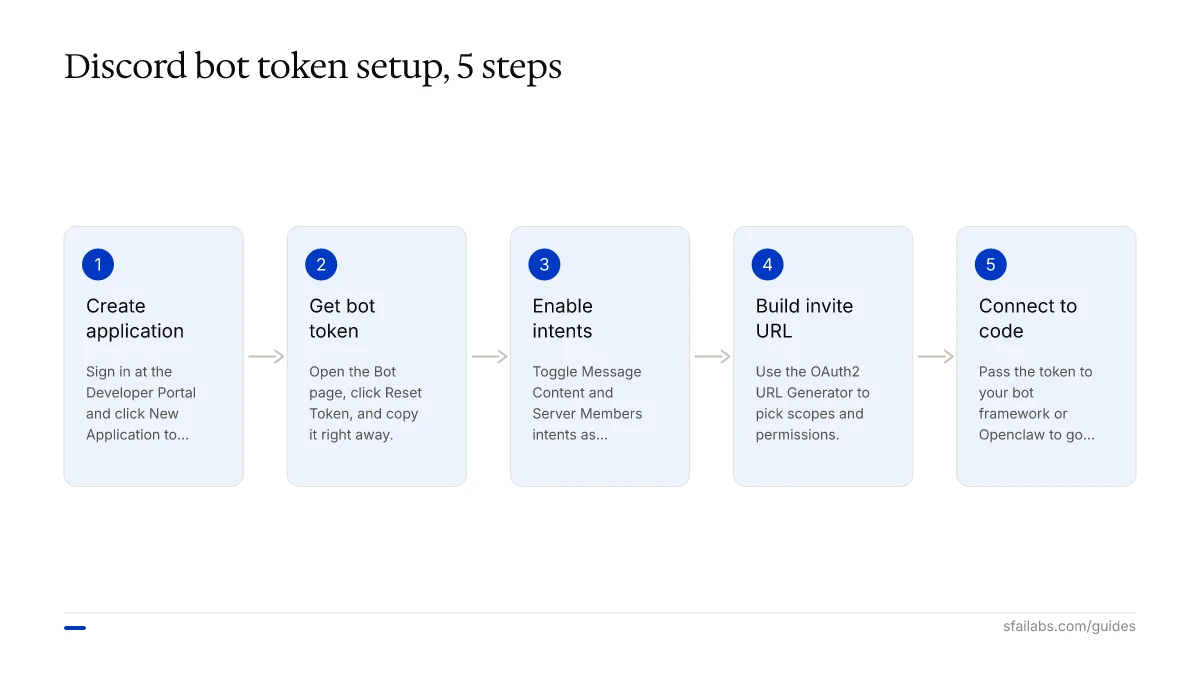
Step 1: Create an Application in the Developer Portal
Go to discord.com/developers/applications and sign in with your Discord account. Any account works, including the free tier.
Click New Application in the top-right corner. Enter a name for your application and accept the Developer Terms of Service and Developer Policy. Click Create.
The name you choose here is not the bot’s username. It is the application name, which appears in OAuth2 authorization screens and the Developer Portal. You can set the bot’s display name separately in the next step.
You land on the General Information page. The Application ID (also called Client ID) is displayed here. Copy it somewhere safe. You need this ID later to construct your bot’s invite URL.
Step 2: Create the Bot User and Get Your Token
In the left sidebar, click Bot.
Discord used to require an explicit “Add Bot” step. As of 2024, creating an application automatically creates a bot user attached to it. You should see the Bot page with your bot’s username and avatar already populated.
Click Reset Token. Discord prompts you to confirm, and if you have two-factor authentication enabled on your account, you enter your 2FA code.
Your token appears. It looks like a long string of letters, numbers, and dots: something like MTEyMzQ1Njc4OTAxMjM0NTY3.GHxyz.abc123...
Copy it immediately and store it in a .env file or a password manager. Unlike Google’s API keys, Discord tokens can only be viewed once. After you navigate away from this page, the token is hidden permanently. If you lose it, you have to reset it, which invalidates the old token and breaks any running bot instances that use it.
One detail that helps with debugging: the first segment of the token (before the first dot) is a base64-encoded version of the bot’s user ID. If you ever need to verify which bot a token belongs to, decode that first segment.
Step 3: Enable Privileged Gateway Intents
This is the step most tutorials skip, and it is where new bot developers lose hours to debugging.
Discord’s API uses a system called Gateway Intents to control what events and data your bot receives. Three intents are classified as “privileged” and are disabled by default:
- Presence Intent – lets your bot see when users go online, idle, or offline, and their custom status/activity
- Server Members Intent – lets your bot receive events when members join, leave, or update their profiles, and lets you request the full member list of a server
- Message Content Intent – lets your bot read the actual text content of messages (without this, your bot receives message events but the content field is empty)
If your bot needs to respond to messages based on their content, you need Message Content Intent enabled. If your bot manages roles or greets new members, you need Server Members Intent. Most bots that do anything useful need at least one of these.
To enable them: on the Bot page in the Developer Portal, scroll down to the Privileged Gateway Intents section. Toggle on the intents your bot requires. Click Save Changes.
For bots in fewer than 100 servers, toggling is all you need. Once your bot joins 100 or more servers, Discord requires you to go through a verification process. Verified bots must apply for privileged intent access separately, and Discord reviews the request. Plan for this if you are building a bot intended for public distribution.
Step 4: Build Your OAuth2 Invite URL
You have a token and your intents are configured. Now you need to get the bot into a server.
Discord bots join servers through an OAuth2 authorization URL. You can construct this manually or use the built-in tool in the Developer Portal.
Using the Developer Portal (Recommended)
In the left sidebar, click OAuth2, then URL Generator.
Under Scopes, select:
- bot – required for any bot
- applications.commands – required if your bot uses slash commands
Under Bot Permissions, select only the permissions your bot needs. Common ones:
| Permission | When You Need It |
|---|---|
| Read Messages/View Channels | Almost always |
| Send Messages | If the bot sends any messages |
| Manage Messages | If the bot deletes or pins messages |
| Embed Links | If the bot sends rich embeds |
| Read Message History | If the bot needs to see older messages |
| Add Reactions | If the bot reacts to messages |
| Use Slash Commands | If you use application commands |
| Manage Roles | If the bot assigns or removes roles |
The URL Generator calculates a permission integer from your selections and builds the full URL. Copy the generated URL at the bottom of the page.
Understanding the URL Format
The generated URL follows this structure:
https://discord.com/oauth2/authorize?client_id=YOUR_APP_ID&scope=bot+applications.commands&permissions=PERMISSION_INTEGERThe permissions parameter is a single integer calculated using bitwise OR of all selected permission flags. For example, Read Messages (1024) + Send Messages (2048) + Embed Links (16384) = 19456. Discord’s Permission Calculator handles this math for you, but understanding the structure helps when you need to adjust permissions programmatically.
You can also add &guild_id=YOUR_SERVER_ID to pre-select a specific server and &disable_guild_select=true to prevent the user from changing the selection.
Inviting the Bot
Open the URL in a browser. Discord shows an authorization screen listing the permissions your bot requests. Select the server you want to add it to (you need the “Manage Server” permission on that server), and click Authorize.
Your bot appears in the server’s member list, initially showing as offline. It goes online when your bot code connects to the Discord Gateway using the token.
Step 5: Connect Your Token to a Bot Framework or Openclaw
The token is your bot’s authentication credential for the Discord API. Every bot framework and library uses it the same way: pass the token when connecting to the Gateway.
If you are writing a custom bot, set the token as an environment variable:
export DISCORD_BOT_TOKEN="your-token-here"Then reference it in your code. In discord.js (Node.js):
const { Client, GatewayIntentBits } = require('discord.js');
const client = new Client({
  intents: [
    GatewayIntentBits.Guilds,
    GatewayIntentBits.GuildMessages,
    GatewayIntentBits.MessageContent,
  ]
});
client.login(process.env.DISCORD_BOT_TOKEN);
Notice that intents must be declared both in the Developer Portal (Step 3) and in your code. Missing either side causes silent failures where your bot connects but does not receive the events you expect.
If you want an AI-powered bot without writing code, connect your token to Openclaw. Openclaw is an AI agent that integrates with Discord to monitor channels, respond to messages, and execute tasks autonomously. You add the bot token to your Openclaw environment configuration, and the agent handles the Gateway connection, intent management, and message processing.
We have a dedicated guide for the full integration: Connect Discord to Openclaw. For the initial Openclaw setup, see How to Set Up Openclaw: 10-Step Guide.
Keeping Your Bot Token Secure
Bot tokens grant full control over your bot account. A leaked token lets anyone impersonate your bot: send messages, delete channels, ban members, or leave every server the bot is in.
Three rules that prevent most incidents:
-
Never commit your token to Git. Add
.envto your.gitignorebefore your first commit. GitGuardian’s annual State of Secrets Sprawl reports consistently rank API tokens and bot credentials among the most frequently leaked secret types on GitHub. If a token hits a public repo, automated scrapers find it within minutes. -
Use environment variables, not hardcoded strings. Every major bot library reads from environment variables. There is no reason to put the token in source code.
-
Reset your token if you suspect exposure. In the Developer Portal, click Reset Token on the Bot page. The old token is invalidated immediately. Update your
.envfile or hosting configuration with the new token and restart your bot.
Frequently Asked Questions
Is creating a Discord bot free?
Discord charges nothing for creating applications, generating bot tokens, or using the API. There are no paid tiers, no credit card required, and no rate limit tiers based on payment. The only cost is hosting your bot code somewhere, which can be free on platforms like Railway or Replit for small bots, or a few dollars per month on a VPS.
Where do I find my bot token after I already created it?
You cannot view a previously generated token. Go to the Developer Portal, select your application, click Bot in the sidebar, and click Reset Token. This generates a new token and invalidates the old one. Any running bot instances using the old token disconnect immediately.
What are privileged intents and do I need them?
Privileged intents are special permissions that control access to sensitive data: member presence, server member lists, and message content. If your bot reads message text, you need the Message Content intent. If it tracks who joins or leaves, you need Server Members. Toggle them on in the Bot section of the Developer Portal. Bots in 100+ servers must get approved for privileged intents through Discord’s verification process.
Can I use one bot token across multiple servers?
A single bot token works across every server the bot has been invited to. There is no per-server token. The bot maintains one WebSocket connection to Discord’s Gateway and receives events from all servers simultaneously. This is standard behavior and how every Discord bot operates.
Why is my bot online in the Developer Portal but not responding to messages?
Two common causes. First, you enabled Message Content Intent in the Developer Portal but did not declare the GatewayIntentBits.MessageContent intent in your bot code (or vice versa). Both sides must match. Second, your bot lacks the “Read Messages” or “View Channels” permission in the specific channel where you are testing. Check the channel’s permission overwrites.
What permissions should I give my Discord bot?
Give the minimum permissions your bot needs to function. Start with Read Messages and Send Messages. Add permissions one at a time as you build features. Avoid the Administrator permission, which grants every permission and bypasses all channel overwrites. If your token leaks, Administrator permission means the attacker has full control of every server the bot is in.
Key Takeaways
- Create your application at discord.com/developers/applications. The bot user is created automatically with the application.
- Copy your token immediately after resetting it. You cannot view it again.
- Enable privileged intents (Message Content, Server Members) in the Developer Portal AND declare them in your code. Missing either side causes silent failures.
- Use the OAuth2 URL Generator in the Developer Portal to build your invite link with the correct scopes (
bot+applications.commands) and minimum necessary permissions. - Store your token in a
.envfile, never in source code. Reset it immediately if you suspect exposure. - Connect your token to Openclaw for an AI-powered Discord bot without writing custom code.
SFAI Labs


