Google Sheets is the default backend for teams that outgrew sticky notes but are not ready for a database. The problem is the same one it has always been: people stop entering data the moment it takes more than five seconds. OpenClaw fixes that by turning a chat message into a spreadsheet row. You say “Log expense $85 dinner with client, tag it as sales,” and the agent parses the amount, category, date, and description, then appends a row to the right sheet without you ever opening a browser tab.
This guide walks through the full setup using a Google Cloud service account and a handwritten SKILL.md file. No paid connectors, no third-party middleware. Your data flows directly from OpenClaw to the Google Sheets API v4 and back. If OpenClaw is already running, the whole process takes about 20 minutes.
What This Integration Gives You
Once the skill is active, your OpenClaw agent becomes a read/write interface to any Google Sheet you share with the service account. Here is what that looks like in practice:
- Append rows from chat – “Add a row to the Q2 pipeline sheet: Acme Corp, $45K, proposal sent, closes June 15”
- Query data by asking – “What is the total in column D of the March expenses sheet?”
- Update existing cells – “Change row 14 status to Paid in the invoices tracker”
- Pull summaries on demand – “Give me a summary of all expenses over $500 this month”
- Scheduled updates via heartbeat – OpenClaw checks a sheet every 30 minutes and alerts you when a value crosses a threshold
The agent uses curl to call the Google Sheets API. Every operation is a standard REST call authenticated with a service account token. You control exactly which sheets the agent can access by sharing them explicitly.
Before You Start
Three things need to be in place:
-
OpenClaw installed and running. If you have not done this yet, follow our OpenClaw setup guide. That guide covers installation, workspace files, memory configuration, and Telegram setup.
-
A Google account. Any Gmail or Google Workspace account works. The Google Sheets API is free for all accounts with no usage tier required.
-
A text editor for writing the SKILL.md file. VS Code, Cursor, or any Markdown editor will do.
Step 1: Create a Google Cloud Service Account
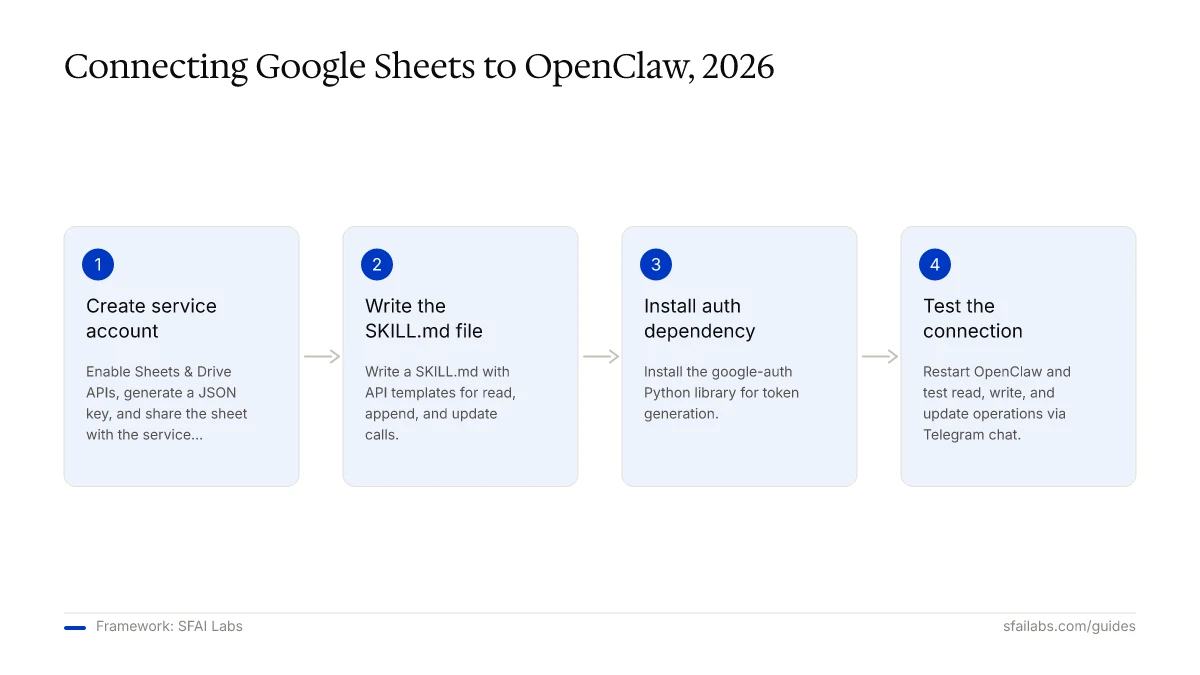
A service account is a special Google account that belongs to your project rather than a person. It authenticates via a JSON key file instead of a browser login, which makes it ideal for automated tools like OpenClaw.
Enable the Google Sheets API
- Go to the Google Cloud Console
- Create a new project (or select an existing one). Name it something recognizable:
openclaw-sheets - Navigate to APIs & Services > Library
- Search for Google Sheets API and click Enable
- Also search for Google Drive API and enable it. Drive permissions are required for the service account to access shared files
Create the Service Account
- Go to APIs & Services > Credentials
- Click Create Credentials > Service Account
- Name it:
openclaw-sheets-agent - Skip the optional permissions and access screens. Click Done
- Your new service account appears in the list. Click on it to open its detail page
- Go to the Keys tab
- Click Add Key > Create new key > JSON
- A JSON file downloads automatically. This file is your credential. Move it somewhere safe outside your OpenClaw workspace:
mv ~/Downloads/openclaw-sheets-*.json ~/.config/openclaw/google-sheets-key.jsonThe JSON file contains your private key. Treat it like a password. Do not commit it to version control, do not paste it into a skill file, and do not leave it in your Downloads folder.
Share Your Spreadsheet with the Service Account
This is the step people forget. A service account cannot see any of your spreadsheets by default. You need to explicitly share each sheet with the service account email.
- Open the JSON key file and find the
client_emailfield. It looks like:openclaw-sheets-agent@openclaw-sheets.iam.gserviceaccount.com - Open the Google Sheet you want to connect
- Click Share (top right)
- Paste the service account email
- Set permission to Editor (for read and write) or Viewer (for read-only)
- Uncheck “Notify people” and click Share
Repeat this for every sheet you want OpenClaw to access. We recommend starting with one test sheet before connecting production data.
Step 2: Write the OpenClaw Google Sheets Skill
OpenClaw skills are Markdown files that tell your agent what a tool does, how to authenticate, and which API calls to make. If you have written the HubSpot skill or any custom skill, this follows the same pattern.
Create the Skill Directory
mkdir -p ~/.openclaw/workspace/skills/google-sheetsWrite the SKILL.md File
Create ~/.openclaw/workspace/skills/google-sheets/SKILL.md with this content:
---
name: google-sheets
description: Read, write, and manage Google Sheets via the Sheets API v4. Supports cell lookups, row appending, range updates, and batch operations.
tools:
  - shell
---

# Google Sheets Skill

## Authentication

Generate an access token from the service account key file before every request:

ACCESS_TOKEN=$(python3 -c "
from google.oauth2.service_account import Credentials
creds = Credentials.from_service_account_file(
    '$HOME/.config/openclaw/google-sheets-key.json',
    scopes=['https://www.googleapis.com/auth/spreadsheets']
)
creds.refresh(__import__('google.auth.transport.requests', fromlist=['Request']).Request())
print(creds.token)
")

Use this token in the Authorization header for all API calls.
The base URL for all requests is: https://sheets.googleapis.com/v4/spreadsheets

## Available Operations

### Read a Range

Fetch values from a specific range using A1 notation:

curl -s -H "Authorization: Bearer $ACCESS_TOKEN" \
  "https://sheets.googleapis.com/v4/spreadsheets/SPREADSHEET_ID/values/Sheet1!A1:D10"

Replace SPREADSHEET_ID with the ID from the sheet URL (the string between /d/ and /edit).
Replace Sheet1!A1:D10 with the target sheet name and range.

### Append a Row

Add a new row to the bottom of a range:

curl -s -H "Authorization: Bearer $ACCESS_TOKEN" \
  -H "Content-Type: application/json" \
  -X POST "https://sheets.googleapis.com/v4/spreadsheets/SPREADSHEET_ID/values/Sheet1!A:E:append?valueInputOption=USER_ENTERED" \
  -d '{
    "values": [["2026-04-01", "Dinner with client", "Sales", "$85.00", "Paid"]]
  }'

### Update Specific Cells

Overwrite values in a specific range:

curl -s -H "Authorization: Bearer $ACCESS_TOKEN" \
  -H "Content-Type: application/json" \
  -X PUT "https://sheets.googleapis.com/v4/spreadsheets/SPREADSHEET_ID/values/Sheet1!D14?valueInputOption=USER_ENTERED" \
  -d '{
    "values": [["Paid"]]
  }'

### Batch Read Multiple Ranges

Fetch several ranges in a single API call to stay within rate limits:

curl -s -H "Authorization: Bearer $ACCESS_TOKEN" \
  "https://sheets.googleapis.com/v4/spreadsheets/SPREADSHEET_ID/values:batchGet?ranges=Sheet1!A1:A50&ranges=Sheet1!D1:D50"

### Get Sheet Metadata

List all sheet tabs and their properties:

curl -s -H "Authorization: Bearer $ACCESS_TOKEN" \
  "https://sheets.googleapis.com/v4/spreadsheets/SPREADSHEET_ID?fields=sheets.properties"

## Rules

- Always confirm before writing or updating cells. Show the user what will be written and where before executing.
- Use batchGet and batchUpdate when reading or writing multiple ranges. This reduces API calls and avoids rate limits.
- The spreadsheet ID is the long string in the Google Sheets URL between /d/ and /edit. Always extract it from the URL the user provides.
- Rate limits: 300 requests per minute per project, 60 per minute per user. For normal use you will not hit these. For bulk imports, batch your operations.
- Never log or echo the ACCESS_TOKEN in responses or memory files.
- If the user asks you to read a sheet you have not been shared on, tell them to share it with the service account email.
What Each Section Does
The frontmatter tells OpenClaw this skill exists, what it does, and that it needs shell access to run curl commands.
The authentication section generates a short-lived OAuth2 token from the service account key file. The token expires after one hour, so the agent generates a fresh one before each batch of operations. This is more secure than storing a long-lived token.
The operations section provides templated API calls the agent adapts at runtime. When you ask “Add a row for today’s lunch expense,” the agent reads the append template, fills in the spreadsheet ID and values, and runs the curl command.
The rules section sets guardrails. The confirmation requirement is important because a misunderstood instruction could overwrite production data.
Step 3: Install the Python Auth Dependency
The skill file uses Python’s google-auth library to generate access tokens from the service account key. Install it if you do not already have it:
pip install google-authThis is a lightweight library (no heavy frameworks). It handles JWT signing and token refresh.
Step 4: Test the Connection
Restart OpenClaw to pick up the new skill:
openclaw gateway restartOpen your Telegram chat with your OpenClaw agent and test each operation level.
Read test:
“Read the first 5 rows of my expenses sheet” (paste or reference the sheet URL)
The agent should return the cell values in a readable format.
Write test:
“Add a row to the expenses sheet: today’s date, Coffee, Office, $4.50, Unpaid”
The agent should show you the row it plans to append and ask for confirmation before writing.
Update test:
“In the expenses sheet, change cell E3 to Paid”
Again, the agent should confirm before modifying the cell.
If any test fails, check these common issues:
| Symptom | Likely Cause | Fix |
|---|---|---|
| 403 Forbidden | Sheet not shared with service account | Share the sheet with the service account email |
| 404 Not Found | Wrong spreadsheet ID | Extract the ID from the URL between /d/ and /edit |
| Token generation fails | Missing google-auth package | Run pip install google-auth |
| Empty response | Range does not match sheet | Check the sheet tab name and A1 range notation |
| 429 Too Many Requests | Rate limit exceeded | Wait 60 seconds, then batch your operations |
What to Automate First
The temptation is to connect every spreadsheet on day one. Do not. Start with one sheet and one operation type, then expand.
Week 1: Read-Only Queries
Use the agent to answer questions about your data without opening Sheets:
- “What is the total in the Amount column of the March expenses sheet?”
- “How many rows are in the leads tracker?”
- “Show me all rows where status is Overdue”
This builds trust in the agent’s ability to parse your sheet structure correctly.
Week 2: Add Write Operations
Once reads feel reliable, start appending and updating:
- “Log expense: $120, team lunch, marketing budget”
- “Update the Acme Corp row in the pipeline sheet. Set stage to Closed Won, amount to $38K”
- “Add a new row to the CRM sheet for jane@example.com, Jane Smith, Globex Corp”
Week 3: Scheduled Automation with Heartbeat
This is where the Google Sheets integration becomes more than a chat shortcut. Add instructions to your OpenClaw heartbeat.md file:
## Weekly Expense Report
Every Friday at 5 PM, read the current week's rows from the expenses sheet.
Calculate totals by category.
Send me a summary in Telegram with category breakdowns and the overall total.

## Pipeline Health Check
Every morning at 9 AM, read all deals from the pipeline sheet.
Flag any deal that has not been updated in the last 7 days.
Send the stale deals list to the team Telegram group.
Heartbeat instructions let OpenClaw act on your spreadsheet data proactively, not just when you ask. For 24/7 availability, consider running OpenClaw on a VPS like Hostinger.
Security Considerations
A service account key file grants direct access to every sheet you share with it. Handle it accordingly.
Scope minimization. If you only need read access, change the scope in the authentication section from auth/spreadsheets to auth/spreadsheets.readonly. You can always create a second skill file with write access for specific use cases.
Key file storage. Store the JSON key file outside your OpenClaw workspace directory. The path in our example (~/.config/openclaw/google-sheets-key.json) keeps it separate from workspace files the agent reads into context. Never put the key in agents.md, soul.md, or any file your agent might surface in conversation.
Sheet-level access control. Only share sheets the agent needs to access. If you have a master financial spreadsheet and a weekly expense tracker, share only the expense tracker until you are confident in the agent’s behavior.
Audit trail. Google Sheets tracks edit history per cell. If you need to verify what the agent changed, open the sheet and use File > Version history to see timestamped edits made by the service account email.
For a broader discussion of OpenClaw security practices, see Step 9 in our OpenClaw setup guide.
Frequently Asked Questions
Do I need a paid Google Workspace plan for this?
No. The Google Sheets API is available on free Gmail accounts. You can create a Cloud project, enable the API, generate a service account, and make API calls without any paid plan. Google Workspace adds admin-level controls (domain-wide delegation, organization policies), but those are not needed for a personal or small-team OpenClaw setup.
Service account or OAuth – which method should I use?
Service accounts are better for automated agents. They authenticate with a key file, require no browser-based login flow, and work headlessly on a VPS or server. OAuth is better when a human user needs to grant access interactively. Since OpenClaw runs autonomously, service account is the right choice for most setups.
What are the Google Sheets API rate limits?
Google allows 300 requests per minute per project and 60 requests per minute per user. For conversational use (a few reads and writes per hour), you will not come close to these limits. If you build bulk import automations, use batchGet and batchUpdate endpoints to combine multiple ranges into a single API call.
Can OpenClaw create new spreadsheets, or only modify existing ones?
The Sheets API supports creating new spreadsheets via a POST to https://sheets.googleapis.com/v4/spreadsheets. You can add this endpoint to your SKILL.md if you want the agent to spin up new sheets. In practice, we find it more useful to create sheets manually and let the agent handle the data inside them. Sheet creation is a one-time task that does not need automation.
What happens if the service account key gets compromised?
Go to the Google Cloud Console, navigate to IAM & Admin > Service Accounts, select the account, go to the Keys tab, and delete the compromised key. Then create a new key and update the file path in your SKILL.md. The old key is immediately invalidated. Also review the sheet’s version history to check for unauthorized changes.
Can I sync data between Google Sheets and another tool through OpenClaw?
Yes. If you have both the Google Sheets skill and another integration skill (like HubSpot or Notion), you can ask the agent to read from one and write to the other. For example: “Read all new leads from the Google Sheet and create contacts for them in HubSpot.” The agent executes both skills in sequence. This works best for small batches; for large-scale syncs, a dedicated ETL tool is more appropriate.
Key Takeaways
- Connect Google Sheets to OpenClaw by creating a service account, downloading the JSON key, sharing your sheet with the service account email, and writing a SKILL.md with API call templates
- Start with read-only queries to build trust, then add write operations, then schedule automated reports via heartbeat
- Store the service account key file outside your workspace directory and minimize API scopes to only what you need
- Use
batchGetandbatchUpdatefor multiple ranges to stay within Google’s rate limits (300 requests/min per project) - The Google Sheets API is free on all Google accounts with no paid connectors or middleware required
SFAI Labs


