Your calendar is the one data source that determines what you should be doing right now, and OpenClaw is the one agent that can act on that information without you asking. Connecting the two takes about ten minutes. Making the connection useful requires knowing what to do after the OAuth handshake.
Most guides stop at “run gog auth and you’re done.” That gets you a connection. It does not get you an agent that sends your daily agenda to Telegram at 7 AM, warns you about back-to-back meetings, or auto-blocks focus time when your afternoon is empty. This guide covers the full path: Google Cloud setup, the OAuth flow, and then the part nobody else covers, writing a custom OpenClaw skill that turns your calendar into a proactive scheduling assistant.
If you have not set up OpenClaw yet, start with our setup guide first.
What OpenClaw Can Do With Your Calendar
Once connected to Google Calendar, OpenClaw operates as a read-write scheduling agent. You chat with it in Telegram, WhatsApp, or Slack, and it handles the calendar work behind the scenes.
The basics work out of the box:
- Create events from natural language: “Schedule a call with Ana on Thursday at 2 PM for 30 minutes”
- Query your schedule: “What do I have tomorrow?” or “Am I free Friday afternoon?”
- Modify events: “Move my 3 PM meeting to 4 PM and notify attendees”
- Delete events: “Cancel the standup on Monday”
These are table stakes. Every guide covers them. What makes the integration powerful is combining calendar access with OpenClaw’s heartbeat, the 30-minute wake-up cycle that lets your agent check your schedule and act without prompting. That is where you go from “chatbot that can read my calendar” to “assistant that manages my day.”
Prerequisites
Before starting, you need:
- OpenClaw installed and running with at least one messaging channel configured (Telegram recommended). If not, follow our setup guide or Hostinger VPS guide.
- A Google account with access to Google Calendar
- Node.js 22+ installed (check with
node --version) - The gog CLI (we will install this in Step 1)
Google Workspace users: your admin may need to approve the OAuth app before you can authorize it. Check with your IT team if you hit a “This app is blocked” screen during authorization.
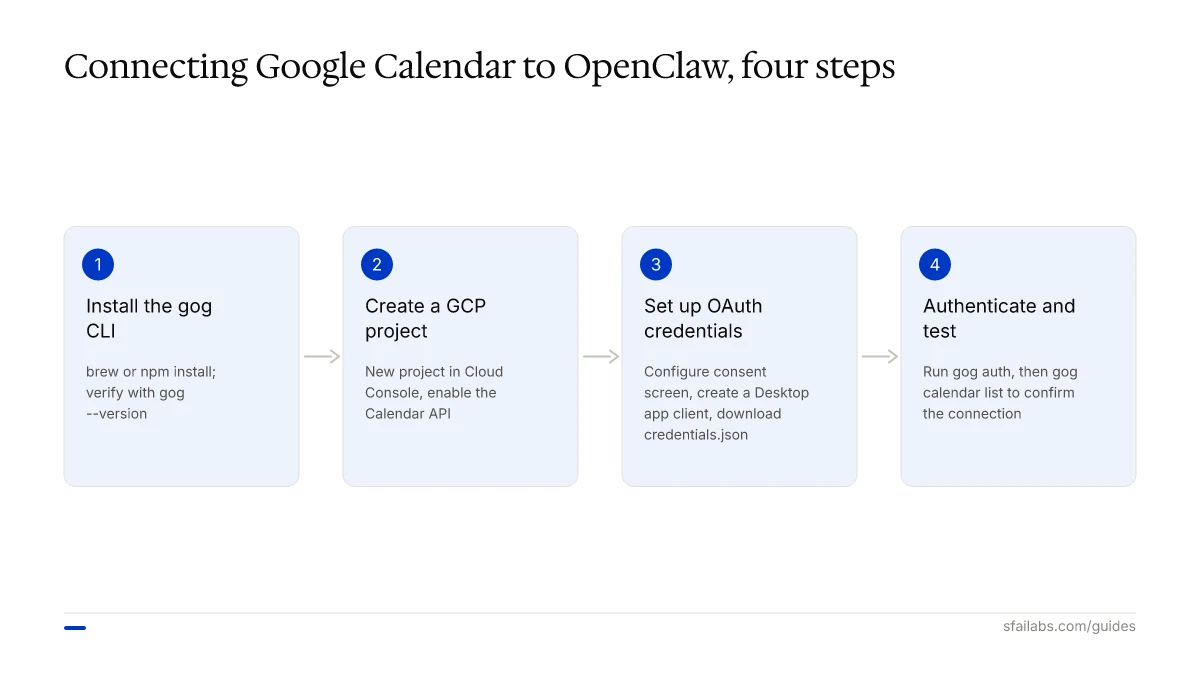
Step 1: Install the gog CLI
The gog CLI handles Google authentication and token management for OpenClaw. It stores OAuth tokens locally on your machine, never in the cloud.
macOS (Homebrew):
brew install gogAny OS (npm):
npm install -g gog-cliVerify the installation:
gog --versionYou should see a version number. If you get “command not found,” ensure your npm global bin directory is on your PATH.
Step 2: Create a Google Cloud Project and Enable the Calendar API
If you already have a Google Cloud project from a Gmail integration, skip to enabling the Calendar API. Otherwise:
- Go to console.cloud.google.com
- Click Select a project in the top bar, then New Project
- Name it something recognizable like “OpenClaw Assistant”
- Click Create
Now enable the Calendar API:
- In the left sidebar, navigate to APIs & Services then Library
- Search for “Google Calendar API”
- Click the result and hit Enable
This step is where most people get confused. Enabling the API does not give OpenClaw access to your calendar. It tells Google that your project is allowed to make Calendar API calls. The actual access comes from the OAuth flow in the next step.
Step 3: Set Up OAuth Credentials
Still in the Google Cloud Console:
- Go to APIs & Services then Credentials
- Click Create Credentials and select OAuth client ID
- If prompted, configure the OAuth consent screen first:
- Choose External (unless you are on Workspace and want internal only)
- Fill in the app name (“OpenClaw Calendar”) and your email
- Add your email as a test user
- Save
- Back on the Credentials page, click Create Credentials then OAuth client ID
- Select Desktop app as the application type
- Download the
credentials.jsonfile
Place the downloaded file in your OpenClaw config directory:
mv ~/Downloads/credentials.json ~/.openclaw/credentials.jsonWhich OAuth Scopes Do You Need?
Google Calendar offers three scope levels:
| Scope | Access | When to Use |
|---|---|---|
calendar.readonly |
Read events only | Agenda summaries, availability checks |
calendar.events |
Read and write events | Creating, updating, deleting events |
calendar |
Full calendar control | Managing calendars themselves, ACLs |
For most users, calendar.events is the right choice. It lets OpenClaw read your schedule and create events without granting control over calendar settings or sharing permissions. Start here and only escalate if you need to create new calendars programmatically.
Step 4: Authenticate and Test
Run the OAuth flow:
gog authYour browser opens a Google sign-in page. Select your account, grant calendar permissions, and close the browser tab when prompted. The gog CLI stores the refresh token locally at ~/.openclaw/tokens/google.json.
Test the connection:
gog calendar listIf you see your upcoming events printed in the terminal, you are connected. OpenClaw automatically detects the authenticated gog skill and can start handling calendar requests.
Send a test message to your agent: “What’s on my calendar today?” If it responds with your schedule, the basic integration is working.
Troubleshooting the OAuth Flow
Three things commonly go wrong here:
- “This app is blocked” error: Your Google Workspace admin has not approved the OAuth app. You need admin approval or must switch to a personal Google account.
- “Access denied” after granting permissions: You likely did not add your email as a test user in the OAuth consent screen. Go back to the consent screen configuration and add it.
gog calendar listreturns empty: Check that you are authenticating with the correct Google account. If you have multiple accounts, the browser may default to the wrong one. Use an incognito window to force account selection.
Writing a Custom Calendar Skill
The built-in gog integration handles basic CRUD operations. But the real value comes from teaching OpenClaw how to use calendar data proactively. That means writing a custom skill.
If you have not worked with OpenClaw skills before, our skills development guide covers the fundamentals. Here we will focus specifically on a calendar skill.
Create the skill directory:
mkdir -p ~/.openclaw/skills/calendar-assistantCreate ~/.openclaw/skills/calendar-assistant/SKILL.md:
---
name: calendar-assistant
description: Proactive calendar management with daily briefings,
  meeting prep, and focus time blocking
triggers:
  - heartbeat
  - "calendar"
  - "schedule"
  - "meeting"
  - "focus time"
tools:
  - gog
---

## Role

You are a proactive scheduling assistant. You manage the user's
Google Calendar through the gog tool, sending briefings, reminders,
and blocking focus time without being asked.

## Heartbeat Behavior

When triggered by heartbeat, check the calendar for the next 4 hours:

1. If a meeting starts within 30 minutes and no reminder was sent
   for it yet, send a meeting prep brief (see Meeting Prep format).
2. If the user has 3+ hours of unscheduled time in the next
   work day and no focus block exists, suggest creating one.
3. If two meetings overlap or are back-to-back with zero gap,
   alert the user about the conflict.

Only message the user if one of these conditions is true.
Otherwise reply HEARTBEAT_OK.

## Meeting Prep Format

When sending a meeting prep reminder, include:
- Meeting title and time
- Attendee names (from the event)
- A one-sentence context note based on the meeting title
- Any attached links or documents from the event description

## Daily Agenda (on request or at 7 AM via cron)

When the user asks for their agenda, or at the scheduled morning
cron time, list today's events in chronological order:
- Time, title, and duration for each event
- Highlight gaps longer than 1 hour as "available"
- End with a one-line summary: "You have N meetings today,
  M hours of open time."

## Focus Time Blocking

When the user says "block focus time" or when the heartbeat
detects a long open gap:
- Find the longest contiguous free slot in the next work day
- Create a calendar event titled "Focus Time (blocked by OpenClaw)"
- Set the event as "busy" so others see you as unavailable
- Confirm to the user: time, duration, and that it's been created
This skill does something none of the marketplace skills handle well: it ties the heartbeat cycle to calendar awareness. Every 30 minutes, your agent checks whether you need a heads-up. The rest of the time, it stays quiet.
Five Automation Recipes
With the calendar connected and a custom skill in place, here are five workflows that make the integration worth the setup time.
Recipe 1: Daily Agenda via Telegram
The simplest high-value automation. Every morning at 7 AM, OpenClaw sends your day’s schedule to Telegram.
Add a cron entry to your OpenClaw config (~/.openclaw/crontab):
0 7 * * * Run the daily-agenda section of the calendar-assistant skillThe cron triggers the skill, which calls gog calendar list --today and formats the response. You wake up to a Telegram message like:
Your day: Tuesday, April 1
- 09:00-09:30 – Team standup (Google Meet)
- 10:00-11:00 – Client review with Ana (Zoom)
- 14:00-15:30 – Deep work (Focus Time)
- 16:00-16:30 – 1:1 with Jordan
4 meetings, 3.5 hours of open time.
No apps to open. No calendar to check. The information comes to you.
Recipe 2: Meeting Prep Reminders
Thirty minutes before each meeting, OpenClaw sends a prep brief to your chat. The heartbeat fires, the skill checks the next 4 hours of events, and if something is coming up, it assembles context.
The prep brief includes attendee names pulled from the event, any links in the event description (Zoom URLs, Google Docs), and a one-liner about what the meeting likely covers based on its title. This is not a complex RAG system. It is the agent reading structured calendar data and presenting it usefully.
The default 30-minute heartbeat interval is generally good enough for meeting reminders. If you need 15-minute precision, adjust your heartbeat interval in ~/.openclaw/config.yaml:
heartbeat:
  intervalMinutes: 15
Be aware this doubles your token usage for heartbeat runs.
Recipe 3: Auto-Block Focus Time
Open afternoons disappear fast when colleagues can see you as “free.” This recipe detects gaps and blocks them preemptively.
The heartbeat check looks at tomorrow’s calendar each evening. If there is a contiguous block of 2+ hours with no events, the skill creates a “Focus Time” event marked as busy. You get a Telegram confirmation:
Blocked 13:00-16:00 tomorrow as Focus Time. You had no meetings in that window.
If you need to give that time back, just tell OpenClaw: “Remove the focus block tomorrow.” The skill deletes the event.
Recipe 4: Conflict Detection
Back-to-back meetings with zero buffer are a recipe for being late to everything. Overlapping meetings are worse. The heartbeat catches both patterns.
When the skill detects two events with less than a 5-minute gap, or any overlap, it sends an alert:
Calendar conflict detected:
- 14:00-15:00 “Design review” overlaps with
- 14:30-15:30 “Sprint planning”
Want me to suggest a reschedule?
This is one of those small things that saves actual time. Calendar apps show the visual overlap, but you have to be looking at them. OpenClaw pushes the alert to your phone.
Recipe 5: Post-Meeting Action Items
After a meeting ends, OpenClaw can prompt you for action items and create follow-up events or reminders.
This recipe uses the heartbeat to detect when a meeting just ended (within the last 30 minutes). The skill sends:
Your meeting “Client review with Ana” ended at 11:00. Any action items I should track?
You reply in Telegram: “Send the proposal by Friday. Schedule a follow-up next week.” OpenClaw creates a reminder for Friday and a calendar event for the following week.
This works because the heartbeat is already checking the calendar. Detecting past events is just a filter direction change.
Handling Timezones and Recurring Events
Two gotchas trip up nearly everyone who integrates calendar APIs.
Timezones: Google Calendar stores events in UTC internally and converts to your calendar’s timezone for display. If your OpenClaw server runs in a different timezone than your calendar (common on VPS deployments), event times will be wrong unless you explicitly set the timezone.
Add to your OpenClaw memory or config:
My timezone is America/New_York. Always use this timezone
when displaying or creating calendar events.
The gog CLI respects the TZ environment variable, so you can also set TZ=America/New_York in your shell profile.
Recurring events: A weekly standup is stored as a single event with an RRULE, not 52 individual events. If your skill queries for “events today” using a naive date match, it will miss recurring events entirely. The Google Calendar API handles this correctly when you use the singleEvents=true parameter, which expands recurring events into individual instances. The gog CLI does this by default, but if you are calling the API directly, do not forget it.
Security Best Practices
Calendar data is sensitive. It reveals where you are, who you meet, and what you are working on. Handle it accordingly.
- Use the minimum scope needed.
calendar.eventsfor most use cases. Only escalate to fullcalendarif you are building something that manages calendar sharing or permissions. - Store tokens securely. The default
~/.openclaw/tokens/location should havechmod 600permissions. On a shared server, this is not optional. - Revoke access if something feels wrong. Go to myaccount.google.com/permissions to see which apps have access and revoke any you do not recognize.
- Do not log event details. If you are debugging, log event IDs and timestamps, not titles and attendee lists. Meeting titles like “Performance Review: Jordan” should never end up in a log file.
- Workspace users: Ask your admin to scope the OAuth app to specific organizational units rather than granting it org-wide.
Frequently Asked Questions
How do I connect Google Calendar to OpenClaw?
Install the gog CLI (npm install -g gog-cli), run gog auth to complete the OAuth flow, and test with gog calendar list. The full process takes under 10 minutes if you already have a Google Cloud project.
What permissions does OpenClaw need for my calendar?
The calendar.events OAuth scope covers most use cases: reading events, creating new ones, and modifying existing ones. You do not need the broader calendar scope unless you are managing calendar-level settings like sharing permissions.
Can OpenClaw work with multiple Google calendars?
Yes. The gog CLI authenticates against your Google account, which gives access to all calendars visible to that account. Your skill can specify which calendar to query or create events on by using the calendar ID. Your primary calendar ID is usually your email address.
Does this work with Google Workspace accounts?
It does, but your Workspace admin may need to approve the OAuth app first. If you see “This app is blocked” during the OAuth flow, your organization requires admin consent. Personal Gmail accounts have no such restriction.
How do I get daily agenda summaries sent to Telegram?
Add a cron entry to your OpenClaw config that triggers the calendar-assistant skill every morning. The skill calls the gog tool to fetch today’s events and sends a formatted summary to your configured messaging channel.
Key Takeaways
- The gog CLI handles Google OAuth locally and gives OpenClaw read-write access to your calendar in under 10 minutes.
- The real value is not the connection itself but what you build on top of it. A custom skill turns static calendar data into proactive scheduling behavior.
- Five practical automations are worth implementing immediately: daily agenda, meeting prep reminders, focus time blocking, conflict detection, and post-meeting action prompts.
- Set your timezone explicitly in OpenClaw’s memory or config to avoid wrong event times on VPS deployments.
- Use the
calendar.eventsscope, not fullcalendaraccess, and treat your OAuth tokens like passwords.
SFAI Labs


