Most teams start with one person running OpenClaw. Then a second colleague wants in. Then the whole department. The default single-user configuration breaks down fast once multiple people share the same agent, because everyone sees everyone else’s conversations, triggers each other’s cron jobs, and burns through a single API key with no way to attribute costs.
This guide walks through the full multi-user setup: isolating sessions, restricting access, organizing skills for team use, managing API keys, and tracking costs per person. If you have not installed OpenClaw yet, start with the setup guide and come back once your agent is running.
Multi-User vs Multi-Agent: Pick the Right Model
Before touching configuration files, you need to decide between two fundamentally different approaches. Getting this wrong means rebuilding later.
Multi-user means multiple people share a single OpenClaw agent. They each get isolated sessions, but the agent has one set of skills, one configuration, and one personality. This works well for teams of 3-10 where everyone needs the same capabilities.
Multi-agent means each person (or department) gets their own OpenClaw instance with separate memory, separate skills, and separate tool access. This is the right choice when your sales team needs CRM integrations while your engineering team needs GitHub and Jira, or when strict data isolation is required.
Here is how to decide:
| Factor | Multi-User (Shared Agent) | Multi-Agent (Separate Instances) |
|---|---|---|
| Team size | 3-10 people | 10+ or mixed departments |
| Skill overlap | Everyone needs similar tools | Different teams, different tools |
| Data sensitivity | Moderate (session isolation) | High (full instance isolation) |
| Setup complexity | 30 minutes | 2-4 hours |
| Monthly cost | One set of API keys | Separate keys per instance |
For most teams under 10 with similar workflows, multi-user is the right starting point. This guide focuses on that approach, with notes on when to graduate to multi-agent.
Session Isolation Configuration
The single most important setting for multi-user deployments is session.dmScope. By default, all DMs funnel into one shared session. That means Alice’s private conversation with the agent bleeds into Bob’s context window.
Set the DM scope to per-channel-peer in your openclaw.json:
{
  "session": {
    "dmScope": "per-channel-peer"
  }
}
Three scope options exist:
main(default): All DMs share one session. Never use this for teams.per-peer: Each user gets an isolated DM session. Good baseline for team setups.per-channel-peer: Isolated by both user and channel. Use this when team members interact with the agent across multiple platforms (Telegram, Discord, Slack). Each user-channel combination gets its own context.
We recommend per-channel-peer for any team deployment. The marginal overhead is negligible, and it prevents unexpected context leakage if someone switches from Slack to Telegram.
Verifying Isolation
After applying the config, test with two team members. Have Alice send a message, then have Bob ask “what was the last message?” in his own DM. If isolation is working, Bob’s agent should have no knowledge of Alice’s conversation.
Channel and DM Access Control
Session isolation keeps conversations separate. Access control decides who gets to talk to the agent at all.
OpenClaw supports four DM policy modes:
pairing: New users must be explicitly approved before they can interact. Best for teams that want gated onboarding.allowlist: Only pre-approved user IDs can message the agent. Best for fixed teams.open: Anyone can message. Not recommended for team deployments.disabled: DMs blocked entirely. Use when the agent should only respond in group channels.
For team setups, allowlist is the safest default. Add your team members’ platform IDs to the allowlist:
{
  "channels": {
    "discord": {
      "dmPolicy": "allowlist",
      "allowFrom": ["user-id-alice", "user-id-bob", "user-id-carol"]
    },
    "slack": {
      "dmPolicy": "allowlist",
      "allowFrom": ["U01ABC123", "U02DEF456"]
    }
  }
}
For group channels, use groupPolicy to restrict which channels the agent monitors and whether it requires an @mention:
{
  "channels": {
    "discord": {
      "groupPolicy": "allowlist",
      "groupAllowFrom": ["channel-id-general", "channel-id-ai-ops"],
      "requireMention": true
    }
  }
}
The requireMention: true setting prevents the agent from responding to every message in a busy channel. Team members explicitly @mention the agent when they need it.
Shared vs Private Skills
This is where most guides stop, but it is where real team management starts. When five people share an agent, some skills should be available to everyone (company knowledge base lookups, meeting scheduling) while others should be restricted (financial reporting, HR data access).
OpenClaw’s skill directory structure supports this naturally:
~/.openclaw/
  skills/                    # Shared skills (all users)
    company-kb/
      SKILL.md
    meeting-scheduler/
      SKILL.md
  agents/
    main/
      agent/
        skills/              # Agent-specific skills
          sales-crm/
            SKILL.md
          finance-reports/
            SKILL.md
Skills in the top-level skills/ directory are available to all agents and therefore all users. Skills nested under a specific agent’s directory are only available to users routed to that agent.
For teams that need finer-grained control, combine this with multi-agent routing. Create a “general” agent with shared skills and a “finance” agent with restricted skills, then route users to the appropriate agent based on their role:
{
  "agents": {
    "list": [
      {
        "id": "general",
        "skills": ["company-kb", "meeting-scheduler", "standup-summary"]
      },
      {
        "id": "finance",
        "skills": ["company-kb", "meeting-scheduler", "finance-reports", "expense-tracking"],
        "tools": {
          "allow": ["group:fs", "group:automation"]
        }
      }
    ]
  }
}
The finance agent inherits shared skills but also gets access to restricted ones. Users who need financial data get routed to the finance agent; everyone else uses general.
For more on building custom skills, see our skills development guide.
API Key Management for Teams
API keys are the biggest security and cost concern in multi-user deployments. There are two patterns, and the right choice depends on team size.
Pattern 1: Shared Organization Key (Teams Under 10)
Everyone uses the same API key. Simple to manage, but you cannot attribute costs per user without additional tracking.
Store the key in your .env file with restricted permissions:
chmod 600 ~/.openclaw/.envRotate the key quarterly or immediately when someone leaves the team.
Pattern 2: Per-User API Keys (Teams Over 10 or Cost-Sensitive)
Each user brings their own API key. This gives you automatic per-user cost attribution through your API provider’s dashboard, and limits blast radius if a key is compromised.
The users-for-openclaw community toolkit supports this pattern. It provisions per-user tokens and channels while letting you choose whether API credentials are shared or per-user.
For teams managing their own API key distribution, the cleanest pattern is environment variable namespacing:
# Per-user key override in agent config
OPENAI_API_KEY_ALICE=sk-...
OPENAI_API_KEY_BOB=sk-...
Combined with agent routing, each user’s requests hit their own key.
Key Security Baseline
Regardless of pattern, enforce these file permissions:
| Path | Permission | Rationale |
|---|---|---|
~/.openclaw/openclaw.json |
600 | Config contains sensitive routing data |
~/.openclaw/.env |
600 | API keys and tokens |
~/.openclaw/credentials/ |
700 | Platform auth credentials |
~/.openclaw/agents/*/sessions/ |
700 | Conversation transcripts |
Anyone with read access to the ~/.openclaw directory can read API keys and session transcripts. On shared servers, use separate OS users or container isolation per OpenClaw instance.
Cost Allocation and Tracking
API costs scale with usage, not headcount. A team of five where one person runs 50 agent tasks per day and four run 2 each will see a wildly uneven cost distribution. Without tracking, the heavy user’s costs get averaged across everyone.
Tracking with Session Logs
OpenClaw writes session transcripts to ~/.openclaw/agents/<agentId>/sessions/. Each session file includes the user identifier and message timestamps. Parse these logs to count messages per user, then cross-reference with your API provider’s usage dashboard for the corresponding time window.
For OpenAI, the Usage page breaks down costs by day. For Anthropic, the Usage dashboard provides similar per-day breakdowns.
Model Routing for Cost Control
The most effective cost control for teams is routing different roles to different models. Not every query needs the most capable model.
{
  "agents": {
    "list": [
      {
        "id": "standard",
        "model": "claude-sonnet-4-6",
        "description": "General team queries"
      },
      {
        "id": "premium",
        "model": "claude-opus-4-6",
        "description": "Complex analysis, leadership queries"
      }
    ]
  }
}
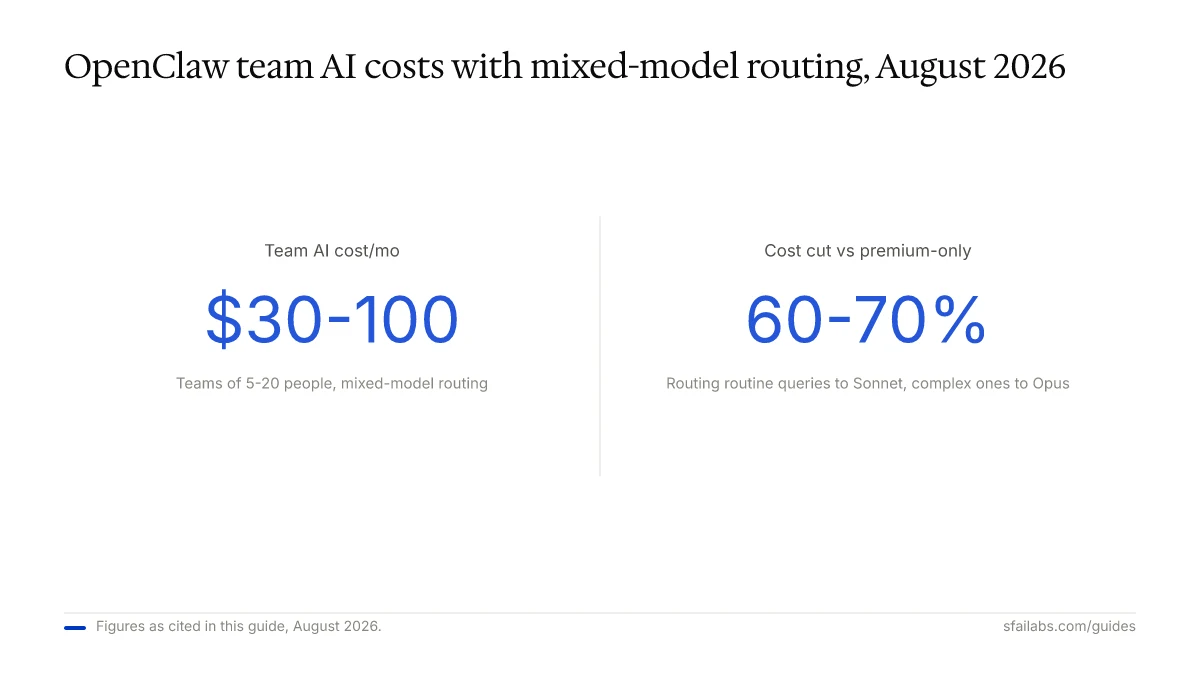
Teams of 5-20 using mixed-model routing typically spend $30-100 per month total on API costs. Using Claude Sonnet 4.6 for routine queries and reserving Claude Opus 4.6 for complex tasks cuts costs by 60-70% compared to running everything on the premium model.
For a deeper cost analysis, see our OpenClaw API costs breakdown.
New Team Member Onboarding Checklist
No competitor guide includes this, so here is the step-by-step onboarding process:
- Add their platform ID to the DM allowlist in
openclaw.jsonfor each channel they will use - Assign their agent: decide whether they use the general agent or a role-specific one
- Provision API key (if using per-user keys): generate a new key from your API provider, add to environment config
- Test session isolation: have them send a test message and verify it does not appear in another user’s session
- Share skill documentation: point them to the shared skills available and any team conventions for invoking them
- Set usage expectations: communicate any model routing (which queries go to which model) and cost guidelines
- Add to monitoring: if you run audit logging, confirm their activity appears in logs
The whole process takes about 15 minutes per person once your base configuration is in place.
Frequently Asked Questions
Should each team member get their own OpenClaw instance?
For teams under 10 with similar workflows, sharing one instance with session isolation is simpler and cheaper. Separate instances make sense when teams need different skills, different model access, or strict data boundaries. A sales team and an engineering team should probably run separate instances; five salespeople should share one.
Can different team members use different AI models?
Yes. Use multi-agent routing to assign models per role. Configure a “standard” agent using Claude Sonnet 4.6 and a “premium” agent using Claude Opus 4.6, then route users based on their Discord role or Slack channel. This is the most effective cost optimization for teams.
How do I prevent team members from reading each other’s conversations?
Set session.dmScope to per-channel-peer in your openclaw.json. This creates isolated contexts per user per channel. Be aware that OpenClaw’s security model is designed for trusted teams, not adversarial multi-tenant isolation. If team members have SSH access to the server, they could theoretically read session files. For strict isolation, use separate OS users or container-based deployment.
How do I track which team member is using the most API credits?
Two approaches: use per-user API keys for automatic attribution through your provider’s dashboard, or parse OpenClaw session logs to count messages per user and correlate with daily API costs. The session log approach works with shared keys but requires a script to aggregate the data.
What happens when someone leaves the team?
Remove their platform ID from all channel allowlists, revoke their per-user API key (if applicable), and delete their session files if the data should not persist. If you used a shared API key, rotate it immediately since the departing person had access.
Can I restrict which tools specific users can access?
Not natively per user within a single agent. The workaround is multi-agent routing: create agents with different tool permissions and route users to the appropriate agent. A “read-only” agent can deny write, edit, and exec tools while still allowing information retrieval.
Is there a user limit for multi-user OpenClaw?
No hard limit exists, but performance degrades with concurrent usage because requests share processing resources. Teams report smooth operation up to about 15-20 concurrent users on a standard VPS. Beyond that, consider load balancing across multiple instances or using the Docker deployment guide for horizontal scaling.
How do shared skills interact with per-user sessions?
Skills execute within the context of whichever session invokes them. A shared skill like “company-kb-lookup” runs the same code for every user but operates within each user’s isolated session. The skill’s output stays in that user’s context and does not leak to other sessions.
Key Takeaways
- Set
session.dmScopetoper-channel-peerbefore adding any team members. This is the foundation everything else builds on. - Use channel allowlists (
dmPolicy: "allowlist") to control who can interact with the agent. Open access is a security risk for teams. - Organize skills into shared (top-level
skills/directory) and restricted (agent-specific directories) to control what each role can access. - Use multi-agent routing to assign different AI models per role. This is the single biggest cost optimization lever for teams.
- Track costs through per-user API keys or session log analysis. Without attribution, the heaviest user’s costs get silently distributed.
If your team has outgrown these patterns and needs enterprise-grade RBAC, audit logging, and compliance controls, take a look at our enterprise deployment guide.
SFAI Labs


