OpenClaw can read, write, and execute files on your machine with the same permissions as your user account. That is both the feature and the risk. Most users either lock everything down and wonder why their agent cannot process a single PDF, or leave everything open and hope nothing goes wrong.
This guide covers the middle ground: how to configure OpenClaw file system access so your agent handles real file operations (PDFs, CSVs, logs, directory cleanup) without giving it the keys to your entire disk. If you have not installed OpenClaw yet, start with our setup guide and come back here once you are running.
How OpenClaw File System Tools Work
OpenClaw exposes four core tools for interacting with your file system. Understanding what each one does determines how you scope permissions.
read loads file contents into the agent’s context window. It is the safest tool because it cannot modify anything. Use it for log analysis, document review, and data extraction.
write creates new files or overwrites existing ones. It is destructive by default. If you point it at an existing file, the old contents are gone.
edit makes targeted changes to existing files. It is less destructive than write because it modifies specific sections rather than replacing the entire file. Still, a bad edit can corrupt a config file.
exec runs shell commands. This is the most powerful and most dangerous tool. It can move files, run scripts, install packages, and delete directories. Every file automation workflow eventually touches exec for operations that read/write/edit cannot handle alone.
The Permission Reality
By default, these tools operate with whatever permissions the OpenClaw process has. If you run OpenClaw as your primary user, the agent can read your SSH keys, write to your Documents folder, and execute rm -rf on your home directory. The workspace directory is the default working directory, not a security boundary.
This is why the OpenClaw security documentation emphasizes that the framework uses a “personal assistant” trust model. It trusts you, the operator, to define the boundaries.
Configuring File Access: The Sandbox
The sandbox is how you enforce boundaries. Without it, OpenClaw tools have unrestricted access. With it, you control exactly what the agent can reach.
Sandbox Modes
OpenClaw supports three sandbox modes, each providing a different level of isolation:
| Mode | What It Does | Best For |
|---|---|---|
"all" |
Sandboxes every tool execution | Production deployments, shared machines |
"non-main" |
Sandboxes sub-agents only, main agent runs unrestricted | Personal use with multi-agent workflows |
"off" |
No sandboxing | Development and testing only |
Configure the sandbox in ~/.openclaw/openclaw.json:
{
  "agents": {
    "defaults": {
      "sandbox": {
        "mode": "all",
        "backend": "docker",
        "scope": "agent",
        "workspaceAccess": "ro"
      }
    }
  }
}
The workspaceAccess field is critical. Set it to "ro" (read-only) when the agent only needs to analyze files. Set it to "rw" (read-write) when it needs to create or modify files. Defaulting to read-only and upgrading per task is the safest approach. The two minutes spent switching to read-write for a specific job save hours of cleanup when an agent overwrites something it should not have touched.
Approval Modes for Exec
The exec tool deserves its own access policy because it can do anything a shell command can. OpenClaw offers three approval strategies:
always requires you to approve every exec command before it runs. Safe, but exhausting for batch operations.
on-miss prompts for approval only when the agent tries a command it has not run before in the session. This is the sweet spot for file automation. You approve the first mv, cp, or find command, and subsequent similar commands run without interruption.
never auto-approves everything. Do not use this unless you are running inside a disposable container.
Set approval mode in your agent configuration:
{
  "agents": {
    "defaults": {
      "exec": {
        "approval": "on-miss"
      }
    }
  }
}
Directory Policies: Least-Privilege Paths
The biggest security win is restricting which directories OpenClaw can access. Instead of giving the agent your entire file system, scope it to the folders it needs.
Recommended Directory Scoping
| Use Case | Allowed Directories | Access Level |
|---|---|---|
| Invoice processing | ~/Documents/Invoices, ~/Downloads |
Read-write |
| Log analysis | /var/log, ~/projects/*/logs |
Read-only |
| File organization | ~/Downloads, ~/Documents |
Read-write + exec |
| Code review | ~/projects |
Read-only |
| Backup management | ~/Backups, external mount points |
Read-write |
To enforce directory scoping, configure your AGENTS.md with explicit path rules. If you are building reusable file operations, our OpenClaw skills development guide covers how to package these into repeatable workflows.
## File Access Rules

You may ONLY access files in these directories:
- ~/Documents/Invoices (read and write)
- ~/Downloads (read and write)
- ~/Desktop/Reports (read only)

Do NOT access:
- ~/.ssh
- ~/.openclaw/credentials
- ~/Library
- Any dotfiles or hidden directories outside the workspace
This is not a hard technical boundary. It is an instruction the language model follows. For hard boundaries, combine it with Docker sandboxing where the container only mounts the allowed directories.
Hard Boundaries with Docker Mounts
For enforced restrictions, run OpenClaw in Docker and mount only the directories you want exposed. If you have not set up Docker yet, our OpenClaw Docker deployment guide walks through the full container setup.
docker run -d \
  --read-only \
  --cap-drop=ALL \
  --security-opt=no-new-privileges \
  -v ~/Documents/Invoices:/data/invoices:rw \
  -v ~/Downloads:/data/downloads:ro \
  openclaw
The container cannot see anything you did not explicitly mount. This is the strongest file access control available.
Practical File Operations
With permissions configured, here are the file operations that make OpenClaw file automation worth setting up.
PDF Processing
Tell your agent to extract data from PDFs in a scoped directory:
Read every PDF in ~/Documents/Invoices.
Extract the vendor name, invoice number, date, and total amount from each.
Write the results to ~/Documents/Invoices/summary.csv.
Move each processed PDF into a subfolder named after the vendor.
This workflow uses read (to parse PDFs), write (to create the CSV), and exec (to move files into subfolders). OpenClaw handles text-based PDFs well. Scanned PDFs with no text layer require OCR preprocessing, which the agent can orchestrate using tesseract if installed.
CSV Parsing and Transformation
Read ~/Downloads/sales-report.csv.
Remove duplicate rows based on the order-id column.
Calculate total revenue by region.
Write the cleaned data to ~/Documents/Reports/sales-cleaned.csv.
Write a summary with revenue-by-region to ~/Documents/Reports/revenue-summary.md.
For large CSVs (over 50,000 rows), the agent will typically use exec to run a Python or Node script rather than loading the entire file into the context window. This is more efficient and avoids hitting token limits.
Log Analysis
Read the last 500 lines of /var/log/app/error.log.
Group errors by type and count occurrences.
Flag any errors that appeared more than 10 times in the last hour.
Write a summary to ~/Documents/Reports/error-digest.md.
Log analysis is the safest file automation use case because it only requires read access. Set workspaceAccess: "ro" and the agent cannot modify the logs it is analyzing.
File Organization
Scan ~/Downloads for files older than 30 days.
Sort them into subfolders by file type: PDFs, images, spreadsheets, archives, other.
Delete nothing. Move only.
Create a manifest listing what was moved and where.
The “delete nothing” instruction matters. Users report that agents interpret “clean up” as “delete old files” when given ambiguous instructions. In one documented case, a single run removed 400+ files from a Downloads folder before anyone noticed. Be explicit about what operations are allowed, and always include a “create a manifest” step so you have a paper trail.
Security Best Practices
Unrestricted file system access is a common vector in OpenClaw security incidents. These practices reduce the blast radius.
Run the Security Audit
OpenClaw includes a built-in audit tool:
openclaw security auditThis checks file permissions on ~/.openclaw/ (should be mode 700), credential file permissions (should be mode 600), sandbox configuration, and approval mode settings. Run it before enabling any file automation workflow.
Principle of Least Privilege
Grant the minimum access required for each task:
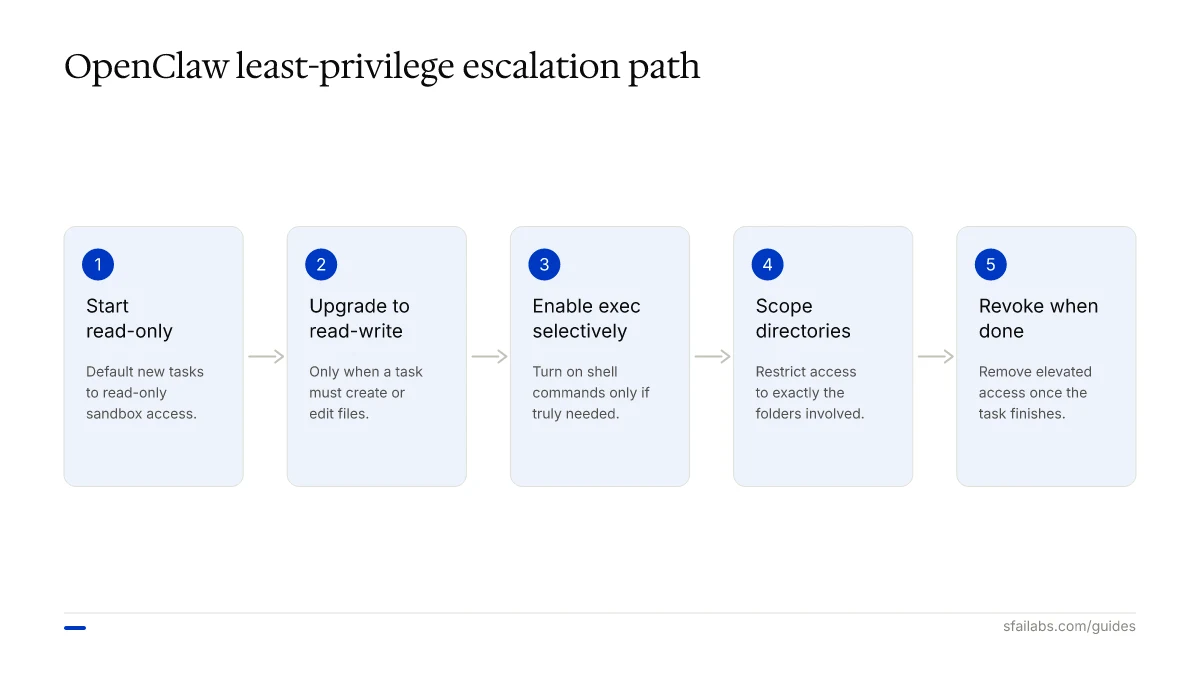
- Start with read-only sandbox access
- Upgrade to read-write only when the task requires file creation
- Enable exec only for operations that need shell commands
- Scope directories to exactly the folders involved
- Revoke elevated access when the task is done
Separate Credentials from the Workspace
Never store API keys, tokens, or passwords in your workspace directory. OpenClaw stores credentials in ~/.openclaw/credentials/, which should be excluded from agent access. If your agent needs API access, configure it through environment variables or the OpenClaw secrets manager, not through files the agent can read.
Monitor Session Logs
OpenClaw logs every tool invocation to ~/.openclaw/agents/<agentId>/sessions/*.jsonl. Review these logs periodically to verify the agent is only accessing expected directories. Any process with filesystem access can read these logs, so protect the .openclaw directory with appropriate permissions. For structured log analysis, see our guide on OpenClaw memory configuration, which covers how the agent stores and retrieves session data.
Use Quarantine Instead of Deletion
When automating file cleanup, instruct the agent to move files to a quarantine directory rather than deleting them:
Move duplicates to ~/Documents/Quarantine/ instead of deleting.
Keep files in quarantine for 30 days before manual review.
This gives you a recovery window if the agent misidentifies a file.
Troubleshooting File Access Issues
Agent Lost Filesystem Tools
This is the most reported issue (see GitHub #34810). The agent suddenly claims it cannot read or write files.
Common causes:
- Context window compaction dropped the tool definitions
- Sandbox configuration changed mid-session
- Docker container restarted and lost mount points
Fix: Restart the session. If the problem persists, verify your sandbox configuration in ~/.openclaw/openclaw.json and check that Docker mounts are intact with docker inspect.
Permission Denied Errors
The agent reports it cannot access a file or directory.
Check:
- File permissions match the OpenClaw process user (
ls -la) - Sandbox
workspaceAccessis set to"rw"if write access is needed - Docker volume mounts include the target directory
- AGENTS.md file access rules include the path
Large Files Cause Timeout
Files over 10MB can cause the agent to stall when loaded directly into the context window.
Fix: Instruct the agent to use exec with command-line tools (head, tail, grep, awk) to process large files in chunks rather than loading them whole.
Frequently Asked Questions
Can OpenClaw access files outside its workspace directory?
Yes. The workspace is the default working directory, not a hard access boundary. Without sandboxing, OpenClaw can reach any file your user account can access. Enable the sandbox and configure Docker mounts to enforce real boundaries.
What happens if OpenClaw deletes a file by accident?
There is no built-in undo. If the agent runs rm or overwrites a file with write, the original content is gone unless you have backups. This is why we recommend quarantine-based workflows and read-only sandbox defaults. Time Machine or similar backup tools provide an additional safety net.
How do I let OpenClaw process files on a schedule?
Combine file system access with heartbeat scheduling. Configure a heartbeat that triggers your file processing instructions at set intervals. For example, a nightly heartbeat can scan Downloads, organize files, and generate a report.
Is it safe to run OpenClaw with full file system access on my main machine?
Not recommended. Security researchers have documented real vulnerabilities including CVE-2026-25253 (WebSocket token extraction) and over 21,000 exposed OpenClaw instances. Run it in a Docker container or on a dedicated VM. If you must run it locally, enable sandboxing with mode: "all" and read-only workspace access at minimum.
How do I give OpenClaw access to network drives or external storage?
Mount the network drive or external storage to a local path, then include that path in your Docker volume mounts or AGENTS.md access rules. OpenClaw treats mounted paths the same as local directories. Ensure the mount is stable before starting automated workflows to avoid partial-processing errors.
What is the difference between workspace access and sandbox mode?
Sandbox mode ("all", "non-main", "off") determines whether tools run inside a container. Workspace access ("ro", "rw") determines whether the agent can write to the workspace directory within the sandbox. You can have a sandbox enabled with read-write workspace access, or sandbox enabled with read-only workspace access. They are independent settings.
Can I restrict file access per agent in a multi-agent setup?
Not natively. In multi-agent configurations, all agents run as the same OS user and share filesystem access through the same tools. The workaround is running each agent in its own Docker container with different volume mounts. There is an open feature request for per-agent path allowlists.
Key Takeaways
- OpenClaw file system tools (read, write, edit, exec) operate with your user’s full permissions by default. Configure the sandbox before automating file operations.
- Use
workspaceAccess: "ro"as the default and upgrade to"rw"only when a specific task requires it. Set exec approval to"on-miss"for a practical balance between safety and usability. - Scope directory access to only the folders each task needs. Combine AGENTS.md instructions with Docker volume mounts for hard boundaries.
- For PDF processing, CSV parsing, and log analysis, explicit instructions about what the agent may and may not do prevent accidental data loss. Never assume the agent interprets “clean up” the way you do.
- Run
openclaw security auditbefore enabling file automation. Review session logs in~/.openclaw/agents/to verify the agent stays within expected paths.
SFAI Labs


