
Every Slack integration starts with a bot token. Whether you are building a notification bot, a slash-command tool, or connecting an AI agent like Openclaw to your workspace, the first step is always the same: create a Slack app and grab the xoxb- token it generates.
The process itself takes about five minutes. The part that trips people up is everything around it: which token type do you need, which scopes should you request, and should you use Socket Mode or a public HTTP endpoint? This guide answers all of that.
Slack Token Types: Bot, User, and App-Level
Before creating anything, understand the three token types you will encounter. Picking the wrong one wastes time because you cannot convert between them after the fact.
Bot Token (xoxb-)
This is the token most developers need. It represents your app’s identity in the workspace, independent of any user account.
- Posts messages, listens to events, responds to slash commands
- Survives when the person who installed it leaves the company
- Requires explicit channel invitations (the bot must be added to each channel)
- Scopes are defined under “Bot Token Scopes” in the app dashboard
Use a bot token when your integration acts as its own entity rather than impersonating a user.
User Token (xoxp-)
A user token acts on behalf of a specific workspace member. Actions taken with it appear as that user.
- Access to private channels and DMs the user belongs to
- Constrained by that user’s permissions
- Breaks if the user is deactivated or leaves
Use a user token only when your integration genuinely needs to act as a person, such as setting reminders or reading a user’s own messages. For most bot use cases, you do not need this.
App-Level Token (xapp-)
An app-level token is used exclusively for Socket Mode. It does not post messages or read channels. Its only purpose is to establish the WebSocket connection between your app and Slack.
- Requires the
connections:writescope - Generated manually in the “Basic Information” section of your app settings
- One per app, not per workspace installation
You need this only if you choose Socket Mode over HTTP webhooks. More on that decision below.
Create a Slack App
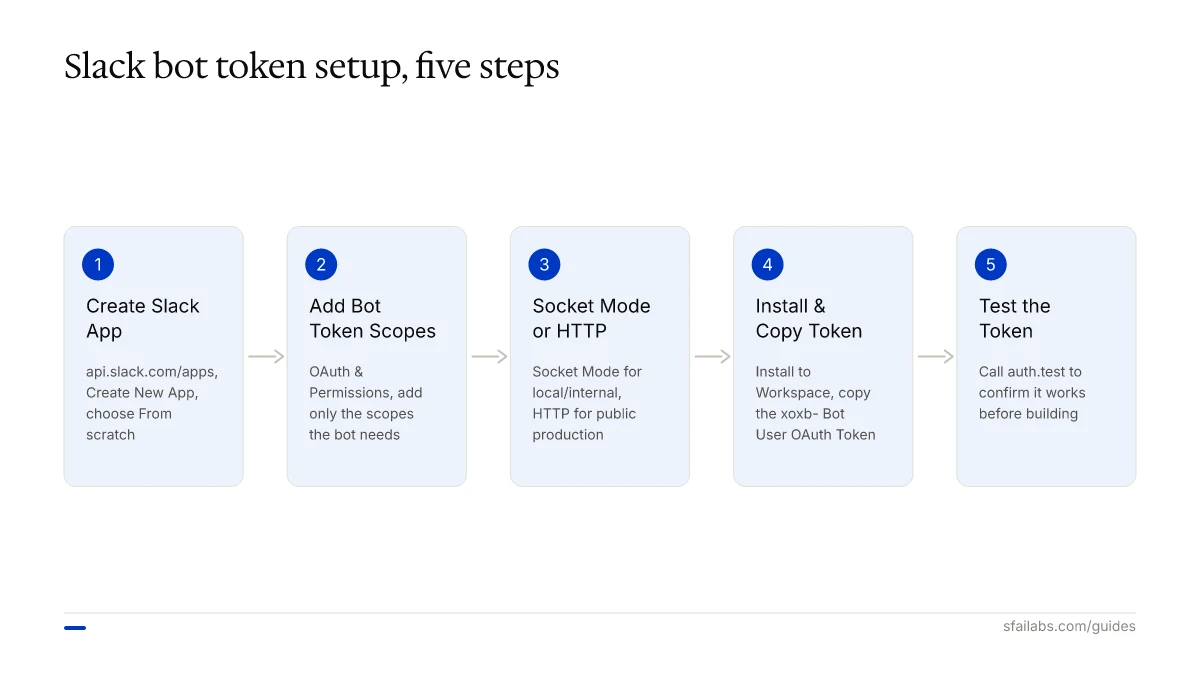
Go to api.slack.com/apps and click Create New App. Choose From scratch (the manifest option is for advanced users who already have a configuration file).
Name your app something descriptive. “My Bot” will cause confusion in three months. Use something like “Deploy Notifier” or “Support Triage Bot” or “Openclaw Agent” so the purpose is obvious when a workspace admin sees it in the app list.
Select your development workspace from the dropdown. You can distribute to other workspaces later if needed, but start with a workspace you control.
Add Bot Token Scopes
Navigate to OAuth & Permissions in the left sidebar. Scroll down to the Scopes section. Under Bot Token Scopes, click Add an OAuth Scope.
Which scopes you add depends on what your bot does. Here are practical bundles for common use cases:
Notification bot (sends messages, nothing else):
chat:write— post messages to channels the bot is invited to
Channel listener (reads messages and responds):
chat:write— post responseschannels:read— list public channelschannels:history— read message history in public channels
Full workspace bot (manages channels, reads users, responds to events):
chat:write— post messageschannels:read— list public channelschannels:history— read public channel historygroups:read— list private channels the bot is inusers:read— access user profile informationcommands— register and respond to slash commands
AI agent integration (for connecting tools like Openclaw):
chat:write— post messageschannels:read— list channelschannels:history— read channel historyapp_mentions:read— detect when the bot is mentionedim:history— read direct messages to the botim:read— access DM metadata
Start with the minimum scopes you need. You can add more later, though adding scopes requires reinstalling the app to the workspace. Removing scopes also requires a reinstall, so think through your needs before the first install.
Socket Mode vs HTTP: Which to Choose
This is the decision most guides skip entirely. Your Slack app needs a way to receive events from Slack (messages, mentions, slash commands). Two options exist.
Socket Mode
Your app opens a WebSocket connection to Slack. No public URL required.
Choose Socket Mode when:
- You are running locally during development
- Your app runs behind a firewall or NAT without a public IP
- You want the simplest possible setup with no infrastructure concerns
- You are building an internal tool that does not need to handle thousands of events per second
Setup: In your app settings, go to Socket Mode in the sidebar and toggle it on. Then generate an app-level token (xapp-) from the Basic Information page with the connections:write scope.
HTTP Webhooks
Slack sends HTTP POST requests to a public URL you provide. This is the traditional approach.
Choose HTTP when:
- You are deploying to a cloud server with a public endpoint
- Your app needs to handle high event volume at scale
- You want to use Slack’s Events API with a standard web server
- You are distributing your app to multiple workspaces via the Slack App Directory
Setup: In Event Subscriptions, provide your Request URL (must be HTTPS and respond to Slack’s URL verification challenge). Subscribe to the events your bot needs.
For most developers building internal tools or AI integrations, Socket Mode is the right choice. It eliminates the need for ngrok tunnels during development and does not require configuring a public endpoint. We use Socket Mode for Openclaw’s Slack integration because it simplifies deployment on local machines and VPS instances that may not have dedicated domains.
Install to Workspace and Copy Your Token
Once scopes are configured and you have chosen your connection method:
- Go to OAuth & Permissions in the sidebar
- Click Install to Workspace at the top of the page
- Review the permissions Slack shows you and click Allow
- Copy the Bot User OAuth Token that appears (it starts with
xoxb-)
Store this token in an environment variable. Never hardcode it in your source code.
export SLACK_BOT_TOKEN=xoxb-your-token-hereIf you enabled Socket Mode, also copy the app-level token from Basic Information:
export SLACK_APP_TOKEN=xapp-your-app-token-hereThat is it. You now have a working Slack bot token. The next step is using it in your application.
Test Your Token
Before building anything elaborate, verify the token works with a simple API call. Open a terminal and run:
curl -X POST https://slack.com/api/auth.test \
  -H "Authorization: Bearer $SLACK_BOT_TOKEN" \
  -H "Content-Type: application/json"
A successful response returns "ok": true along with your bot’s user ID and workspace information. If you get "ok": false, check the error field. Common issues:
invalid_auth— the token is wrong or was revokedtoken_revoked— an admin removed the app from the workspacemissing_scope— you tried an API method that requires a scope you did not add
Security Best Practices
Bot tokens have broad access to your workspace. Treat them like passwords.
Store tokens in environment variables or a secrets manager. AWS Secrets Manager, Google Secret Manager, HashiCorp Vault, or even a .env file that is gitignored. Never commit tokens to version control. GitHub actively scans for exposed Slack tokens and will flag them.
Request only the scopes you need. Every scope you add is attack surface. A compromised token with chat:write can spam your channels. A compromised token with admin scopes can destroy your workspace.
Verify incoming requests from Slack. If you are using HTTP webhooks, validate the x-slack-signature header using your app’s Signing Secret. This prevents forged requests from hitting your endpoints.
Know what revokes a token. Bot tokens do not expire on a timer, but they get revoked when: an admin removes the app from the workspace, someone manually revokes it from the app settings, or the app’s scopes change (requiring a reinstall). Plan for token revocation in your error handling.
Connect Your Token to Openclaw
If you are building a Slack bot to connect with an AI agent, the token you just created is exactly what Openclaw needs. Our guide to connecting Slack to Openclaw walks through the full integration: passing the bot token and app token into Openclaw’s configuration, subscribing to the right events, and building team workflows that make the bot useful beyond just echoing messages.
The token setup in this guide is the foundation. The Openclaw integration is where it becomes a working AI assistant that your team actually uses.
Frequently Asked Questions
What is the difference between a Slack bot token and a user token?
A bot token (xoxb-) represents your app’s own identity. A user token (xoxp-) acts on behalf of a specific workspace member. Bot tokens survive when users leave the company and are the right choice for most integrations. User tokens are only necessary when your app needs to perform actions as a specific person, like accessing their private channels.
Do Slack bot tokens expire?
Bot tokens do not have a built-in expiration date. They remain valid until explicitly revoked. Revocation happens when an admin removes the app, someone revokes it from app settings, or the app’s scopes are modified (which requires reinstallation and generates a new token).
Do I need OAuth 2.0 for a simple internal Slack bot?
No. If your bot is only used in one workspace, click “Install to Workspace” in the app settings and copy the token. OAuth 2.0 is required only when distributing your app to multiple workspaces, because each workspace installation needs its own token exchange.
What scopes should I request for my Slack bot?
Start with the minimum. A bot that only sends messages needs chat:write. A bot that reads and responds to messages needs chat:write, channels:read, and channels:history. Add scopes incrementally. Each new scope requires reinstalling the app to the workspace.
How do I find my Slack bot token after installation?
Go to api.slack.com/apps, select your app, navigate to OAuth & Permissions in the sidebar. The Bot User OAuth Token is displayed at the top of the page. It starts with xoxb-.
Can the same bot token work across multiple Slack workspaces?
No. Each workspace installation generates a unique token. If your app is installed in three workspaces, you will have three different xoxb- tokens. Store them mapped to their workspace IDs in your database.
What is Socket Mode and when should I use it?
Socket Mode lets your app receive events from Slack over a WebSocket connection instead of HTTP webhooks. Use it when you do not have a public URL, when developing locally, or when running behind a firewall. It requires an app-level token (xapp-) with the connections:write scope.
What happens if my Slack bot token is exposed on GitHub?
Revoke it immediately from your app settings at api.slack.com/apps or call the auth.revoke API endpoint. GitHub scans for Slack tokens automatically and may notify you. After revoking, reinstall the app to generate a new token and update your environment variables.
Key Takeaways
- Bot tokens (
xoxb-) are the right choice for most Slack integrations because they represent the app, not a user - Create your Slack app at api.slack.com/apps, add scopes under OAuth & Permissions, install to workspace, copy the token
- Choose Socket Mode for local development and internal tools; choose HTTP for production apps with public endpoints
- Start with minimum scopes and add more as needed, since each change requires reinstalling the app
- Store tokens in environment variables, never in source code
- Bot tokens do not expire but can be revoked, so build error handling for
token_revokedresponses
SFAI Labs


